
Downloading Papers from Feedback Studio
You can download individual submitted papers that are open in Feedback Studio, for example if you need to mark the work offline, or archive the original or annotated file with comments and grades attached.
To do this, click the grey Download button beneath the red similarity tools button panel.

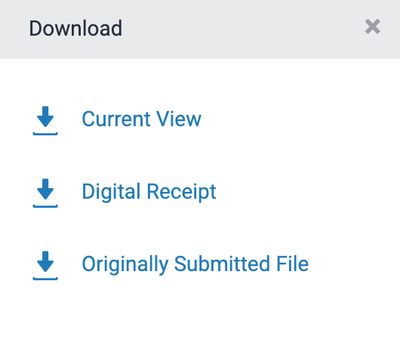
You can download the Originally Submitted File, (the file that the student originally uploaded) which will maintain all original formatting and transitions if it is a presentation, or you can download the Current View. This will retain all feedback and grades and will download in PDF format. You can also download the original submission Digital Receipt which records the time and date of submission.
Bulk Downloads
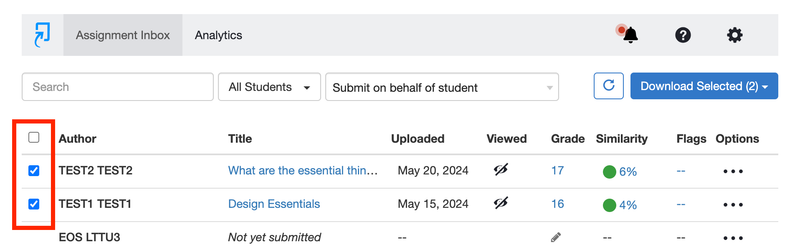
You can also download multiple files at once from the Assignment Inbox. To do this, use the tick box next to the students' name in the Author field to select the assignments you need:
Click on the Download Selected button and choose the format you want to download.
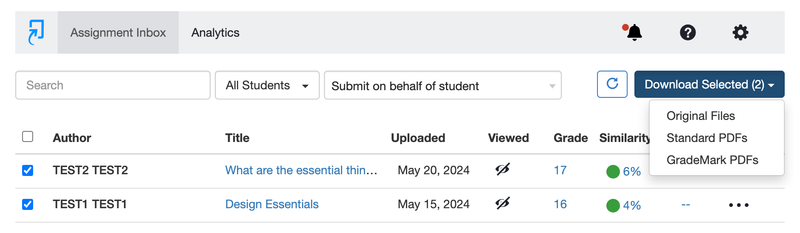
- Original Files downloads the submitted file. This is usually a Word document or PowerPoint presentation, and can be useful when the conversion to online PDF removes formatting and transitions
- Standard PDFs downloads the converted PDF version of the original file
- GradeMark PDFs downloads a PDF version of the paper, but contains the grade and all feedback is appended to the document
Once you have selected the download format you need, your request will be processed and you will be prompted to download a .zip file of all of the papers.

Once downloaded, you can unzip the file and access the files offline.