The Originality Report
When an assignment is submitted, Turnitin generates an Originality Report by checking the submitted text against:
- Previously submitted papers
- Internet sources
- Journals and periodicals
- Books
Any matching text will be highlighted depending on the criteria the assignment was set up with. All matching text for the entire assignment is calculated against the total text in the assignment that has not been matched, providing a percentage score.
A 100% match means that Turnitin has matched all of the text, and that none of the content is original. A 0% match means that the submission is completely original.
* Turnitin does not detect plagiarism - it can only provide a numerical percentage score of how much text in the submitted work also matches other sources. There is no threshold that must be met to avoid automatically triggering academic misconduct procedures.
High percentage matches can mean that a submission contains plagiarised text, or it could be that an assignment has not been referenced correctly. It could also mean that the student has submitted their own paper legitimately to Turnitin previously - for example, for formative purposes. It is up to the tutor to decide how to interpret each originality report for each assignment.
You can access the originality report tools in Feedback Studio using the red set of buttons on an open paper.
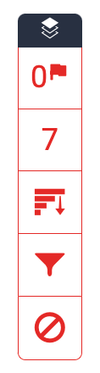
The red Similarity Tools buttons enable you to view an originality score for the paper and filter and exclude matches.
You will be able to see how much of the paper matches with other previously submitted work, where it has come from and you can even update the originality settings to run a new report without the student needing to resubmit.
Match Overview

The Match Overview gives the overall match as a percentage of the entire paper. Click on any of the match overview entries to see where in the paper the match has occurred, as well as where the match has come from (another student paper, internet source or article). Click on the chevron to the right of each item to further drill down into the Match Breakdown.

All Sources

You can exclude matches that you know should be ignored (for example, if a student has submitted the same paper into another assessment in error, or has submitted the document formatively in part, or as a whole).
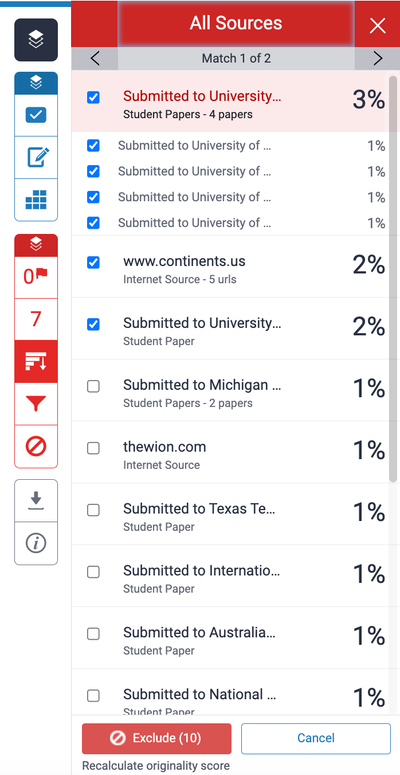
To do this, click on the All Sources button and then click the Exclude Sources button.

Tick each source you wish to exclude from the originality report. Finally, click the Exclude button to recalculate the originality score for the current submission. The new originality score will then also be available to the student to view.
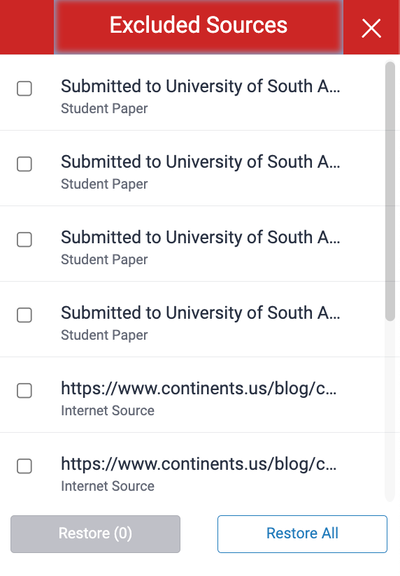
To restore any sources you have excluded and reset the originality score, click on the Excluded Sources button:

Tick any sources you want to re-add, and click the Restore button. If you wish to restore the report to its original condition, click the Restore All button.
Filters and Settings

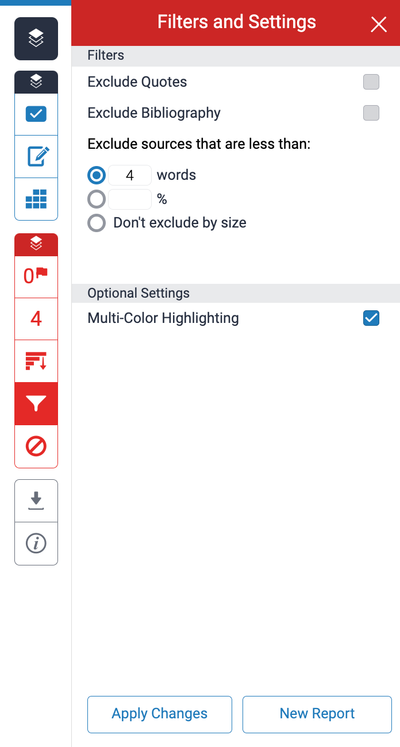
It is possible to adjust the assignment settings after submission by clicking on the Filter icon: This allows you to exclude the bibliography, to change thresholds for matching sources, and adjust the highlighting colours. You can then tailor the originality report to show you only the matches you need to see for an individual submission, without having to amend the settings for the entire class.
To do this, choose your options and click the Apply Changes button. The New Report option enables you to refresh the originality report for the submitted work, without having to ask the student to resubmit the paper again themselves. You may wish to use the New Report option if you suspect that matching content may have been added to the Turnitin system after the paper was originally submitted. Clicking the New Report button will refresh the originality report, and will check against everything in the Turnitin database at the current time.