
Exporting a Rubric
To share a rubric with another user, you can export a rubric from your Turnitin account for them to use. To do this, open the assignment and click on the assignment Settings cog icon:

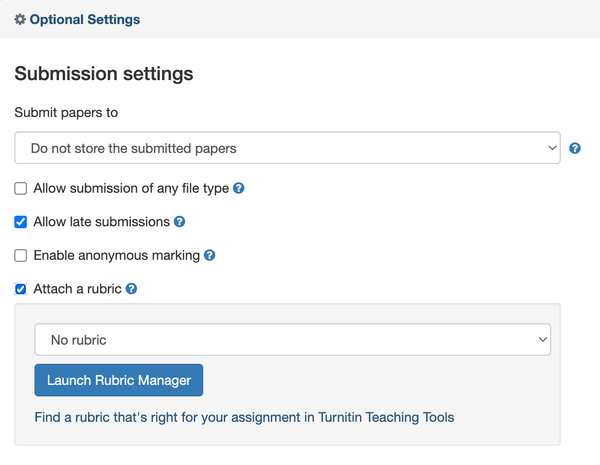
Access the Optional Settings, and click on the blue Launch Rubric Manager button.
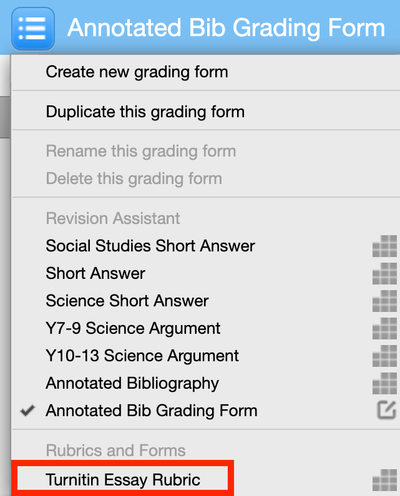
Click the Rubrics Menu button at the top left of the screen and select the rubric you wish to share. The chosen rubric will open for you to view.
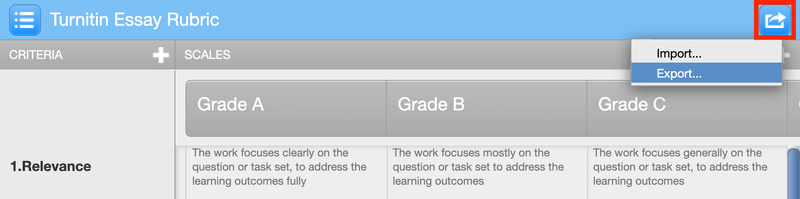
Click on the Import / Export button at the top right of the screen and select Export:
The file will automatically download to your computer. If you are using default settings, this will be saved to your Downloads folder. The file you have downloaded is now ready to be shared via email or OneDrive with another user to import into their own Turnitin account.
* Do not attempt to open the downloaded file. It is a proprietary format and is not designed to be opened with Microsoft Word or any other text editing packages!
Importing a Rubric
Open the assignment where you wish to use the rubric and click on the assignment Settings cog icon: Access the Optional Settings, and click on the blue Launch Rubric Manager button.
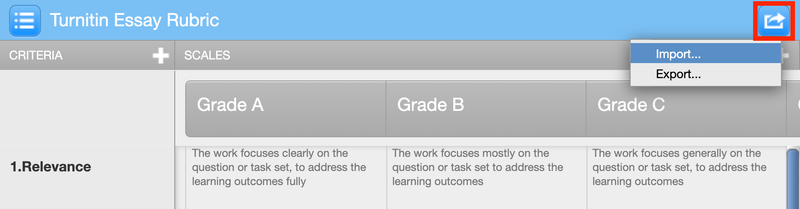
Click on the Import / Export button at the top right of the screen and select Import:
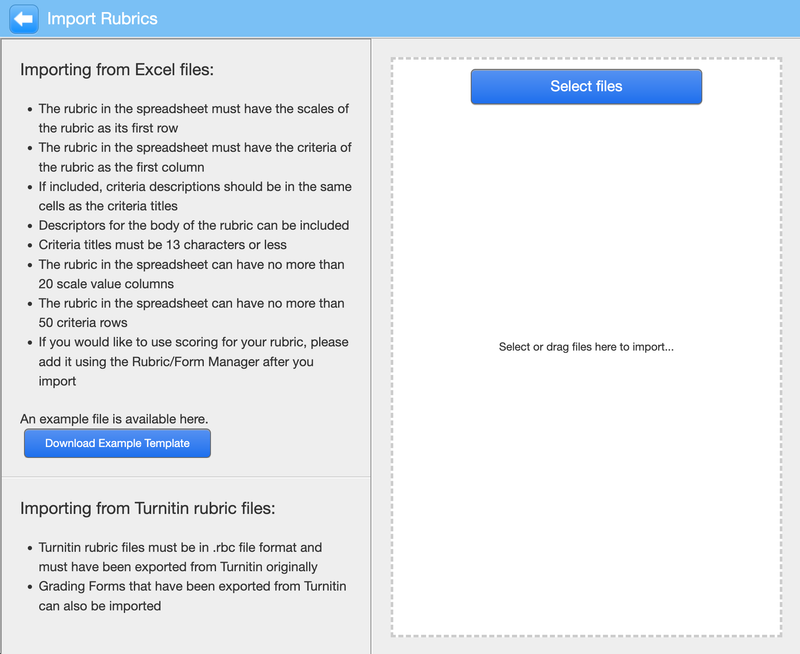
Select the rubric file from where it was saved by browsing to it by clicking on the blue Select files button, or by dragging it into the white import box:
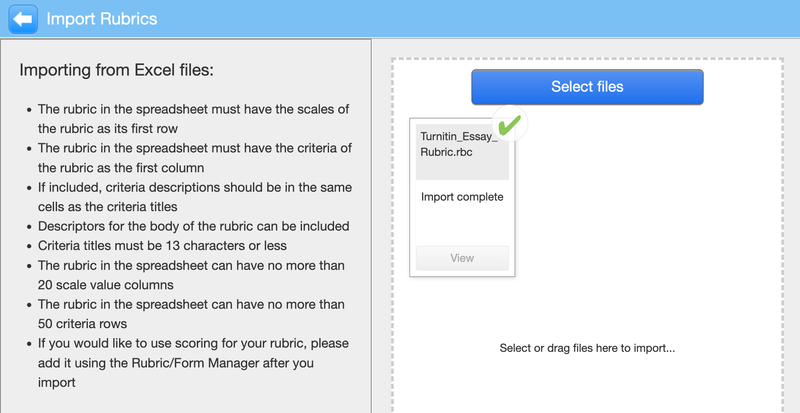
Once the rubric has successfully been added to your account, you will see a green tick icon next to the file you have added, along with an Import complete confirmation.
Click the Back button to return to the Rubric Manager.

You can now access the rubric from your Turnitin Rubric Manager, and are free to amend it or use it in any Turnitin assignment.
* When returning to Blackboard, you may need to refresh the page for the new rubric to appear in your rubrics list.