Checking or Changing the Settings
Once initially set up, you can amend only some settings from the Assignment Inbox, such as the Max Grade and most of the optional settings. However, some Turnitin settings can no longer be managed from the assignment itself but must be edited from Blackboard. These options are greyed out in Turnitin and are not accessible. This includes the assignment Start Date, Due Date, Title and Instructions.
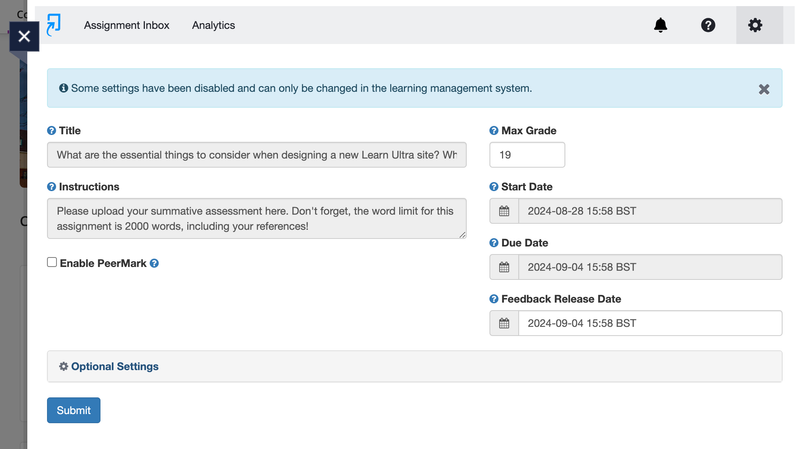
Once any submissions have been uploaded, settings such as Enable anonymous marking or Exclude assignment template cannot be changed. Changing a rubric once marking has already begun will erase all previous feedback that has already been added.
Making Changes
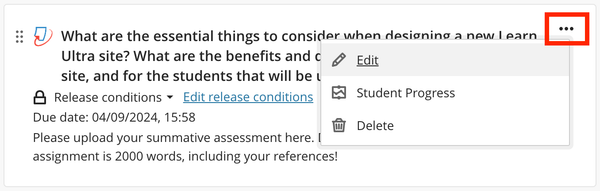
To change the Due Date, Title or Instructions, click on the Options button next to the Turnitin assignment and choose Edit:
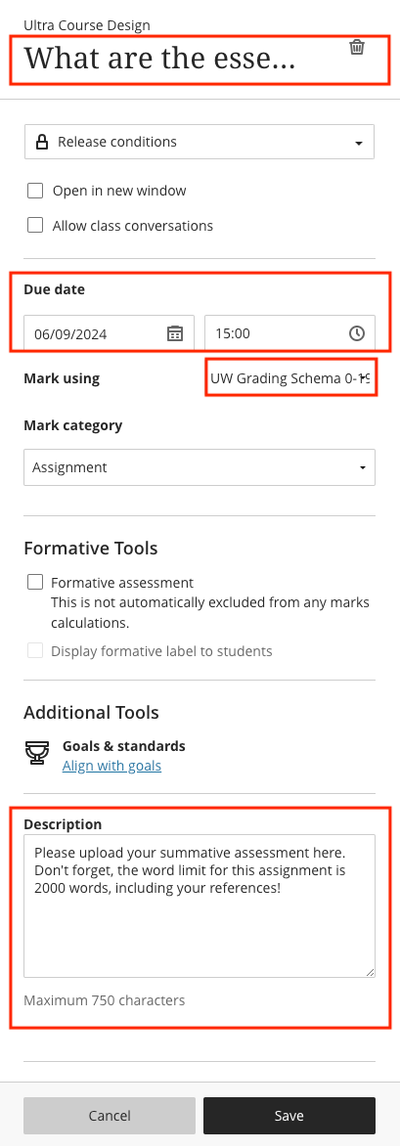
In the panel that opens, you can now update the assignment Title, Due Date, Grading Schema, and assignment Description. Click the Save button to confirm your changes:
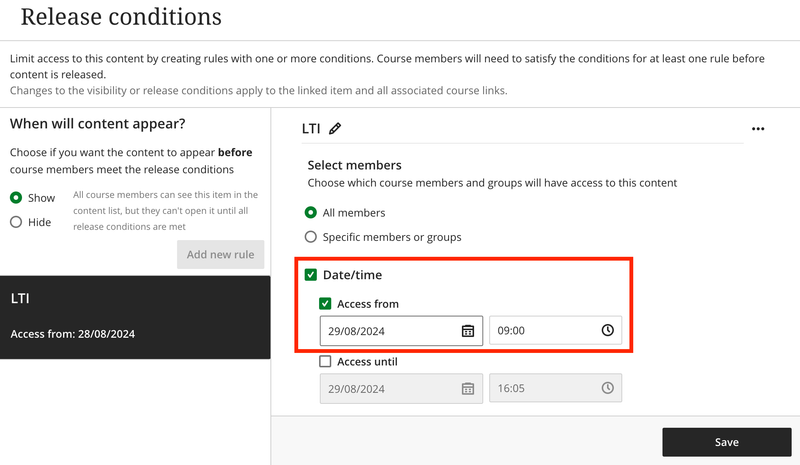
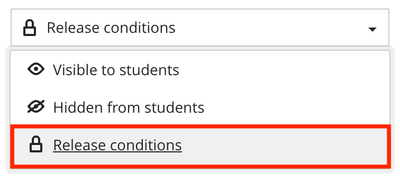
To edit the submission start date, click on the Release conditions dropdown at the top of the panel:
Or click on the link beneath the assignment title on the content page:
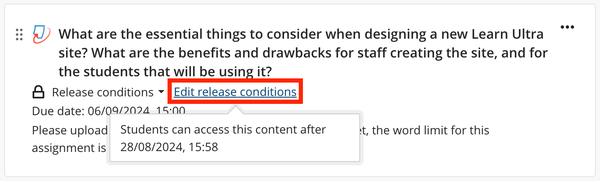
Choose the new start date using the date and time picker. Click the Save button to save the changes.