
Submitting on behalf of a Student
If a student is unable to use a submission point, they may send a copy of their work to the course tutor for submission on their behalf. When submitted this way, the Assignment Inbox will record that it has been submitted by the student in question and also record the date and time it was submitted as usual. If submitted after the deadline, the paper will still be highlighted as late. This feature should only be used in exceptional circumstances where it has been confirmed that the student is unable to submit themselves. To submit on behalf of a student in your class:
From the Assignment Inbox, click on the Submit on behalf of student box:
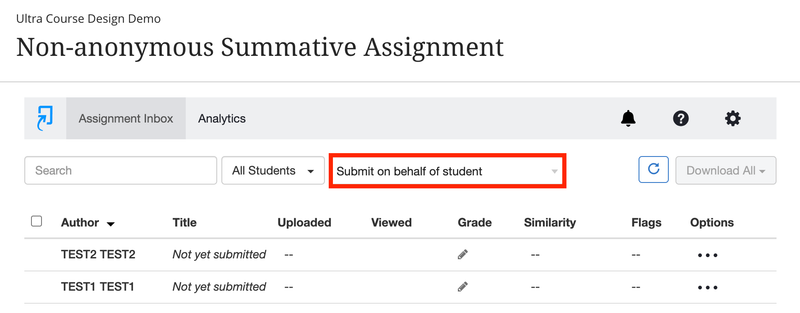
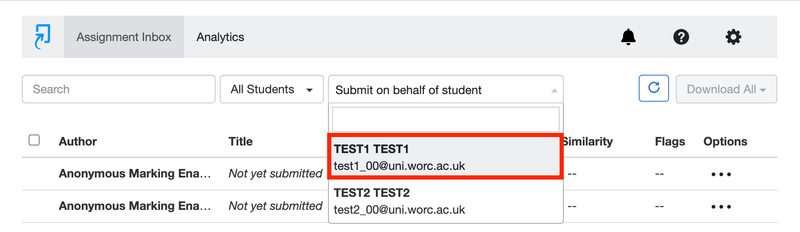
Select the student from the dropdown list:
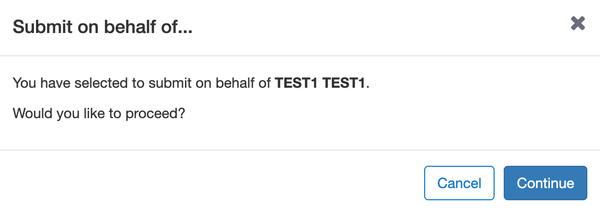
Confirm that this is the student that you wish to submit for by clicking the Continue button:
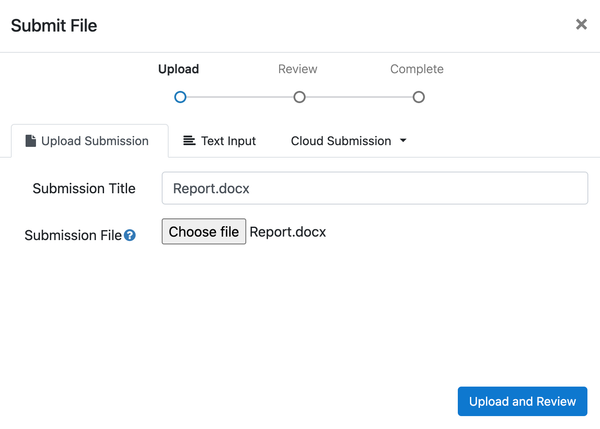
Click the Choose File button to locate and select the document the student has sent you

Click the blue Upload and Review button to add the file:
You can now preview the file you are submitting, and then click the Submit to Turnitin button to complete the submission.
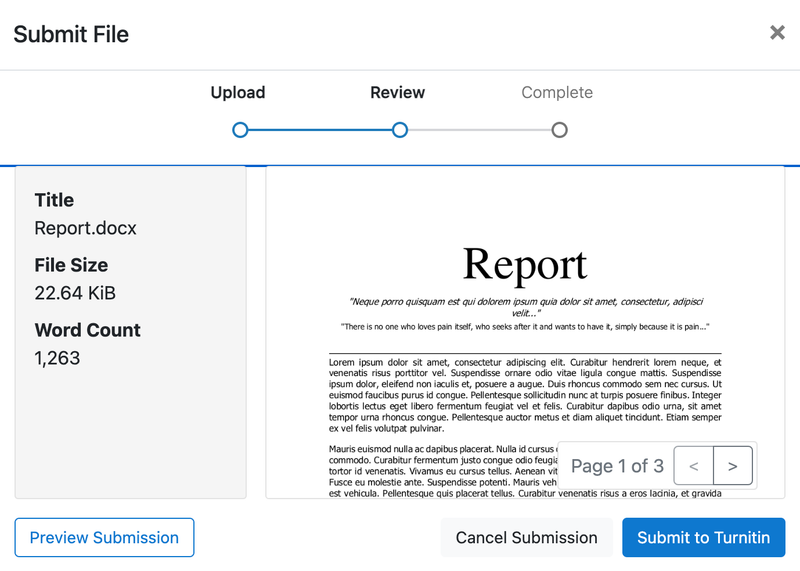
The file will be submitted, and you will see the Submission uploaded successfully message confirming that the file has now uploaded to Turnitin.
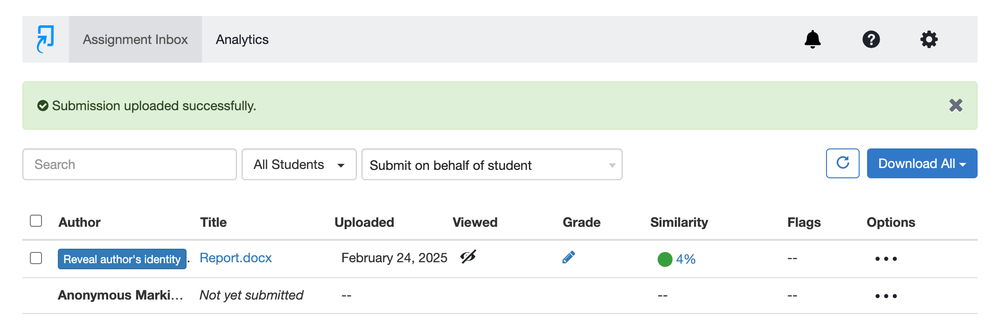
Once a file has been submitted on behalf of a student, it is ready for you to add grades and feedback, just like any other assessment.
* Be aware that if a student already has a previous submission in the assignment inbox (for example, an earlier draft) any new files that you submit will overwrite this work. Previous submissions are then not recoverable as Turnitin only keeps a single submission for each student.