External Examiners
Assessments that use Turnitin are accessible within Blackboard Ultra courses. Once external examiners have been appointed, access to relevant Blackboard Ultra course areas will be granted. If external examiners do not have access to the Blackboard courses they need, they are advised to contact their Professional Administrative Services (PAS) team to be enrolled as necessary.
Accessing Learn Ultra Courses
Once a University of Worcester IT account has been set up and the external
examiner has been enrolled in the required Blackboard Learn Ultra course
areas, they can access the system by visiting the University home page , scrolling to the bottom and clicking on the Staff Page
link:

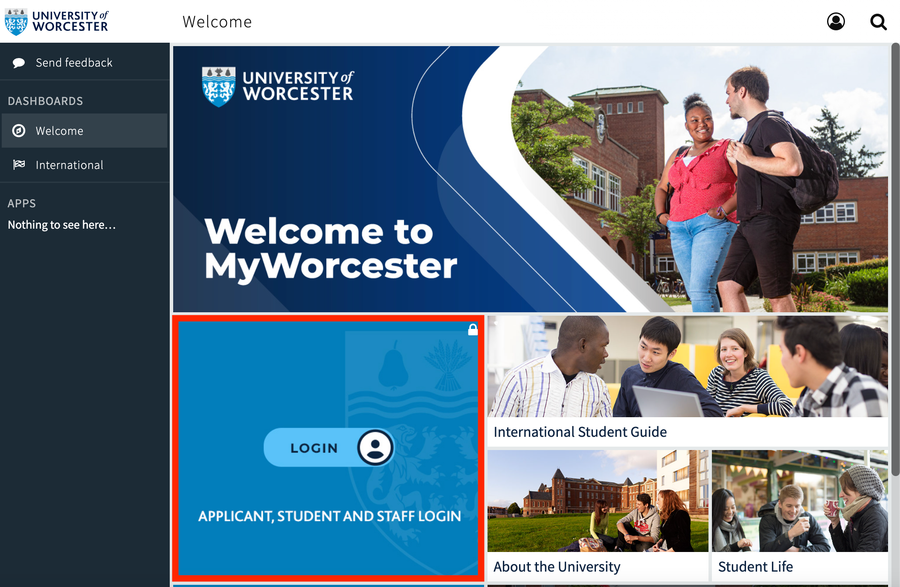
From the Welcome page, sign in to the Staff Page by clicking on the Login tile:
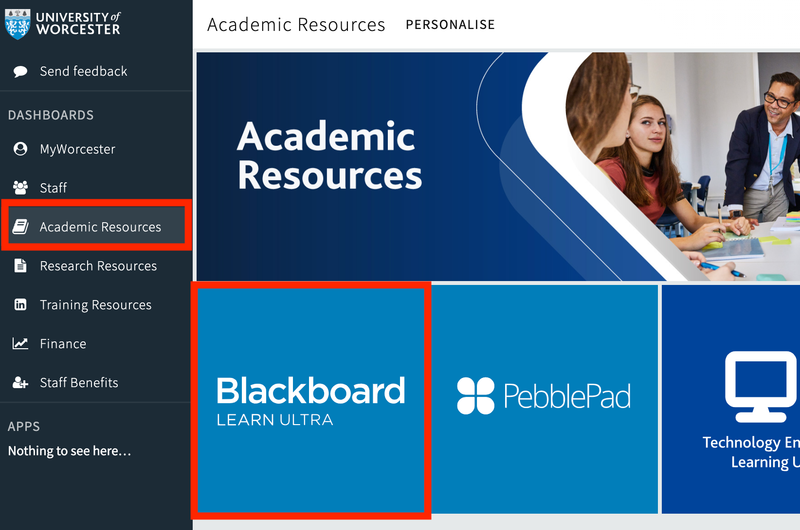
From the Academic Resources page, click the Blackboard Learn Ultra tile:
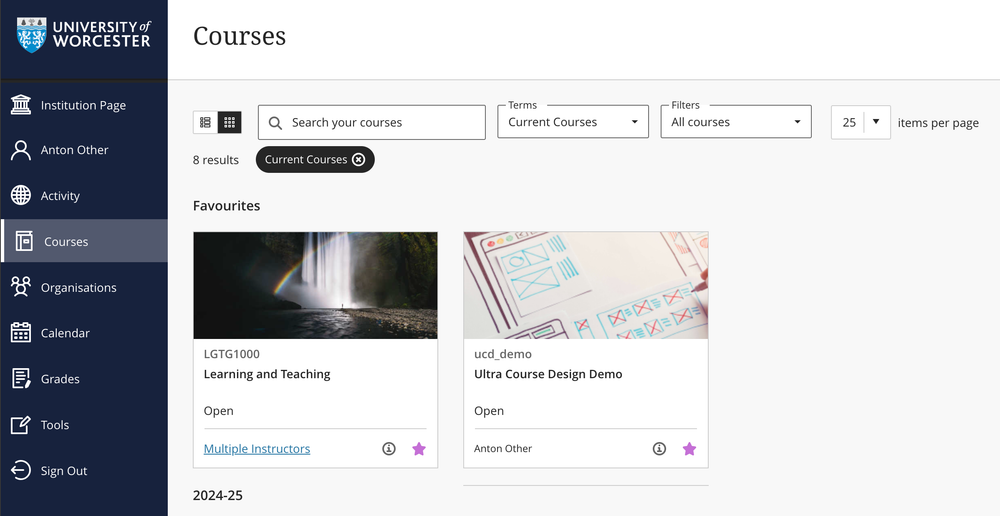
Navigate to the Courses page to view all of the Blackboard Learn Ultra courses you have access to. Click on a course title to open that course area.
Viewing Assessments
Turnitin assignments are denoted by the Turnitin logo:

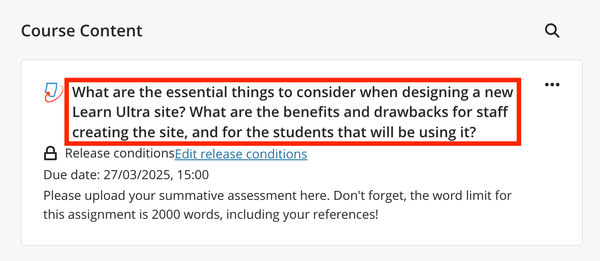
Access a Turnitin assignment by clicking on the assessment title on the content page:
Opening Assignments
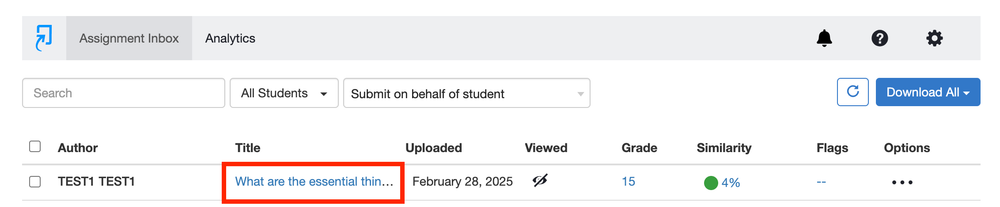
From the Assignment Inbox, click on the Paper Title
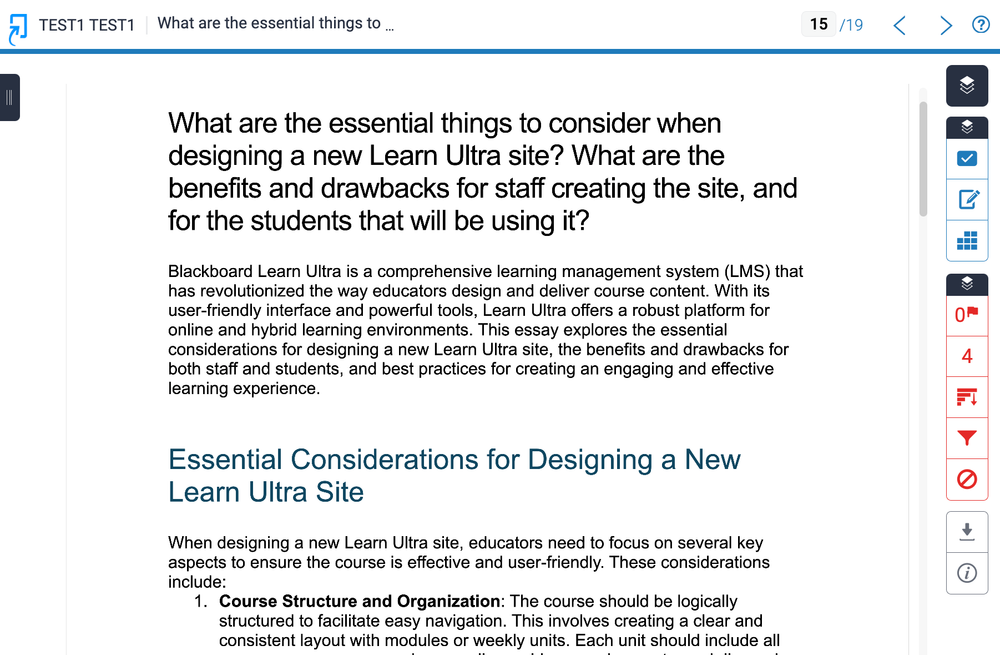
The paper will open in Feedback Studio: