
Setting up the Submission Point
Turnitin can be used to set up student assignments from within Learn Ultra. This is commonly used for written assignments where online marking with reference checking is required. Turnitin only stores one submission per assignment at a time, but it is possible for students to submit multiple attempts before a deadline. Turnitin can be used for both summative and formative submissions.
Accepted files must be at least 20 words and be less than 100MB. Formats
that are commonly uploaded to Turnitin are Microsoft files such as Word or
PowerPoint, but you can access the full list of supported formats at the Turnitin
website.
Add a Turnitin assignment
To add a new Turnitin assignment, locate the place where you wish to add it on the course content page, and hover your mouse over one of the grey plus buttons on the left of the page, and when it turns purple, click the button:

In the menu that appears, choose Content Market:
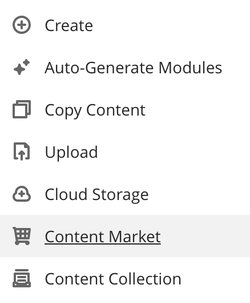
Select the Turnitin option at the bottom of the page:

Turnitin will open in a new panel, and you can begin updating the settings:
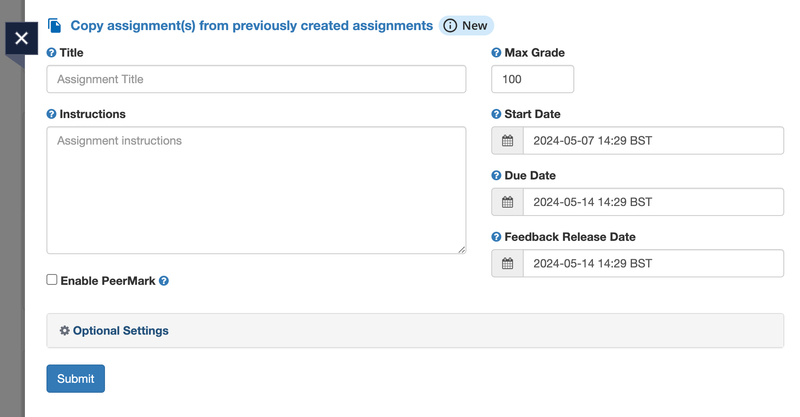
Do Not click on the link at the top of the page to "Copy assignment(s) from previously created assignments". This currently breaks the Learn Ultra integration!
Essential Settings
In this section at the top of the page you will need to add assessment details and start date, due date and feedback release dates and times.
Set Assignment Details
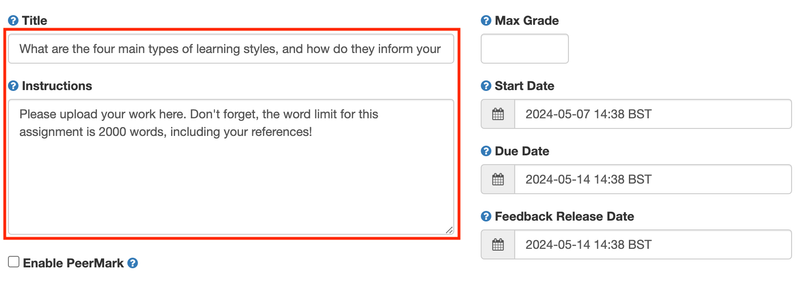
Add a Title for the assignment and add any instructions that are needed.
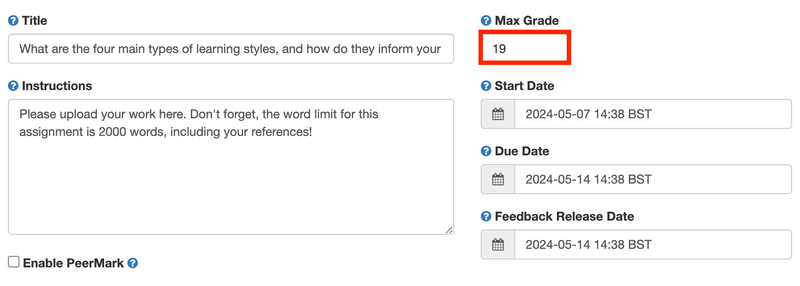
Set the Max Grade to 19 to match the standard UW grading schema.
Set the Assignment Dates and times
Use the date picker by clicking on the calendar icon next to the date fields to open these menus.

Use the clock icon in the date picker to select time restrictions.

To close the date pickers once you have made a selection, click anywhere on the page.
Start Date
Set the Start Date for the assignment. Students cannot submit before this date. If you want them to be able to submit immediately, you can leave these settings at their defaults.
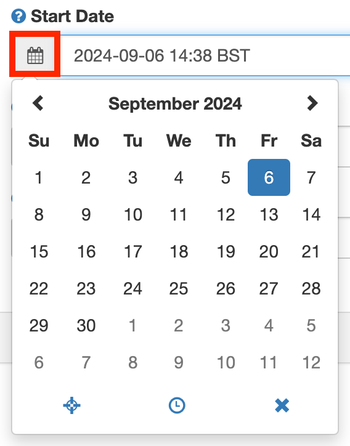
Set the Start Time by clicking on the clock icon:
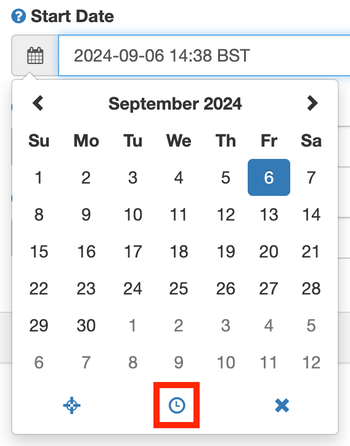
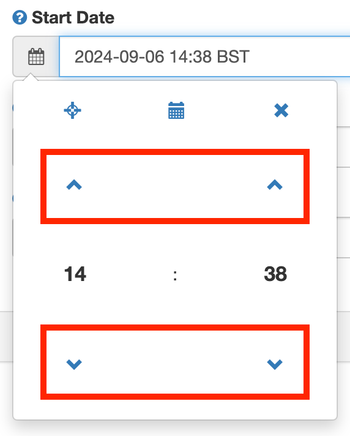
Select the time you wish to use:
Due Date
Do the same for the assignment Due Date:
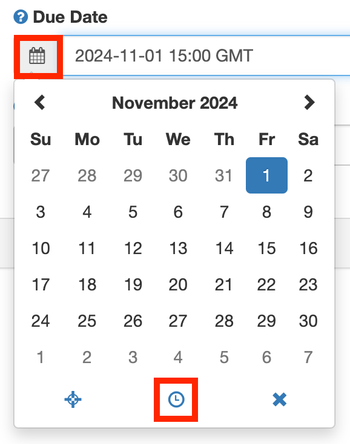
All Turnitin assignments Must have a due date!
Feedback Release Date
Finally, add a feedback release date. This will be used to allow students to automatically view their grades and feedback for this assignment.
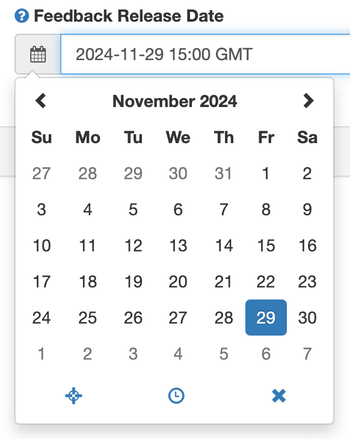
Feedback release date is linked to the Blackboard Gradebook so grades will be available in both systems automatically when the feedback release date passes. Students will see a points score out of 19 in Turnitin and a letter grade in Learn Ultra.
Optional Settings
These optional settings allow you customise the Turnitin report to enable you to access data from the reports as you need them.
To access these settings, click on the Optional settings menu link, next to the small grey cog icon:
Submission Settings
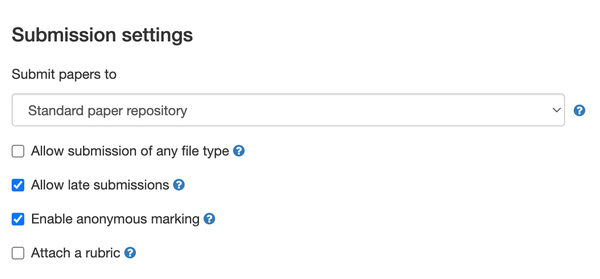
In this section, choose Standard paper repository if this is a summative assessment, or Do not store the submitted papers if it is for formative use.
Do not tick Allow submissions of any file type but you can tick the options for Allow late submissionsand Enable anonymous marking if you wish.
You can also attach a rubric by ticking this option and selecting your chosen rubric from your Turnitin account.
Similarity Report
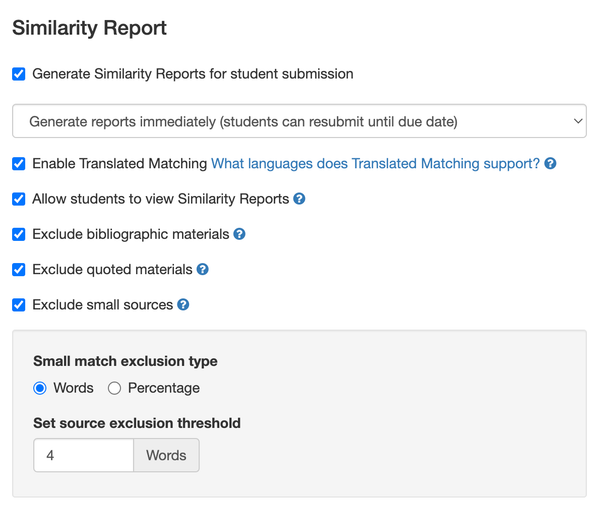
In this section tick the Generate Similarity Reports for student submission and select Generate reports immediately (students can resubmit until due date). Tick allow students to view Similarity Reports so they can access their originality scores.
Choose whether you want to enable translated matching or to exclude the bibliography or quoted materials. Select Exclude quoted materials to ignore all quotes on the originality report.
Tick Exclude small sources and set the match exclusion type to 4 words.
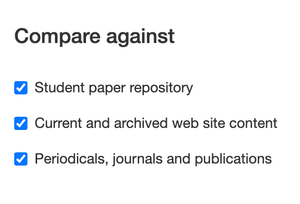
Compare Against
In this section, leave all options ticked.
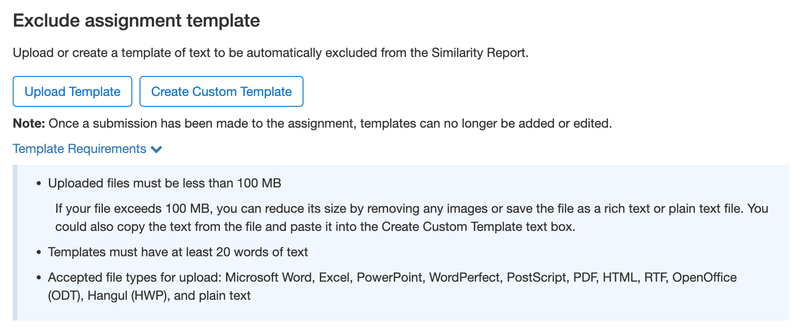
Exclude Assignment Template
If you wish to provide a document as a template for your students to download and use for this assignment, you can make sure this is excluded from originality reports by uploading the file here.
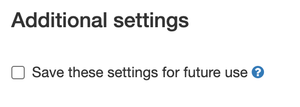
Additional Settings
If you want to re-use these settings as a default for all subsequent Turnitin assignments, make sure that the Save these settings for future use option is ticked.
Complete Turnitin Assignment Setup
Save all of your assignment settings by clicking the blue Submit button at the bottom of the page:
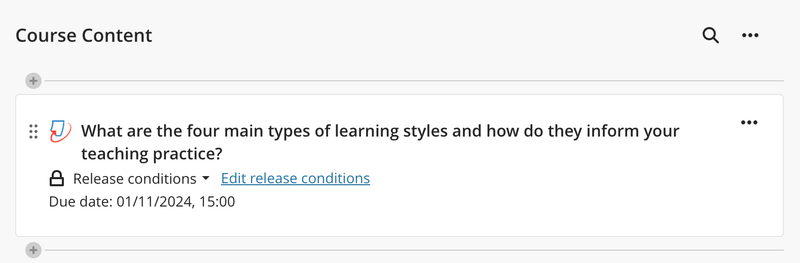
Your assignment will now be available in Learn Ultra on the Content page, as well as listed in the Gradebook.
Attaching and using the Summative Grading Schema
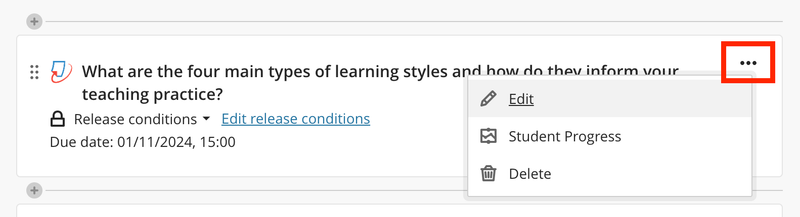
To apply the standard UW Grading Schema 0-19 Points, edit the assignment by clicking on the options button and selecting Edit:
In the settings panel that opens, change the option from the default of marking using Points using the dropdown menu to UW Grading Schema 0-19 Points:
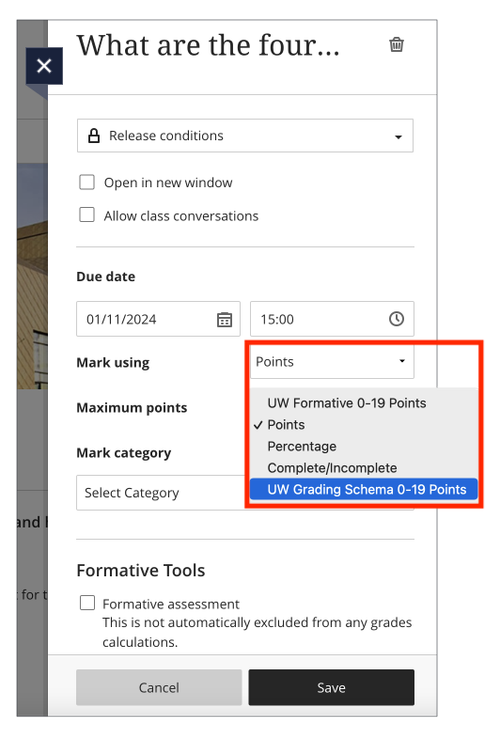
Click the Save button to apply this setting. You can now grade using the 0-19 points scale, and this will appear as a letter grade in Blackboard.