
Adaptive Release
You can set access rights for students for any part of your Blackboard site. By restricting access, you can hide pages, files, folders or assessments using multiple criteria. These criteria include:
- Releasing by Date and Time
- Group or individual student access
- By a pass grade of a particular assessment
Any of these criteria can be mixed and matched as desired. For example, you could set an assessment to be only accessible by a certain group of students from a certain date and time.
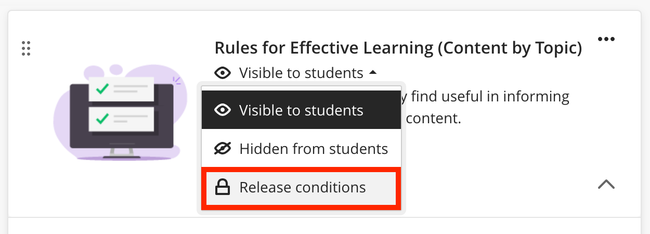
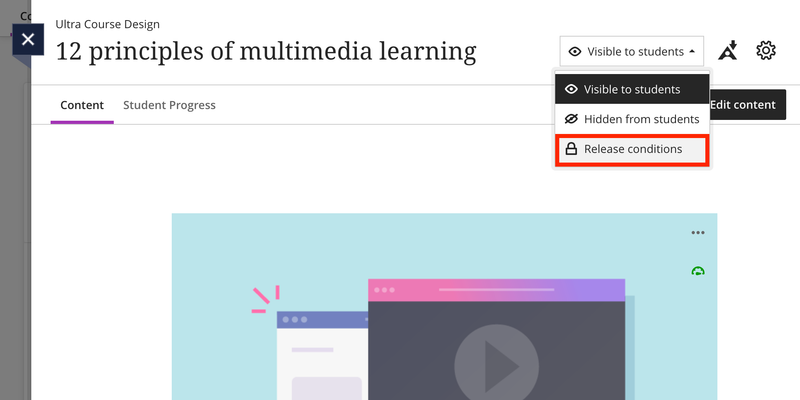
You can access these settings anywhere that you see the Visibility buttons. Click on the Visible to students button and select the Release conditions option. This can be accessed on items on the Content page...
or when you are editing a Blackboard Document:
Release by User or Group
To release resources by individual users or by groups, select the Specific members or groups option. From here you can define the users that will be able to access the content.
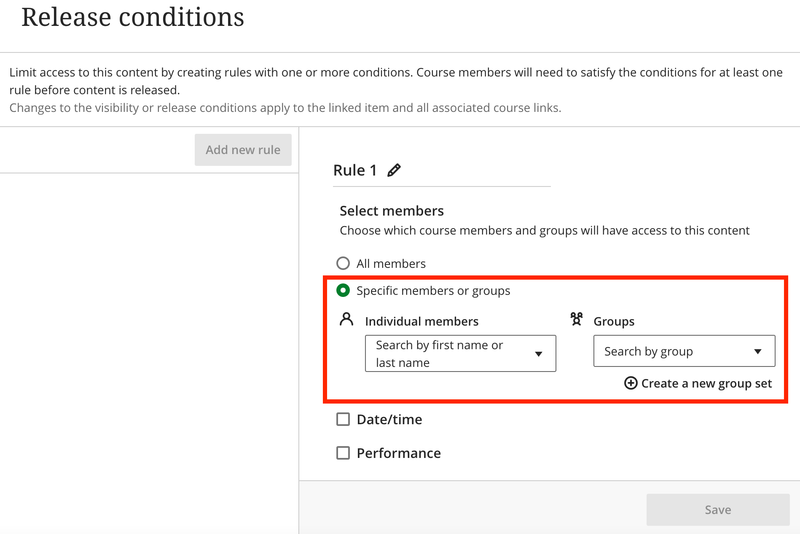
If you want to release by group, but have not yet set up any groups, you can click the Create new group set plus button to set up groups from here as needed.
Release by Date and Time
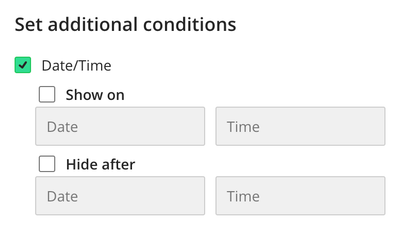
Tick the Date/Time option and use the date and time selectors to set when the resource will be shown, and when it will be hidden:
Release by Performance
To release content only after students have reached a performance goal - such as scoring a minimum grade for an assessment, tick the Performance option:
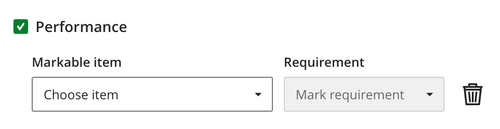
Then, use the dropdown menus to select the assessment you want to use as the criteria, and what the Mark Requirement should be:
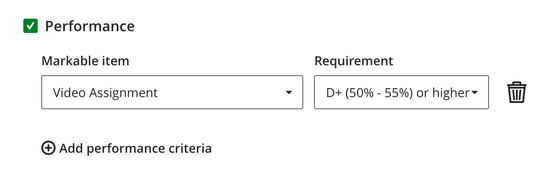
You can use additional assessment criteria by clicking on the Add additional performance criteria button.
When will Content Appear?
You can set whether users can view the links to the hidden content before they have met the criteria to view it:
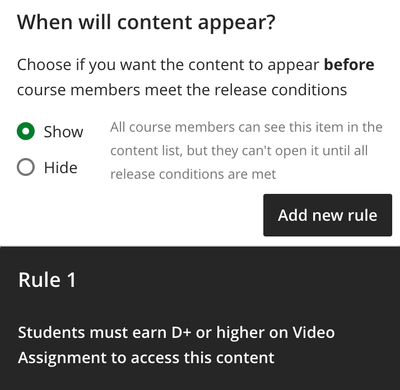
If you set this to Show, the resource will be visible, but appear locked to those who have not yet met the criteria. Click the Save button to confirm these settings.