Adding Web Links
Links can be added to any text within a Blackboard Document. This allows you to build complex pages with links that support the page content in context. You can also add simple links to other websites from the main Content page.
Blackboard also has a special type of web link to link to other parts of the same module. For example, if you wanted to set up a Journal for the duration of a module, you can set up additional links to the same journal within different learning modules. This means you can use the same journal in multiple locations in the site or in different Learning Modules.
Document Links
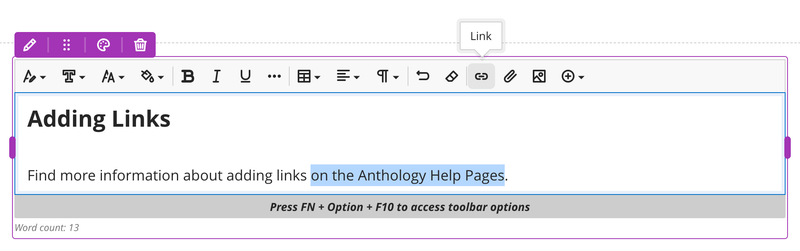
From within any Blackboard Document, highlight the text you would like to make into the link and click on the Link button in the toolbar:
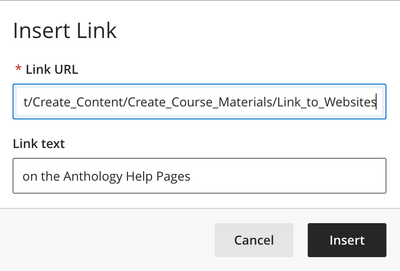
In the popup window, paste or type in the link to the website you want to use into the Link URL field and click the Insert button:
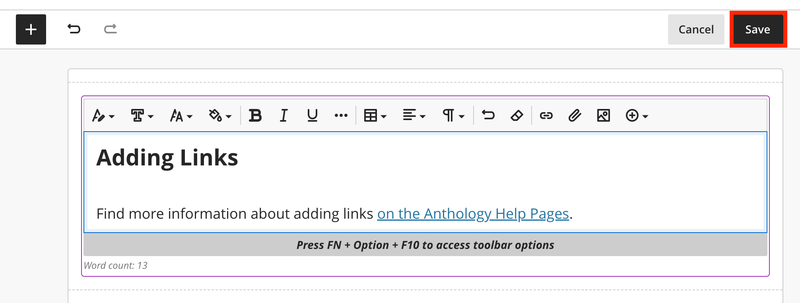
The link will be added to the text you highlighted and will appear blue and underlined. Click the Save button to save the page:
Simple Links
To add a simple link to the Content page, hover your mouse over one of the grey horizontal dividers until it turns purple, and the plus icon appears. Click this button:

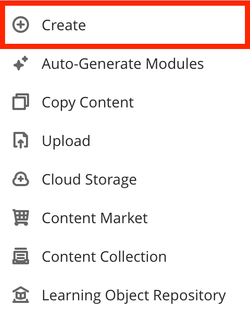
Click the Create button:
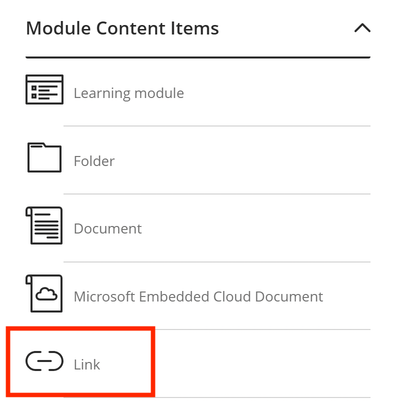
Then choose the Link option:
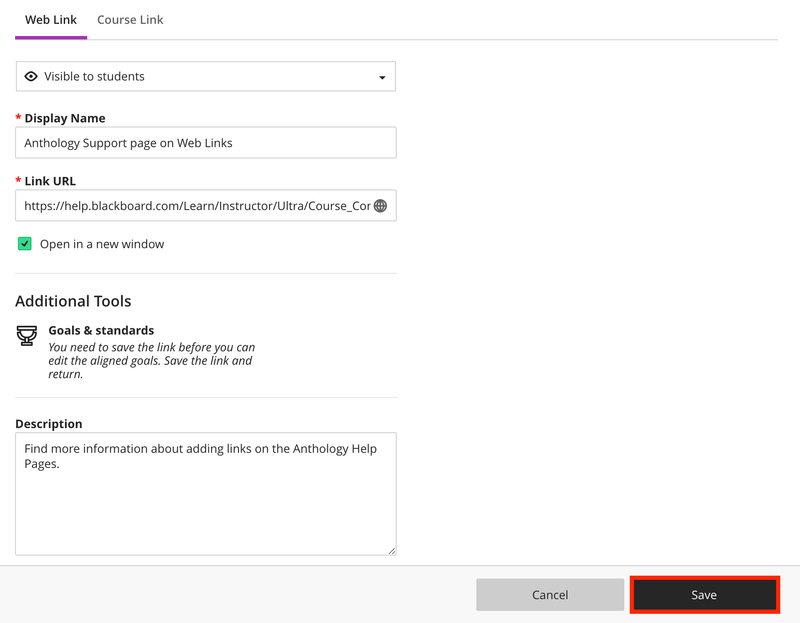
Make sure the link will be visible to students using the dropdown if desired and add a title in the Display Name field. This will appear on the Content page. Add the web link you wish to use in the Link URL field and set the link to open in a new window if desired. Finally, add a text description which will provide context for the link you are using. Click the Save button to complete the Link creation.
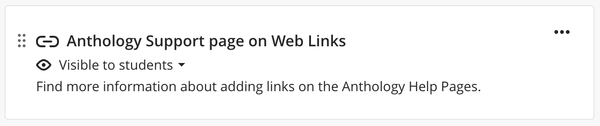
The Link will be added to the Content page ready for students to use.
Module Links
To add a Module Link to the Content page, hover your mouse over one of the grey horizontal dividers in the location you wish to add the link until it turns purple, and the plus icon appears. Click this button:
Click the Create button:
Then choose the Link option:
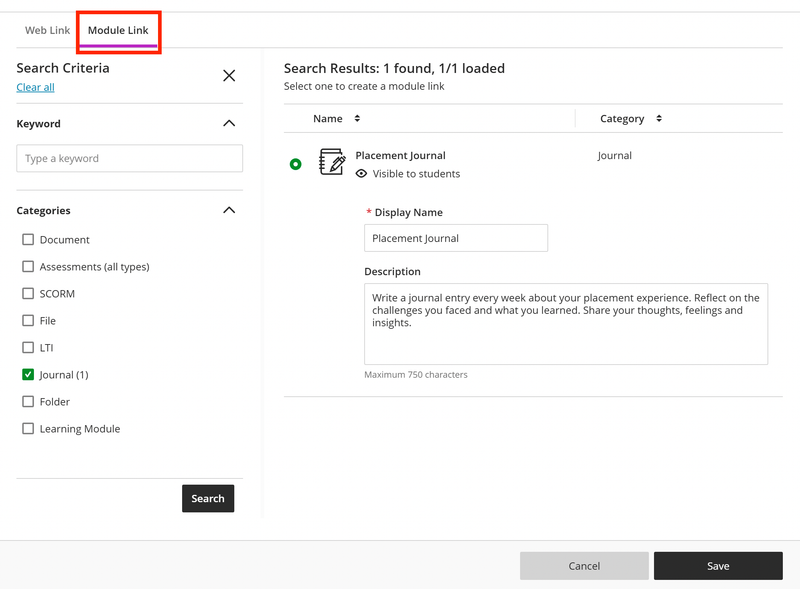
In the page that opens, select the Module Link tab. In the Categories section, select an option to search for and click Search. Select the item you wish to link to and click the Save button:
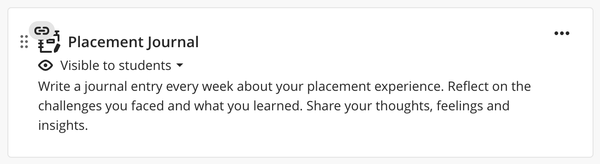
The module link will be added to the Content page, and the item graphic will contain an additional link denoting that this is a Module Link:
Checking Links
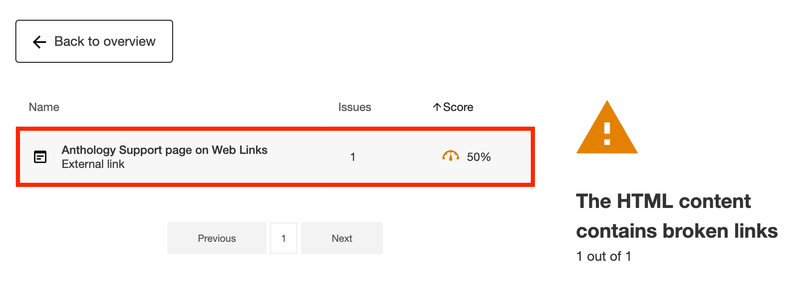
Over time, links can become out of date and no longer work. Rather than manually checking each link in a module manually, you can use the Ally Accessibility Report to pick up links that are broken.
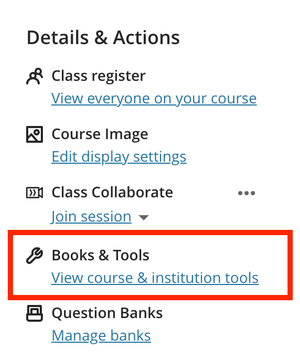
To access the Accessibility Report, click on the View module and institution tools link in the Books & Tools menu:
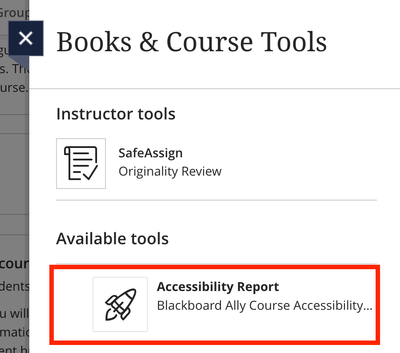
Choose Accessibility Report
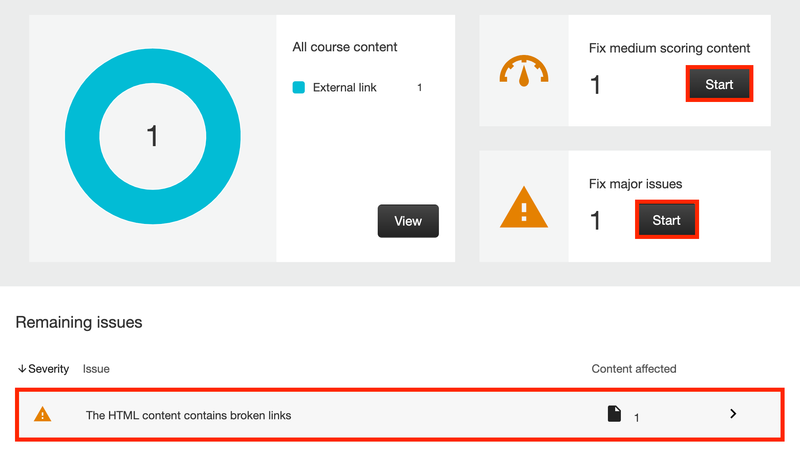
The page that opens will display a report of all accessibility issues, including any links that are broken. Click on one of the Start buttons or click on the issue from the list at the bottom of the page:
Click on the issue listed to fix the link: