
Formative Assignments
You can create formative assignments from any standard Blackboard Assignment and use standard marking tools such as rubrics and inline comments. This includes the ability to use text or file based submissions, or audio and video submissions (which may be especially important if students have never submitted before or need a practise area to build confidence). Simply adding the formative label and selecting a formative marking schema will allow the submission to be marked as formative. Letter marks are not used in marking and feedback as in summative assessments.
The separate Turnitin integration can also be used for formative work by making sure that submissions are not stored in the global database - so they won't be picked up in later originality reports. Turnitin rubrics can also be utilised for adding feedback.
Blackboard Assignments
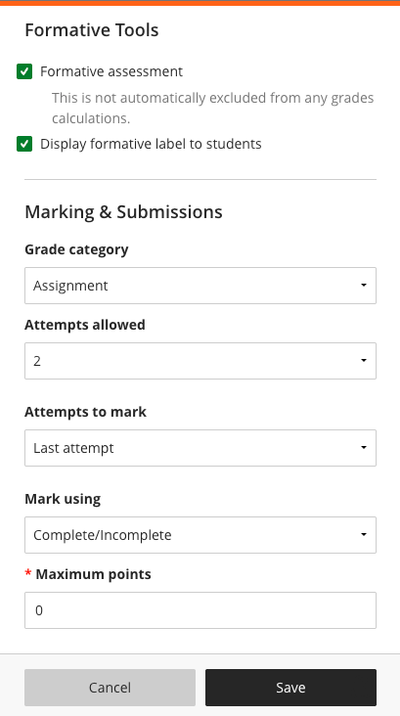
To set up a Blackboard assignment as formative so that students do not see a letter or points value, tick both Formative Tools options and select one of the following formative marking schemas:
Complete / Incomplete
This setting applies a white tick in the marking pill when the submission is marked. You can assign any number of points for the assessment (including zero), but assigning any numerical value will mark the submission as complete.
Pass / Fail
This setting displays the text Pass or Fail in the marking pill. The maximum points for this type of formative assessment must be set to at least a value of 1. Marking a submission with a value of 0 will mark it as a Fail, but marking any other number will mark it as a Pass.
UW Formative 0-19 Points
This formative schema works in the same way as the summative version and is marked out of a maximum score of 19 points. This retains a mark for other staff to review when selected in the gradebook or downloaded, but students will only see N/A as a mark in the gradebook, denoting that the work is not summatively marked.
Enable Turnitin Originality Integration
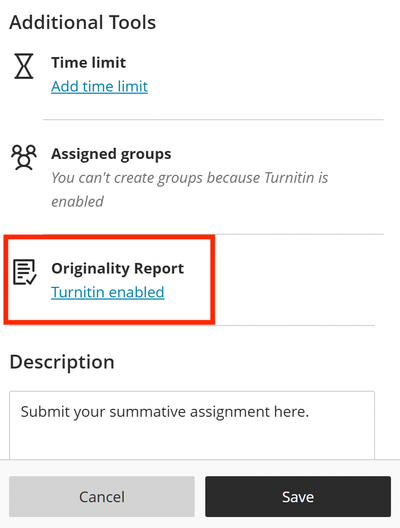
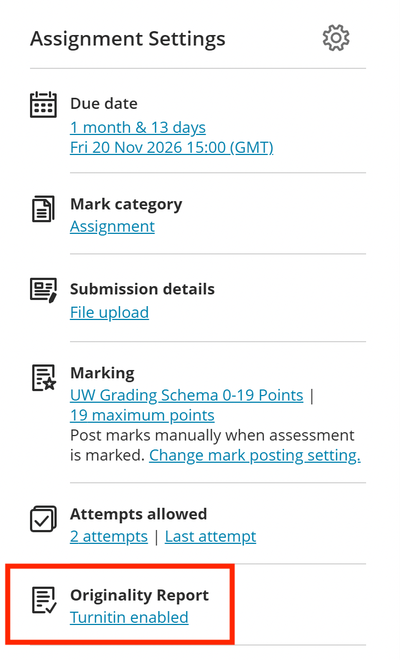
You can enable support for Turnitin originality reports during the initial assignment setup in the Additional Tools section, or after setup is complete by selecting this option in the Assignment Settings:
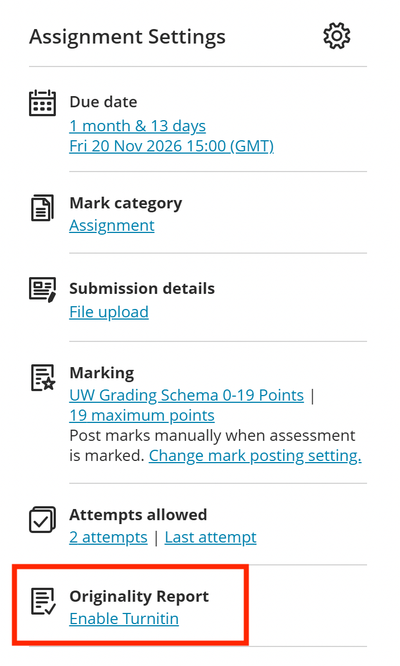
It is only possible to turn on Turnitin functionality if no student has made a submission. Once a submission is uploaded to a standard assignment, no originality reports can be created.
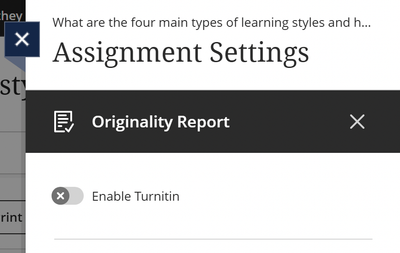
In the panel that opens on the right of the screen, click on the Enable Turnitin toggle switch:
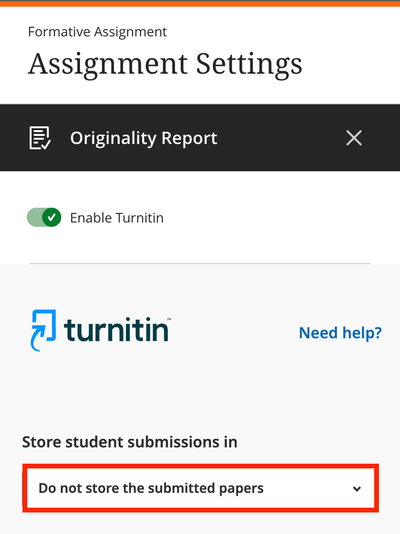
The integration will load, and you can choose the settings you wish to use. For formative assessments, be sure to select the Do not store the submitted papers option from the dropdown menu:
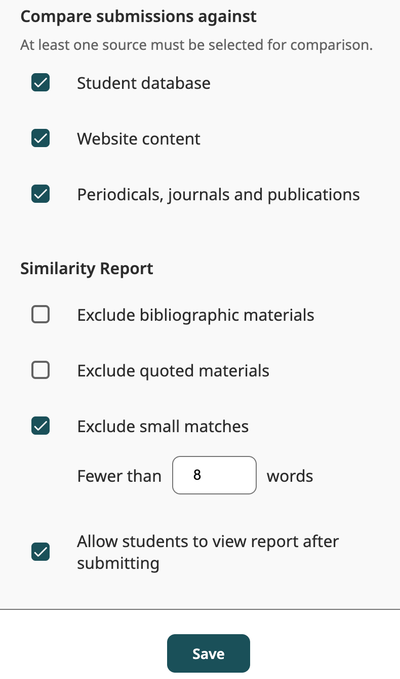
In the Compare submissions against section, select all options:
- Student database
- Website content
- Periodicals, journals and publications
In the Similarity report section, choose if you want to exclude the bibliography or text in quotations, but make sure that you select the options for:
- Exclude small matches (fewer than 8 words)
- Allow students to view report after submitting
Click the Save button to confirm your settings.
In the Assignment Settings panel, you will see that Turnitin has now been enabled. Click the Save button to complete the Turnitin integration setup.
The Assignment Settings will now show that the Turnitin originality report is now enabled for this Blackboard Ultra assignment.
Grading Blackboard Submissions
Enter the mark in the marking pill at the top right of the page when you have finished adding feedback, and when you click off the marking pill it will now contain the relevant completion status your chosen marking schema supports.
Complete / Incomplete
Once any number is assigned to the assignment using this schema, the marking pill will display a white tick. Non submissions will receive an automatic zero, but will display a white line.

Pass / Fail
Entering a mark of zero will mark the submission as a Fail and marking any other numerical value will mark it as a Pass. Non submissions will receive an automatic zero and be recorded as a Fail:

UW Formative 0-19 Points
Add a mark between 0-19 to mark the submitted paper. All marked papers, regardless of the mark will be designated N/A. Non-submissions will receive an automatic zero and also be given a N/A designation. The purpose of this schema is to allow tutors to track assigned marks without displaying these to students.

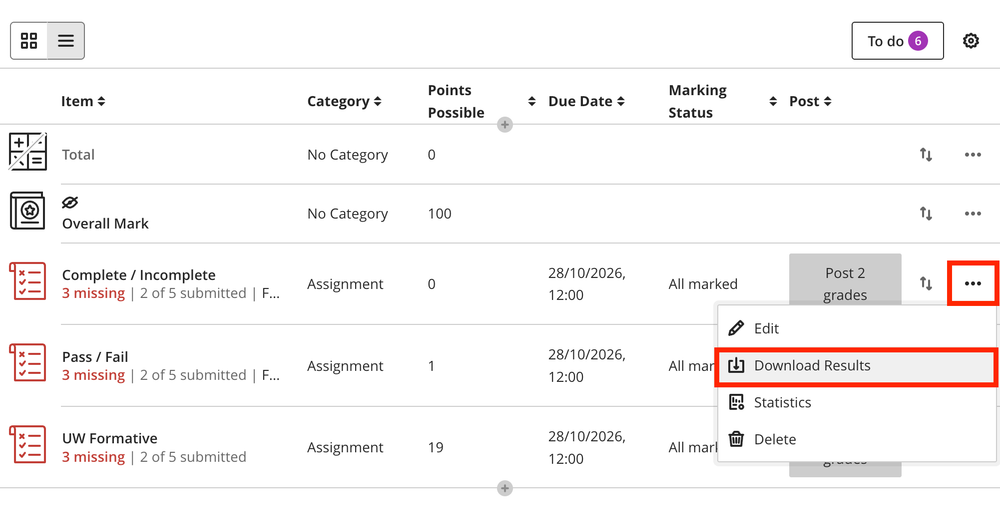
Assigned marks can be viewed by downloading them from the Gradebook:
Maximum Points Score Requirement
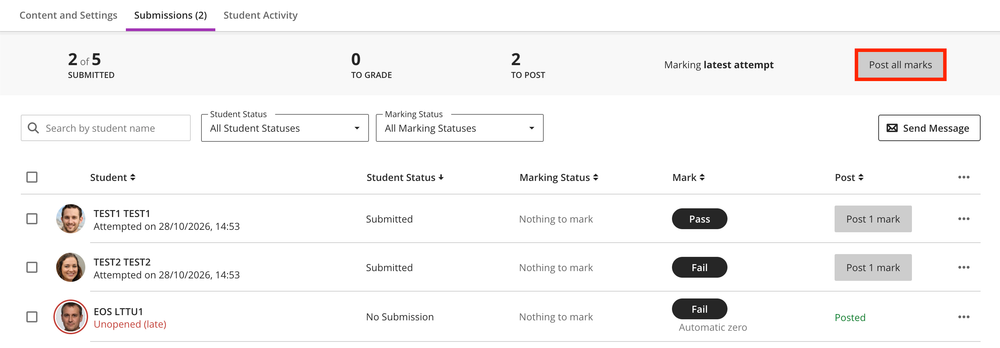
Although this may be a formative assignment, a maximum points score is still needed for the formative grading schemas to work because the system needs a mark to be entered to release the completion status and feedback. Only once a mark has been entered will the Post all marks button appear so that students can view their marked work.
Turnitin Assignments
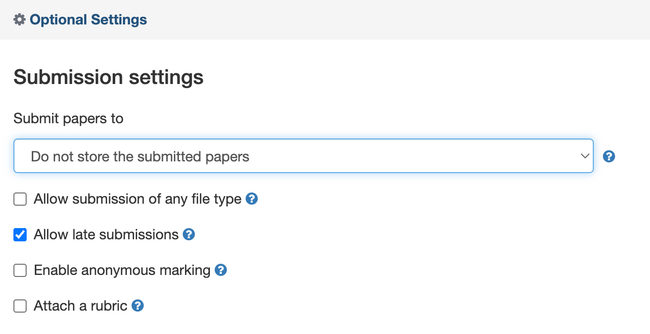
If you wish to use Turnitin for formative assignment submissions, ensure that in the Submit papers to dropdown menu you choose Do not store the submitted papers. This setting will still check against all the usual sources including the Turnitin global database of all previously submitted papers, but will not add formative submissions to this database. This ensures that formative work from the assignment will not be subsequently picked up by later summative assignments.
Max Grade Score
As with Learn Ultra assignments, Turnitin assignments also require a Max Grade numerical score. However, you can set this to 0 for formative assignments.

Turnitin Rubrics for Formative Assessment
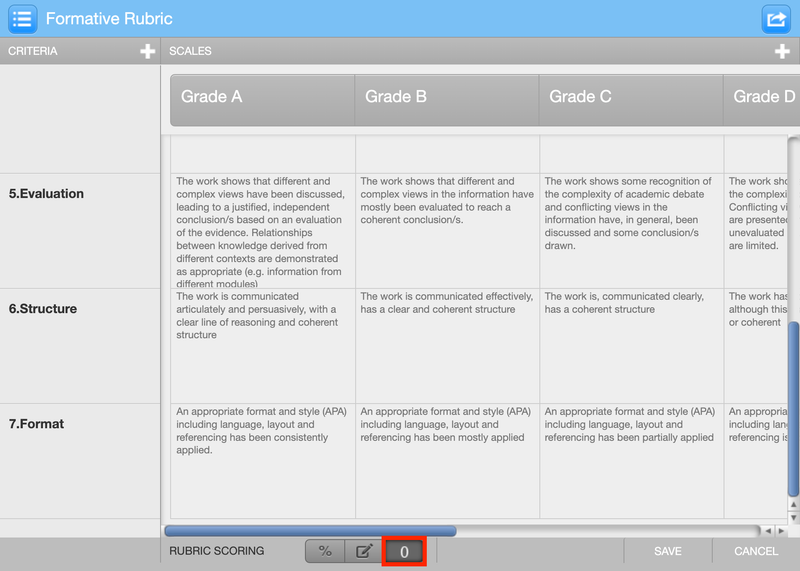
When setting up the assignment, you can include a Turnitin rubric. (opens in new tab) Turnitin, allows you to set up a qualitative rubric which does not automatically add a score. Select the 0 button at the bottom of the panel to choose this option. You can then provide feedback from the rubric and add your own score as needed.
Attaching the Formative Grading Schema
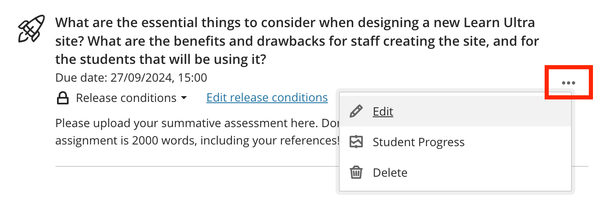
After setting up your Turnitin assignment, remember to attach the formative schema you want to use. To do this, edit the assignment by clicking on the options button to the right of the assignment title and choose Edit:
Select a formative schema such as Complete / Incomplete:
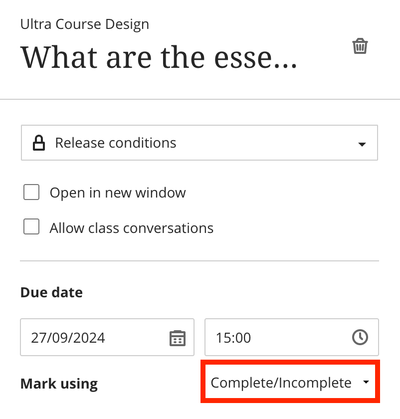
Maximum points values must be set in the same way as the standard Blackboard assignments:
- Complete / Incomplete: 0 points
- Pass / Fail: 1 point
- UW Formative 0-19 Points: 19 points
Click Save to set the schema.
Adding Grades to Formative Turnitin Assignments
As long as you have set the max grade in the Turnitin settings as the same as in the schema you are using, you can now enter a numerical score (0 for the Complete / Incomplete schema, 0 or 1 for the Pass / Fail schema or 0-19 for the UW Formative 0-19 schema).

Once the grades are automatically released based on the Feedback Release Date, students will be able to view their formative mark (Pass / Fail, Complete / Incomplete or N/A) in Blackboard, and see the raw score in Turnitin when they open their submission.