Blackboard Enrolments
New blank module areas are created each year, ready for you to add new teaching materials. This is an automated process which reflects the current active modules in the Registry system. New Blackboard modules are initially set up with a basic template ready for you to update and do not need to be "activated". No module content is populated or copied from previous versions as part of this process. If you wish to reuse content from another Blackboard module, you can do so by copying the relevant materials for the current year.
To ensure compliance with current GDPR laws and University policy, staff must request access for each individual module area they require. You cannot request access on behalf of someone else. Module enrolments are not carried over each year. This allows the module leader to be notified when new users are granted access, and also allows staff to remove themselves from modules they no longer need.
To add yourself to a new Blackboard module area, you will need to request access via an online form.
Enrolling on a Module
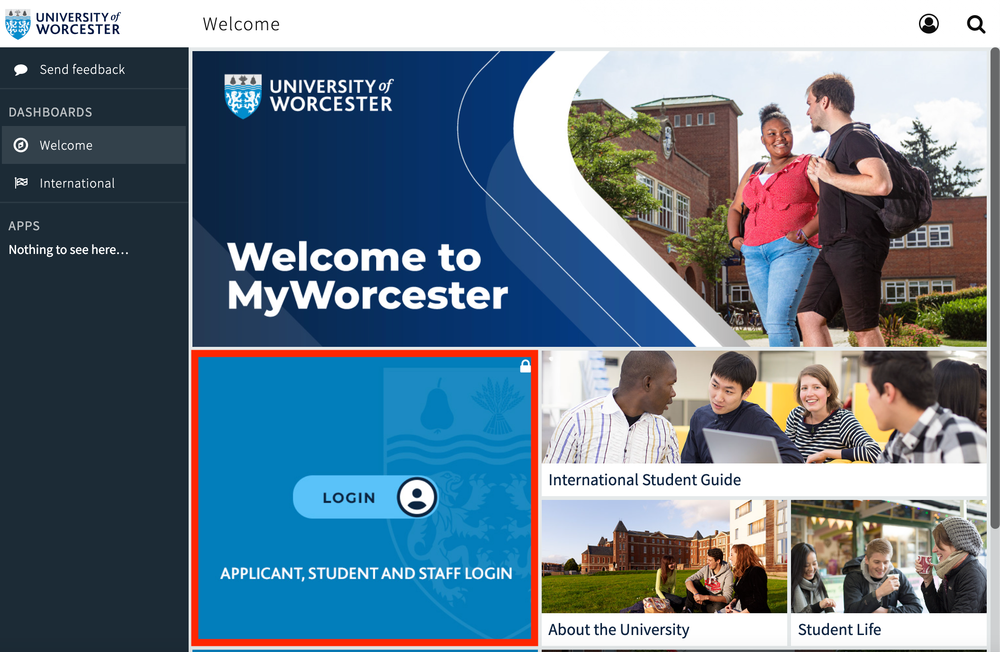
Sign in to the Staff Page (opens in new tab) by clicking on the Login tile:
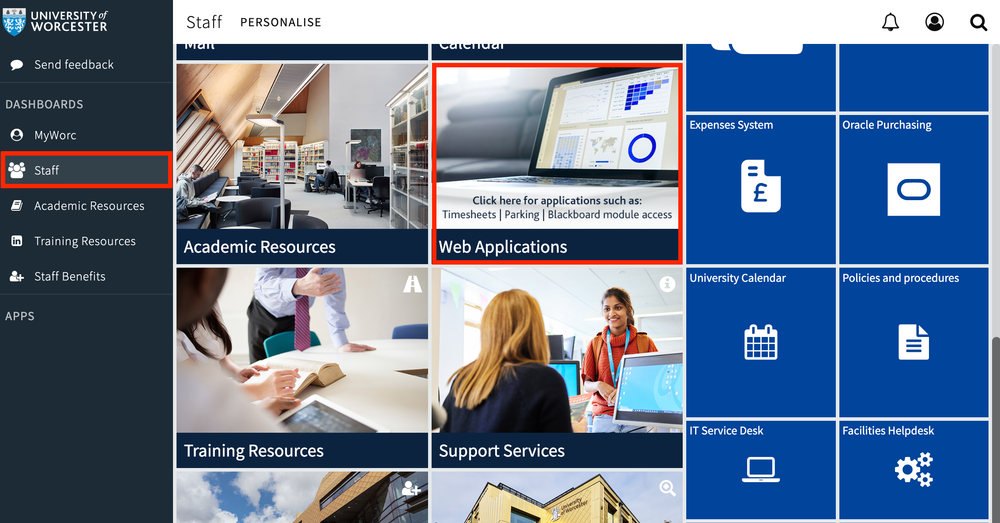
Click on the Staff menu button, then click the Web Applications tile:
Select the year of the Blackboard module you would like to enrol in. You can choose the current year or previous year.
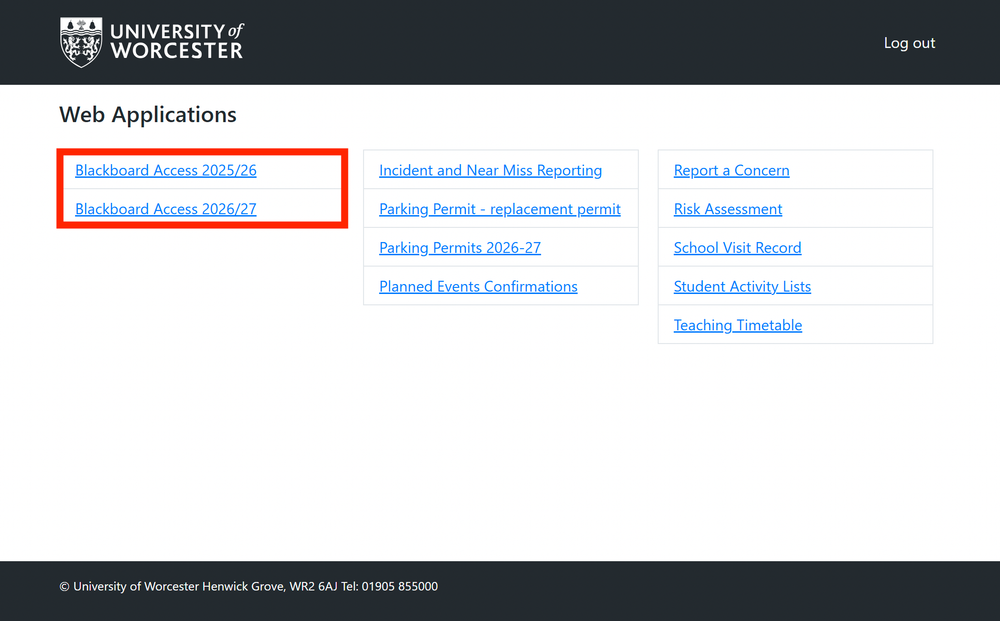
If you need to enrol into older modules, please contact the TEL Team.
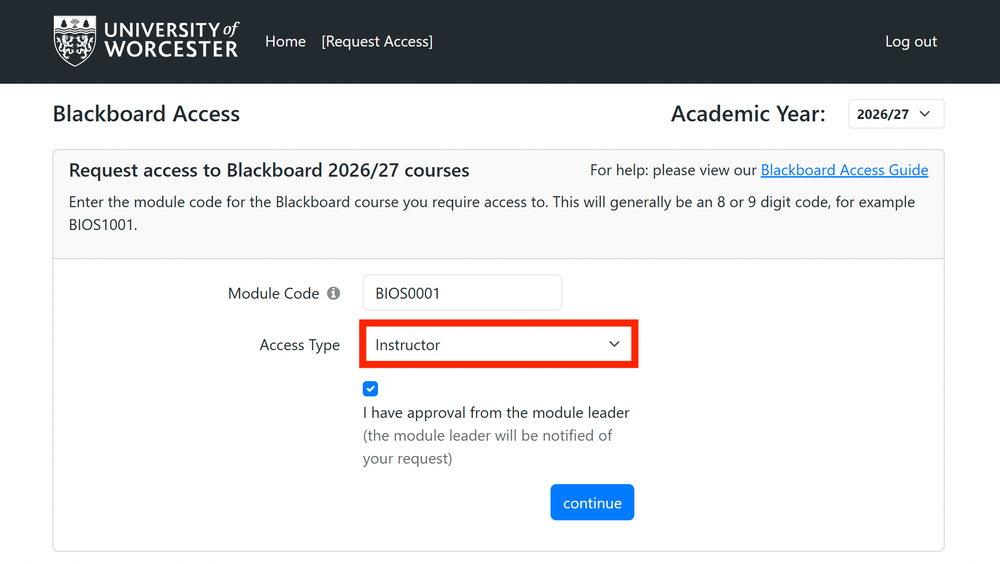
Fill in the Module Code for the Blackbord module you wish to enrol in. These are usually 8 characters long with no spaces (e.g. BIOS1001). Select the tickbox to confirm that you have approval from the module leader to enrol and click the Continue button:
The module you have selected should now appear for final confirmation. Click the Confirm button to complete the enrolment request.
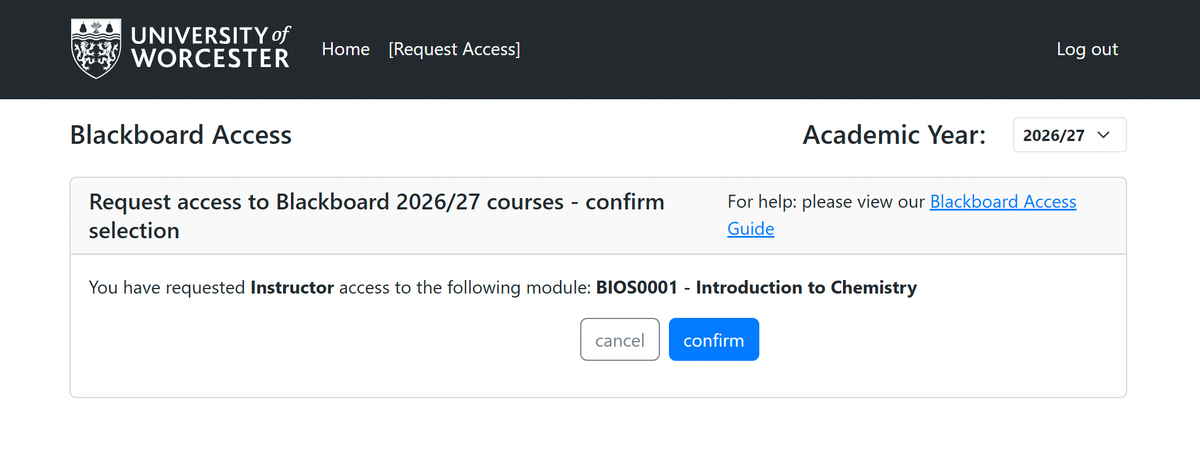
Your enrolment will be processed within 24 hours, and you will then be able to access the module.
Enrolling on a Module Occurrence
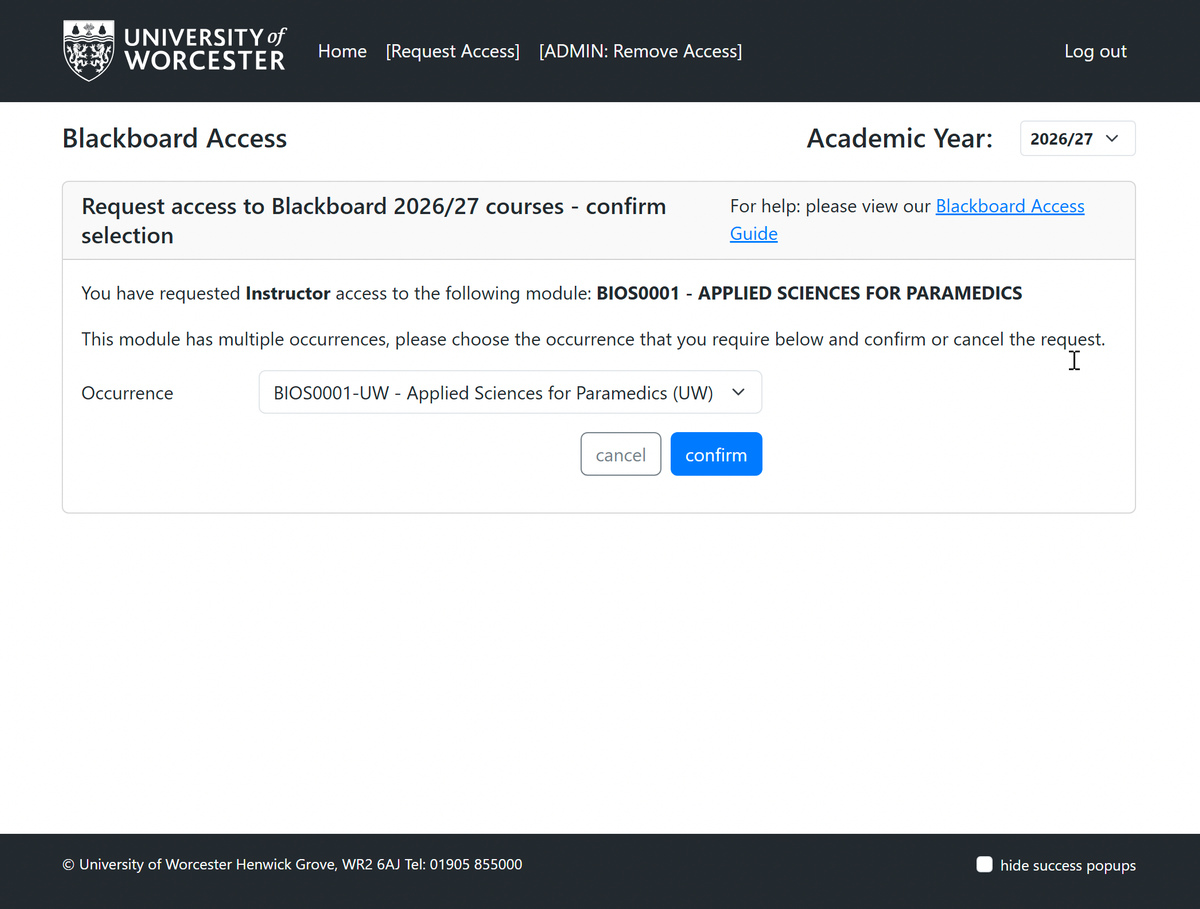
If the module you are attempting to enrol in has multiple occurrences, you will be prompted to select the version you require. This can be selected from the Occurrence dropdown menu:
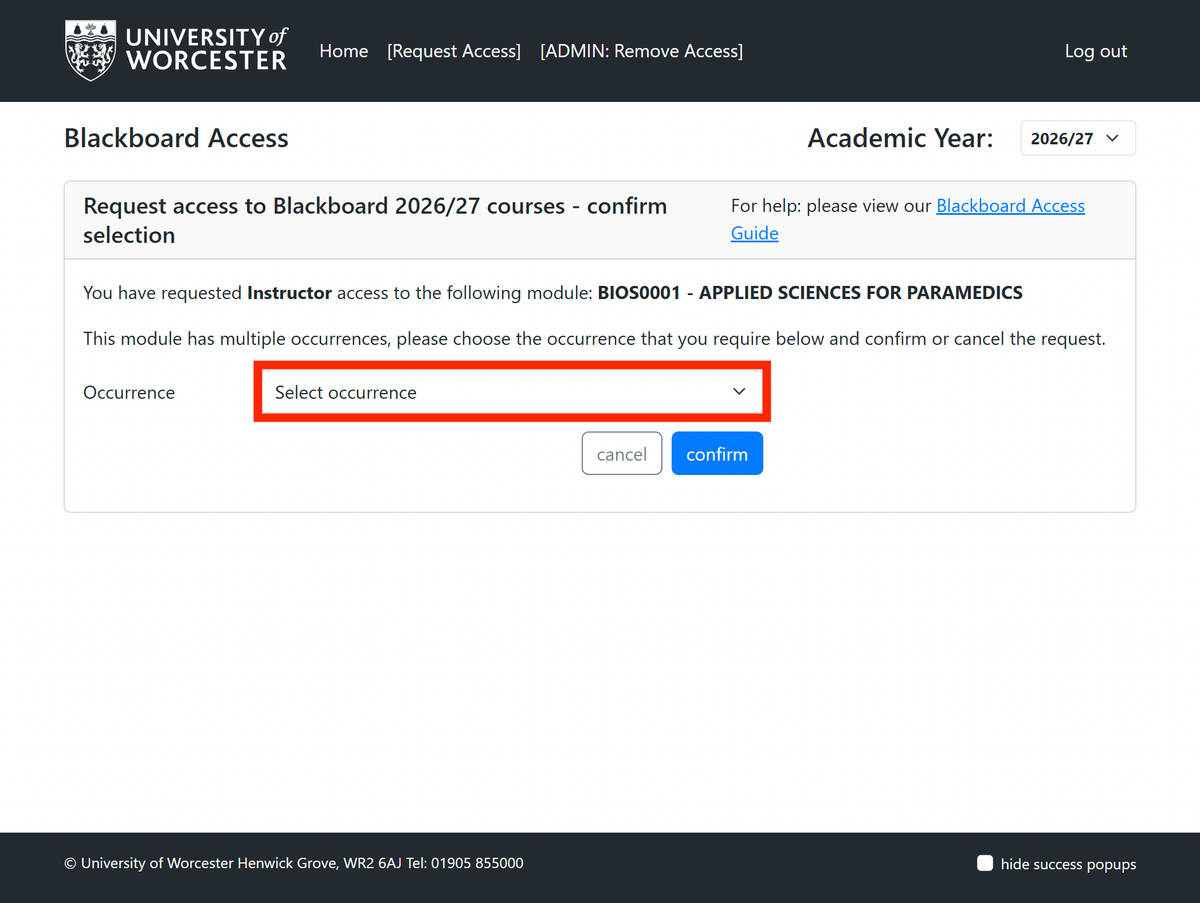
Click the Confirm button to complete the enrolment request for the selected occurrence.