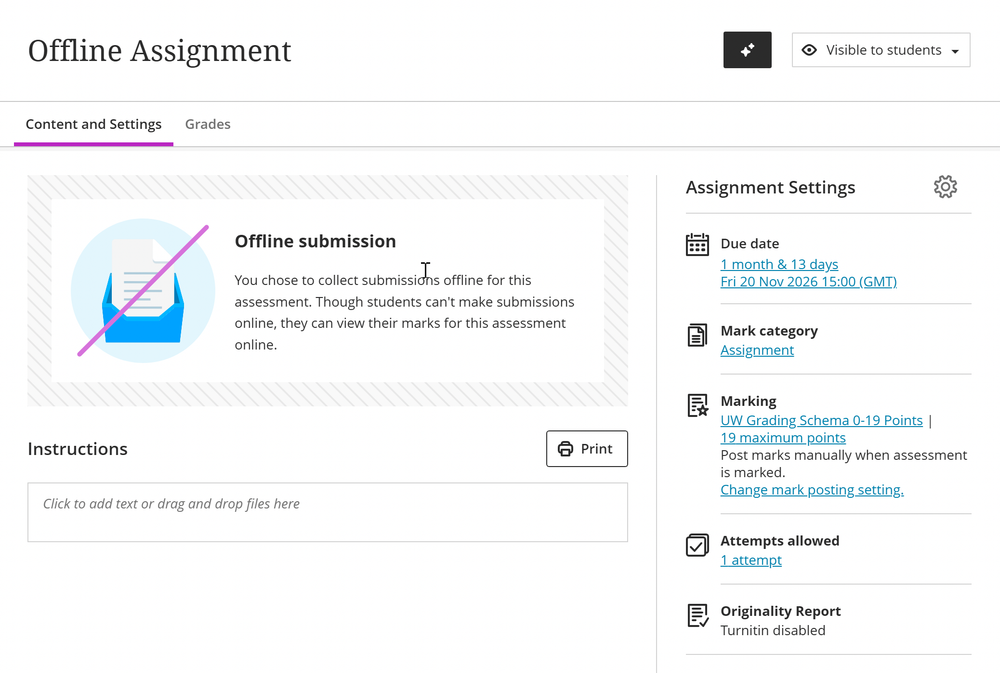
Offline Assessments
You can use Blackboard to record feedback and marks for offline assessments such as live presentations, performances and any other assessment that is not manually submitted by students.
Setting up Offline Assessments
Offline assessment uses the standard Blackboard Assignment but enables the offline marking setting. To set this up, hover your mouse over one of the grey plus buttons on the left of the page and when it turns purple, click this button:

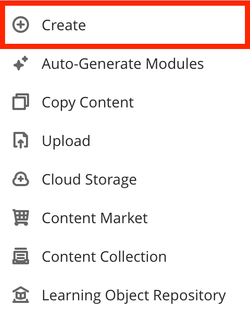
In the menu that appears, choose Create:
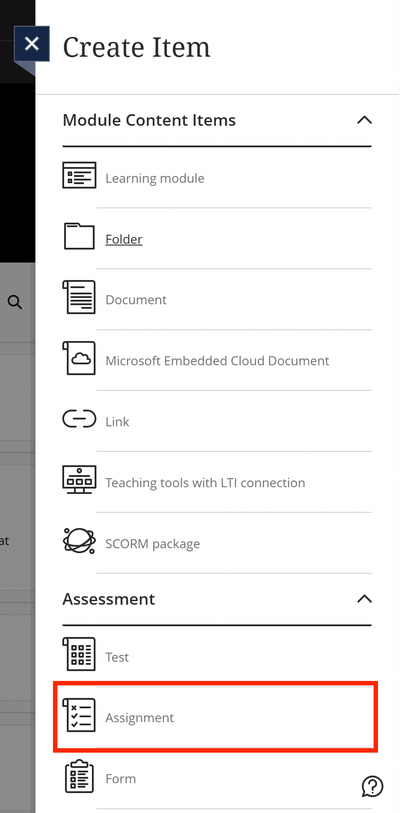
In the Create Item panel that opens, choose the Assignment option:
At the top left of the page, edit the text field to add a name for the assignment that will appear in the content page. Make this available to students by selecting the Visible to students option in the top right of the page:

You can now use the Assignment settings by clicking on the cog icon to set up offline assessment functionality.
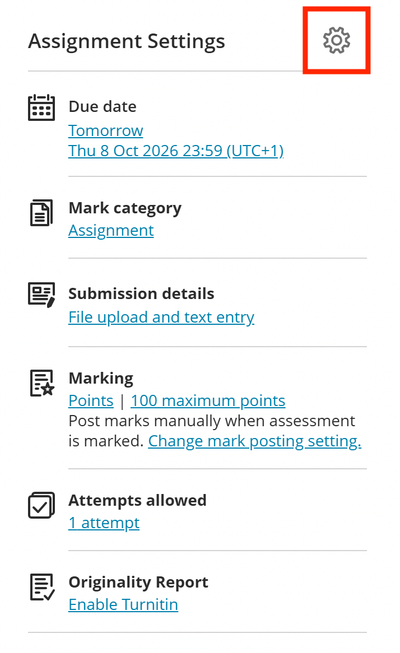
Assignment Settings
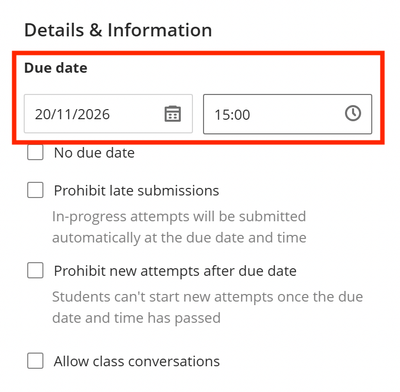
Add your Due Date and time:
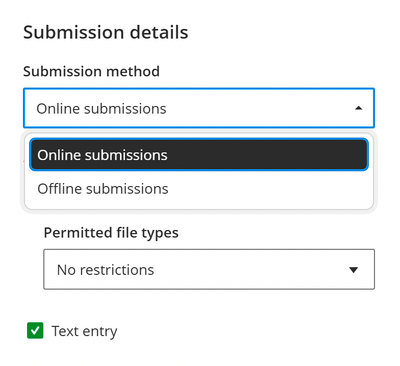
Next in the Submission Details section, choose Offline submissions from the dropdown menu:
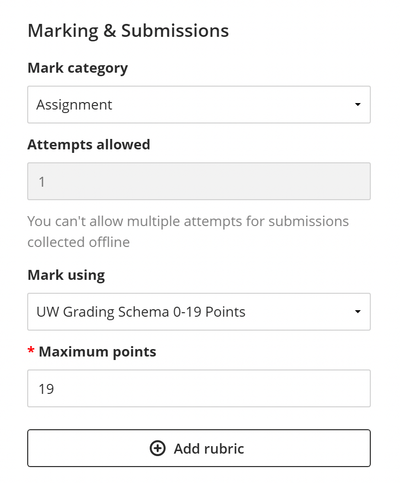
Select the Mark category from the dropdown menu, and make sure you also choose the correct grading schema (UW Grading Schema 0-19 Points for summative assessment). Set 19 as the maximum points score. Use the Add rubric option to add a marking rubric if required.
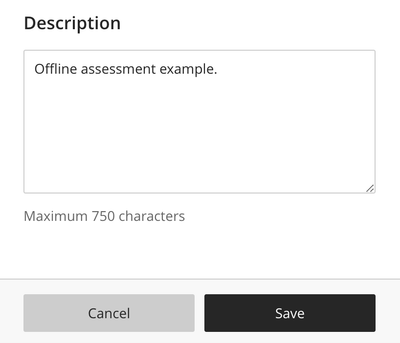
Add a description for the assessment and click the Save button to save the assessment: