
Dashboard
The Dashboard is the main home page of the Blackboard system. From here, you can access the Modules and Organisations you are enrolled in, see what is happening in the Calendar and Activity Stream, as well as grade assessments.
Institution Page
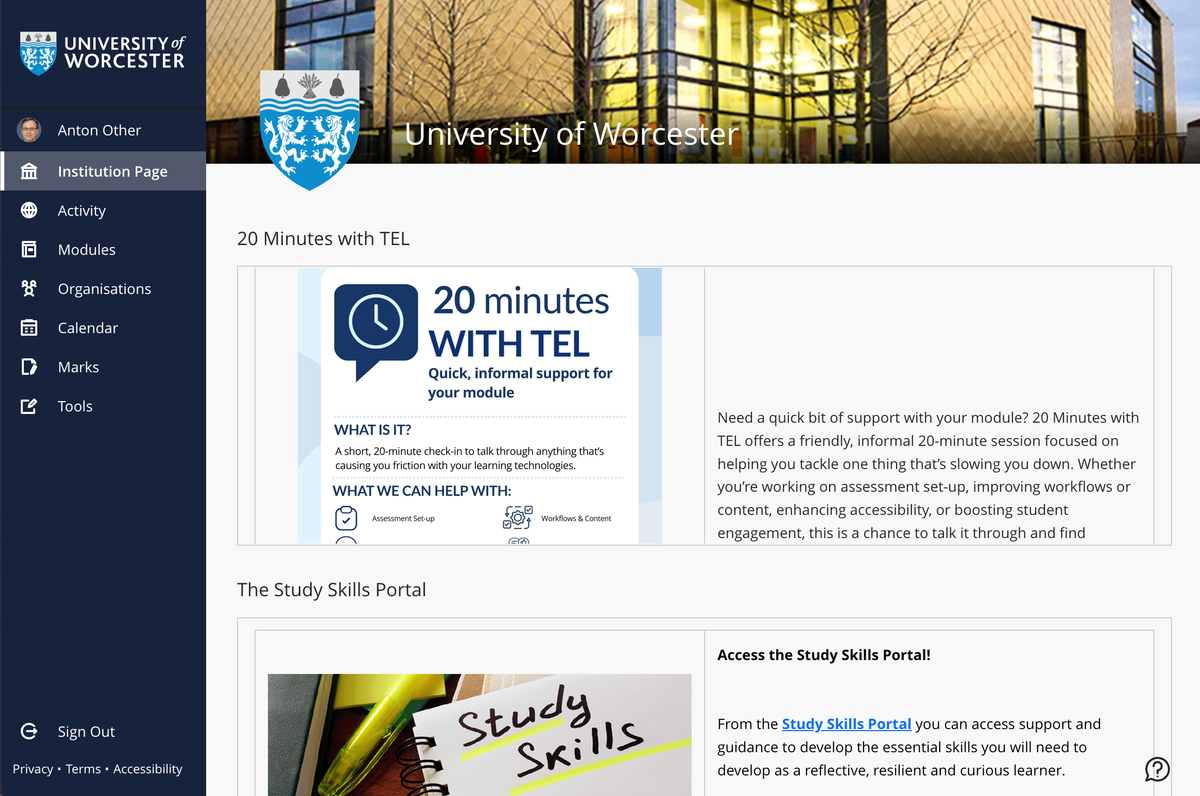
This is the default landing page that appears when you log in to Blackboard. The Institution page provides helpful links to user guides and other useful information. You will also see guidance on relevant subjects such as how to enrol into new modules at the beginning of the semester, or other targeted help which is updated throughout the year.
Profile
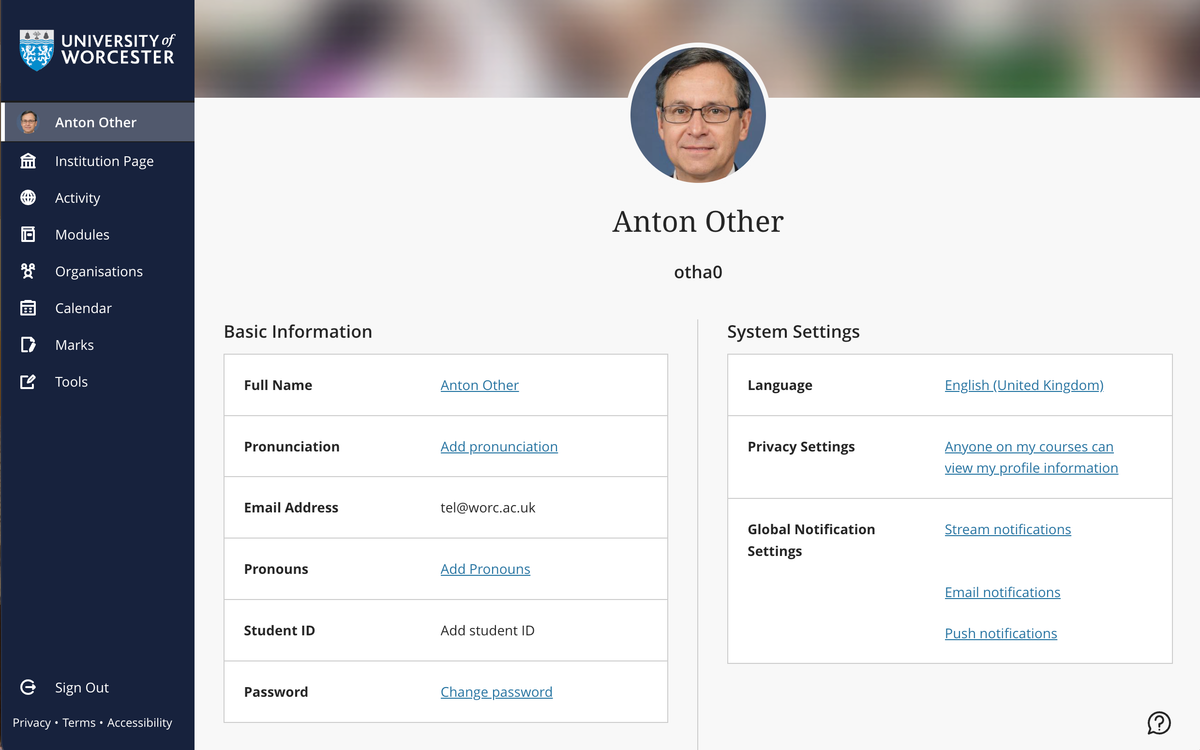
This page contains your profile picture and notification settings.
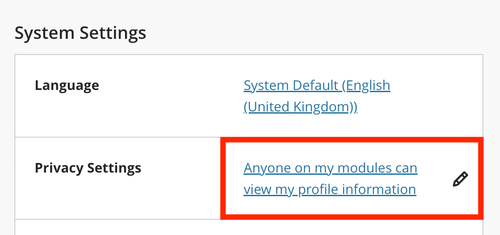
Click on the text to the right of the Privacy Settings label to update the setting to enable other users to view your profile information:
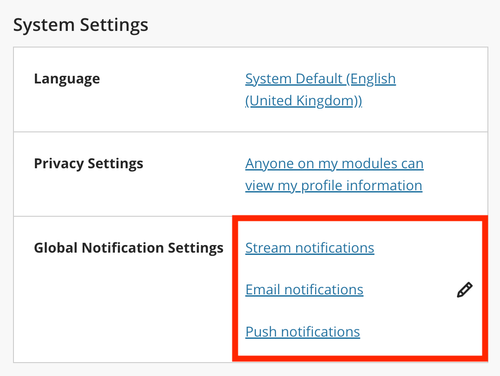
Use the Global Notification Settings to configure which notifications appear in your activity stream, which emails you get and what information appears in the mobile app (if you are using it).
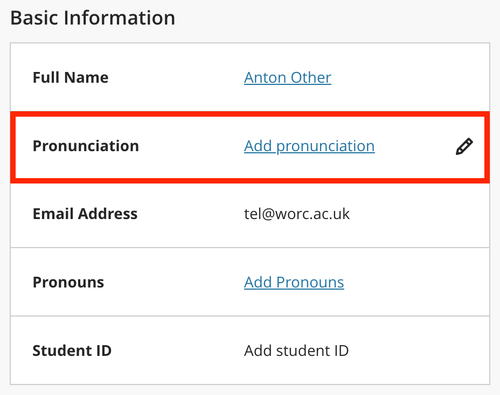
You can add a pronunciation for your name by adding phonetic spelling and an audio recording of how you pronounce your name by clicking on the Add pronunciation link in the Basic Information panel:
You can also add a profile image to the system that will appear on discussion boards and other Blackboard tools. To do this, just hover over the placeholder image and click on the pencil icon to upload an image:

Activity Stream
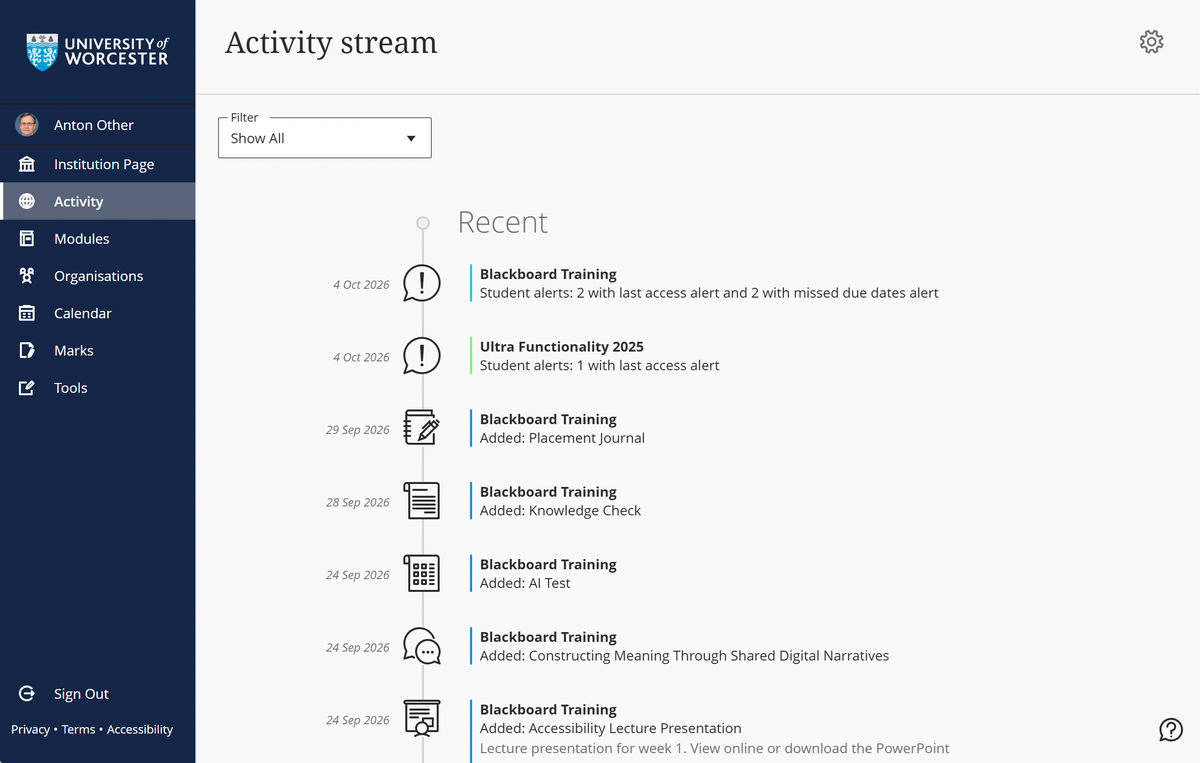
See what is happening at a glance. The Activity Stream shows you new and upcoming events, discussion post activity, student interaction and submitted assignments and tests.
Modules
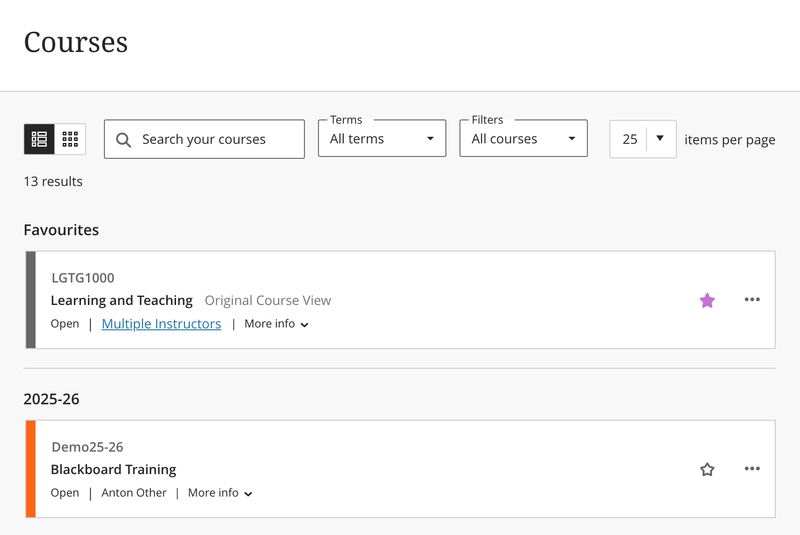
This page lists all of the modules you are currently enrolled in. Both Blackboard Original modules and Blackboard Ultra modules can be accessed from this same page. Click on a module to access the content.
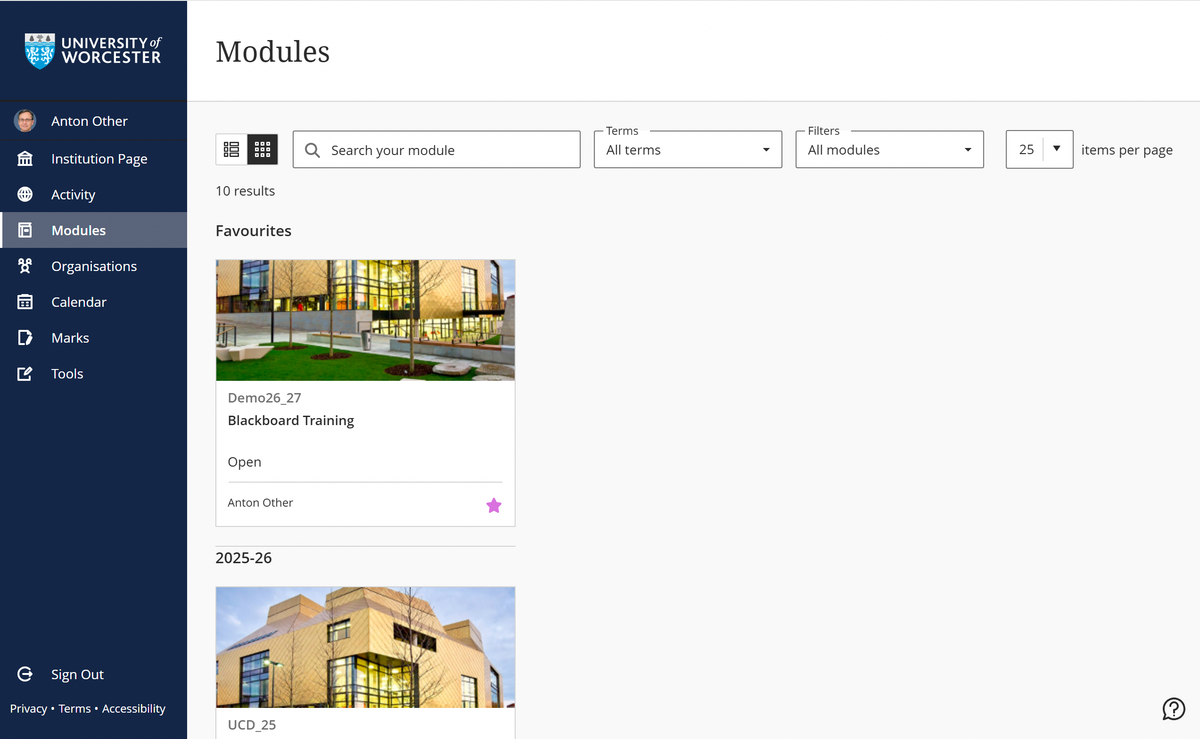
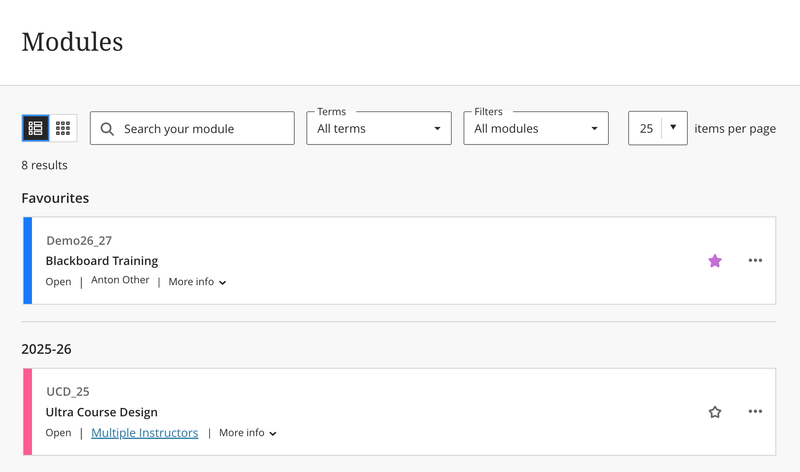
You can toggle between cards view and list view so that you can see more modules on the page at once. To do this, click on the List View button:
Modules are now displayed without images but take up much less space on screen:
Favourites
If you have a large number of modules, you can set the most commonly used as favourites so that they always appear at the top of the Modules list. Simply click the star icon to the right of the module name to set it as a favourite. The icon will turn purple to confirm this setting:

Favourites will appear in their own section at the top of the page:
Organisations
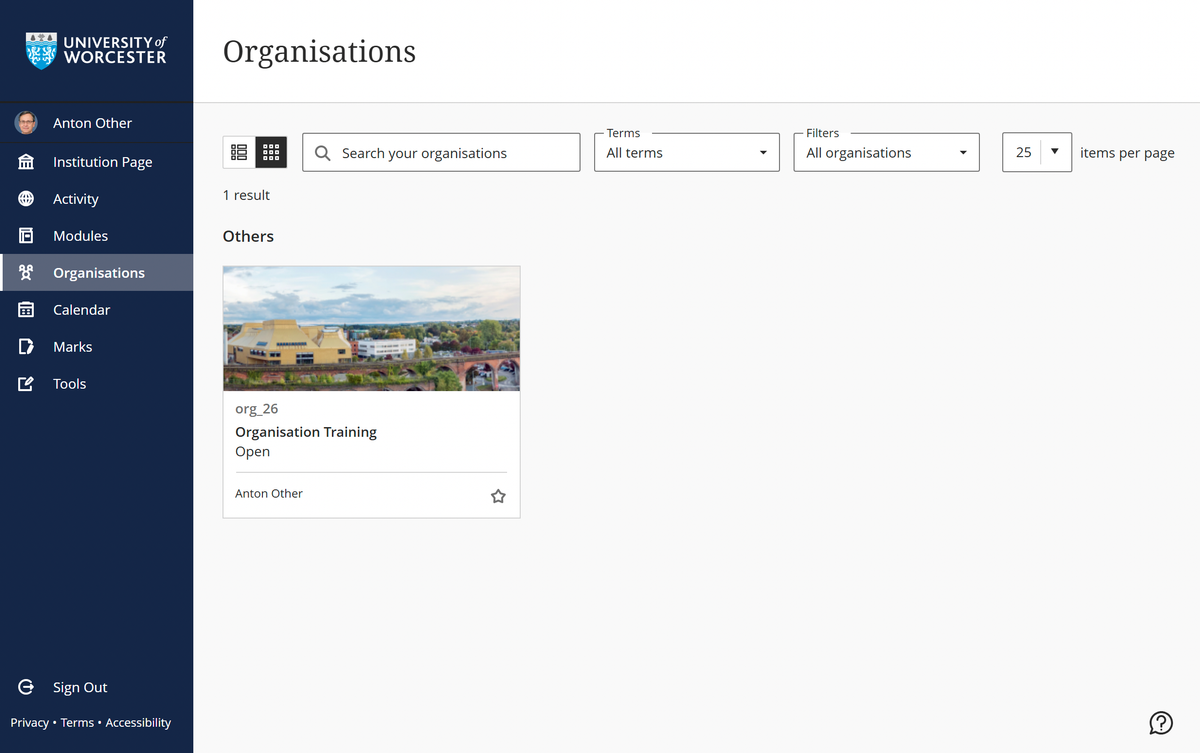
If you are enrolled on an organisation, this option will appear in the navigation menu. If you do not see this, it means that you have not yet been added to any organisations.
Organisations are group areas that are similar to modules. However, organisations span programmes or degrees and last for multiple years. Students can use this space to view programme information and interact with each other. Organisations are set up on request by the TEL team. Enrolment requests must be logged via the Digital Services Portal in order to add staff and students.
Calendar
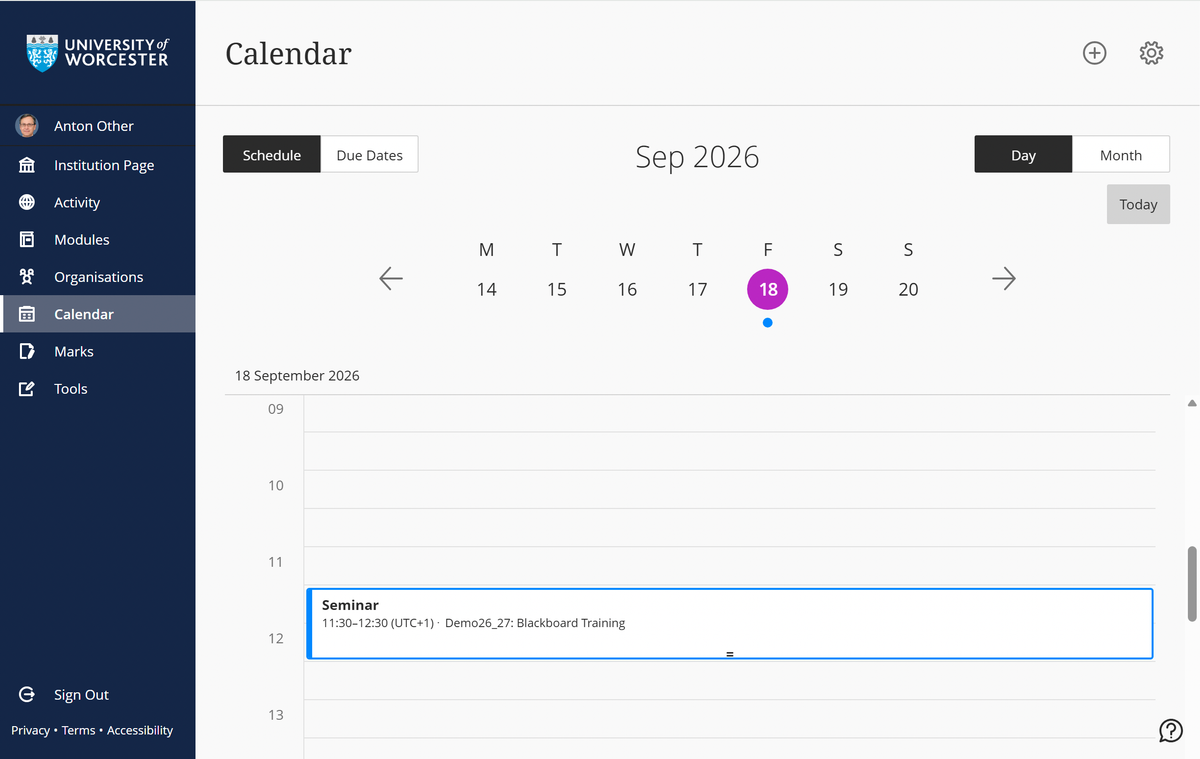
The Calendar shows upcoming events and meetings. Find out more on how to use this feature on the Calendar page of this manual.
Grades
The Grades page displays all assessments that need to be graded for each Blackboard module.
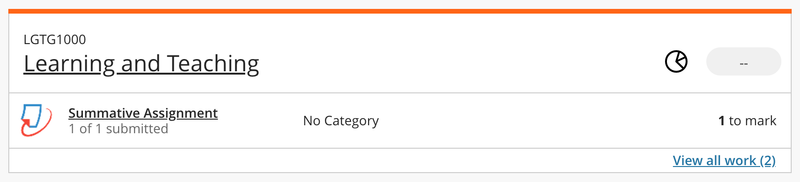
Click on the module title to go directly to the module or click on an individual assessment to go to that assessment to begin grading. Click the View all work link to see all submissions that have already been marked.