
Microsoft Tools
Current integrations with Microsoft tools include the ability to use files that exist in your University OneDrive cloud account. You can copy files from OneDrive into any Blackboard module, although this is not a live link, so any changes you make in OneDrive Will not be reflected in the Blackboard module.
To add a OneDrive file, locate the place where you wish to add the document on the module content page, and hover your mouse over one of the grey horizontal dividers until it turns purple, and the plus icon appears. Click this button:

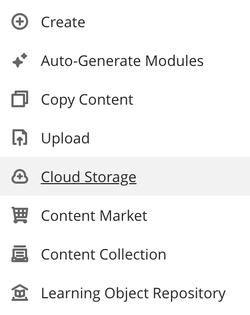
Click the Cloud Storage option:
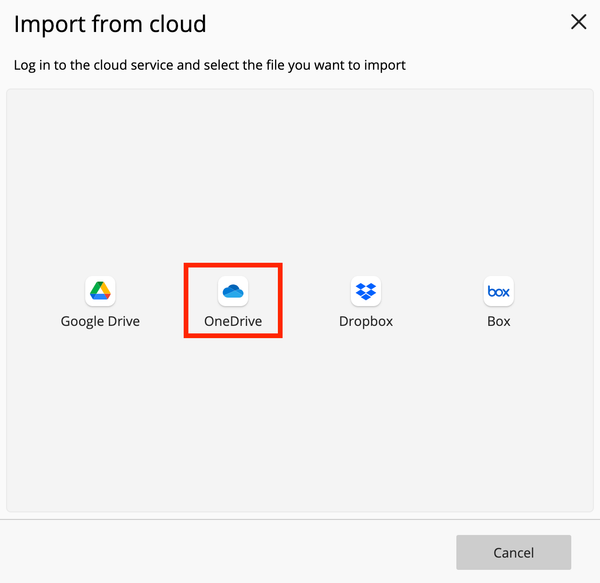
Then select OneDrive:
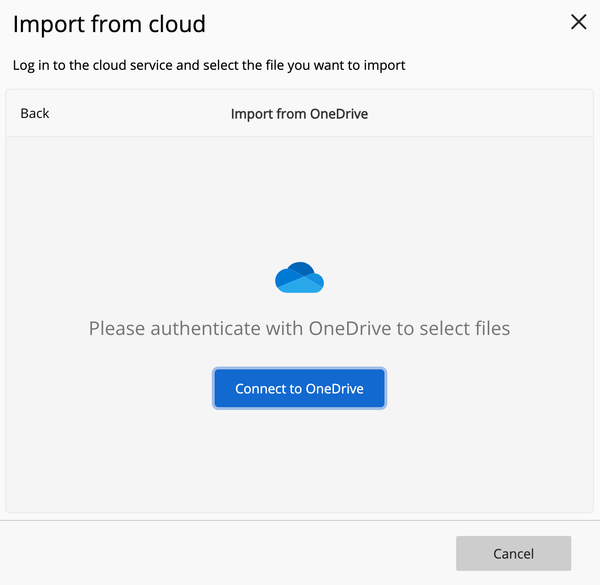
Log in if necessary:
In the window that opens, choose the resources to add using the tickboxes and click the Select button:
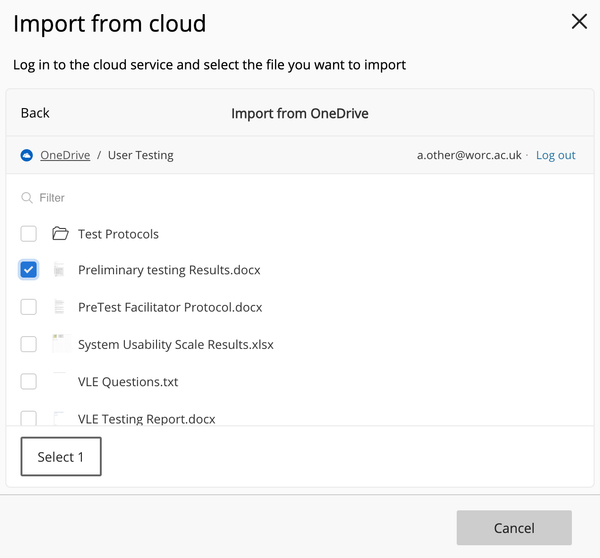
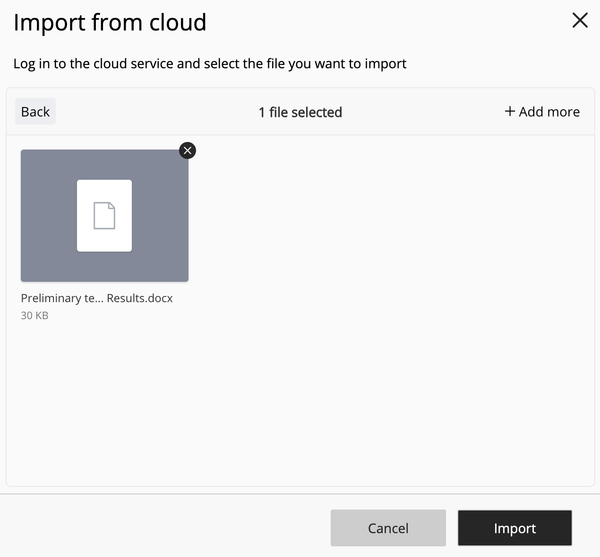
Add as many files as required and click the Import button:
The files will be added to Blackboard, processed for an Ally accessibility score and hidden from students. Unhide the new files when you want students to be able to access them.
