External Examiners
Once External examiners have been appointed, they will need to make sure that they have their University of Worcester single sign-on account set up. They will need this to access all University systems.
Blackboard Module Enrolment
External examiners should be granted access to relevant Blackboard module areas as part of the initial account creation setup procedure. External examiners returning in subsequent years should also be granted access to the correct access, but if this is not the case they are advised to contact their Professional Administrative Services (PAS) team to be enrolled as necessary.
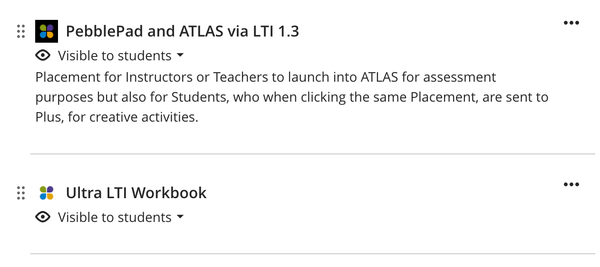
For modules that use PebblePad, access is managed through Blackboard module enrolments. This means that as long as you are enrolled into the correct Blackboard module you will have access to the linked PebblePad workspace, and will be able to view submitted work in that system.
Accessing Blackboard Modules
Once the University of Worcester IT account has been set up and the
external examiner has been enrolled in the required Blackboard module areas, they can access the system by visiting the University home page (opens in new tab), scrolling to the bottom and clicking on the Staff homepage link:

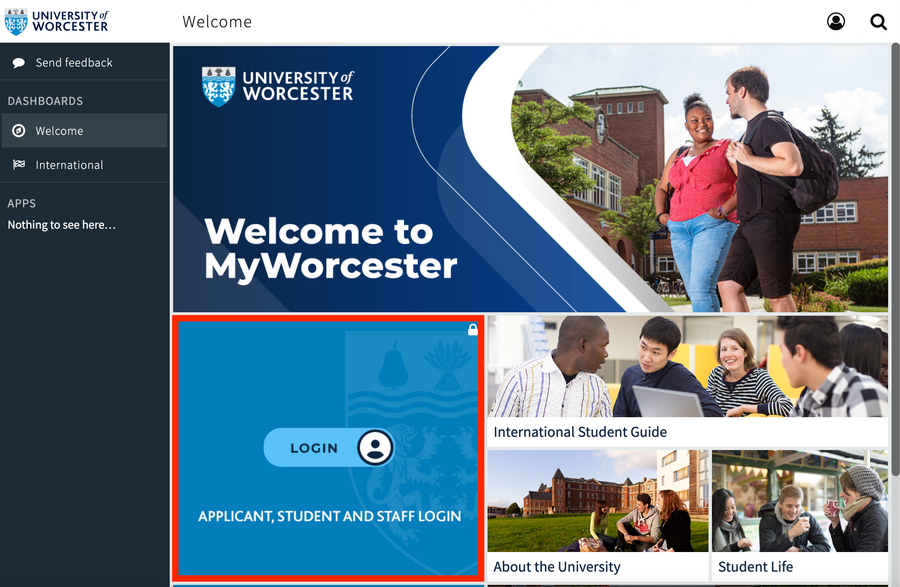
From the Welcome page, sign in to the Staff Page by clicking on the Login tile:
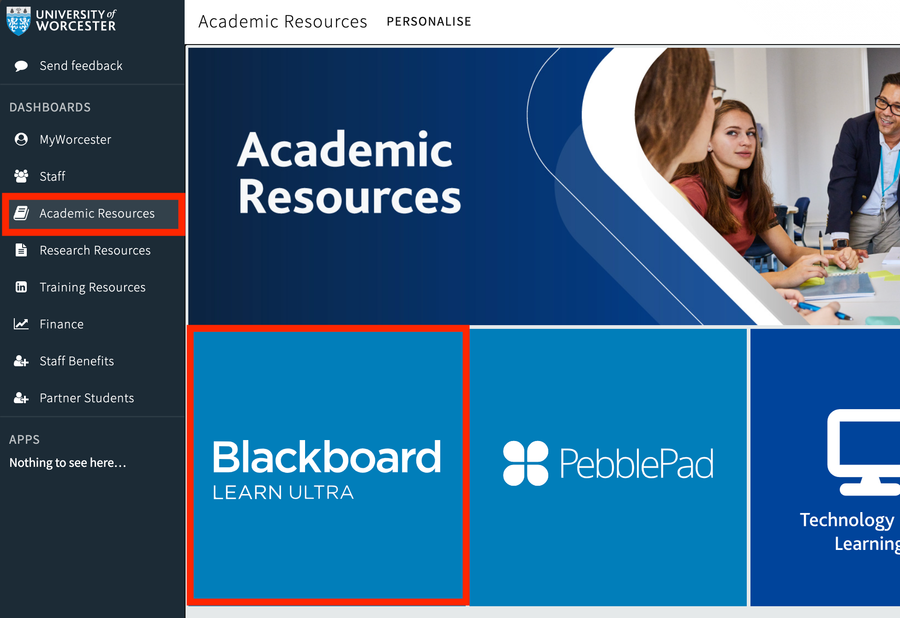
From the Academic Resources page, click the Blackboard Learn Ultra tile:
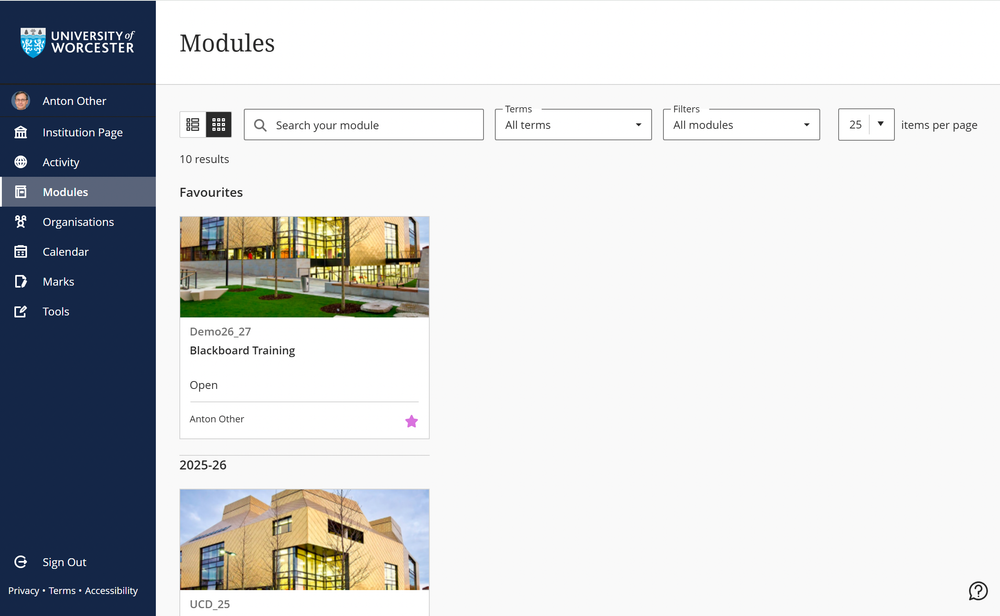
Navigate to the Modules page to view all of the Blackboard modules you have access to. Click on a module title to open that Blackboard area.
Accessing Assessments
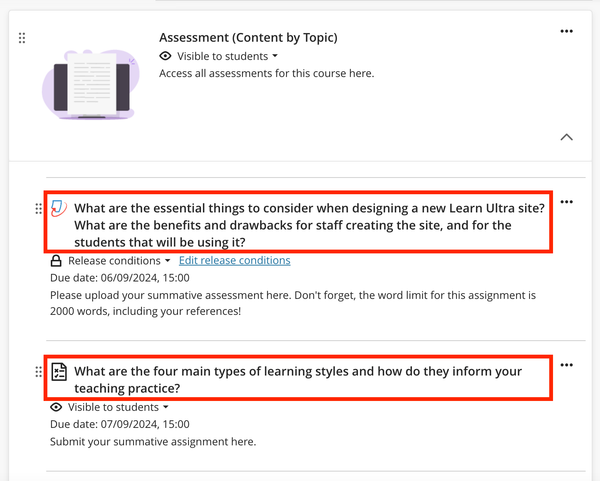
Once inside a module, you can find assessments to open within the module content itself. Access these by clicking on the assessment title:
Viewing Assignments
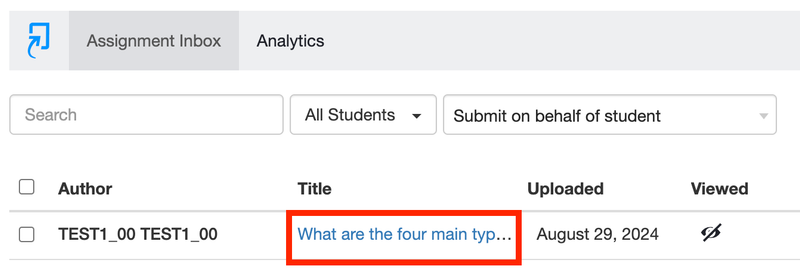
For Turnitin assignments, click on the Paper Title to view the paper:
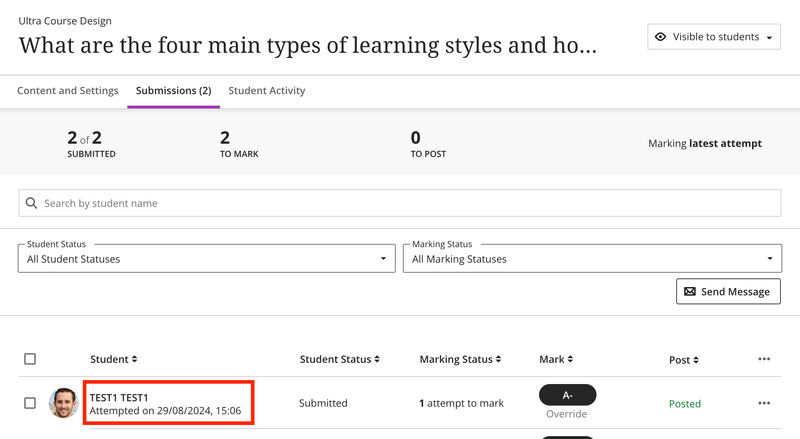
For Blackboard assignments, click on the name of the student to view their paper:
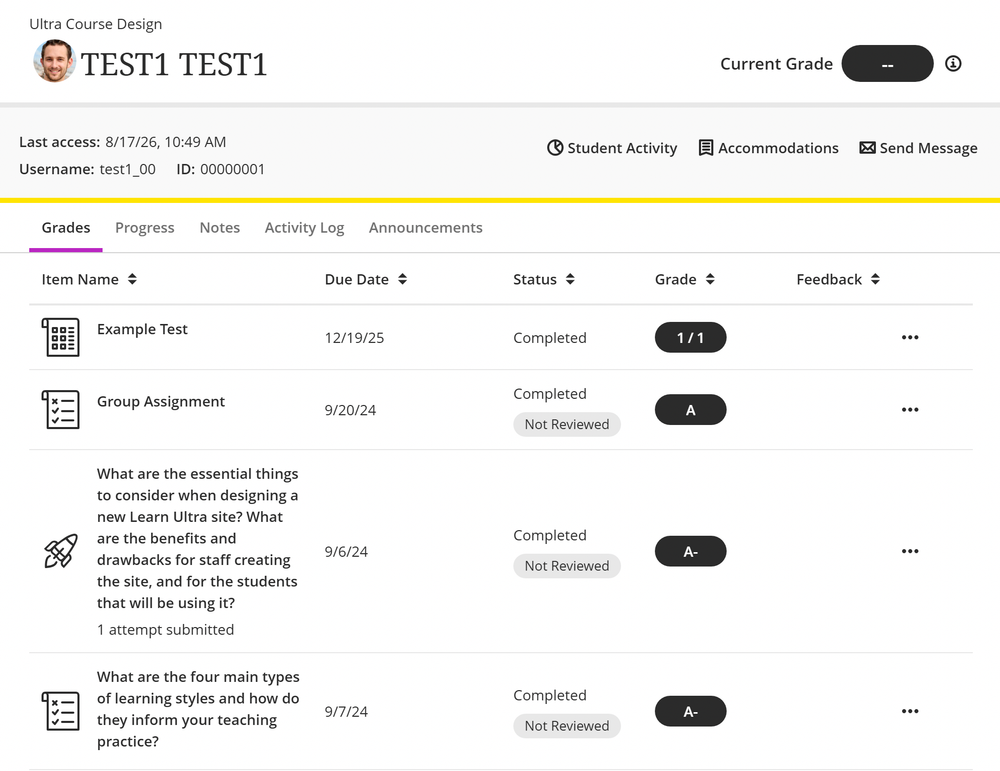
You can also filter assessments by user in Blackboard by clicking on the View Grid toggle button:
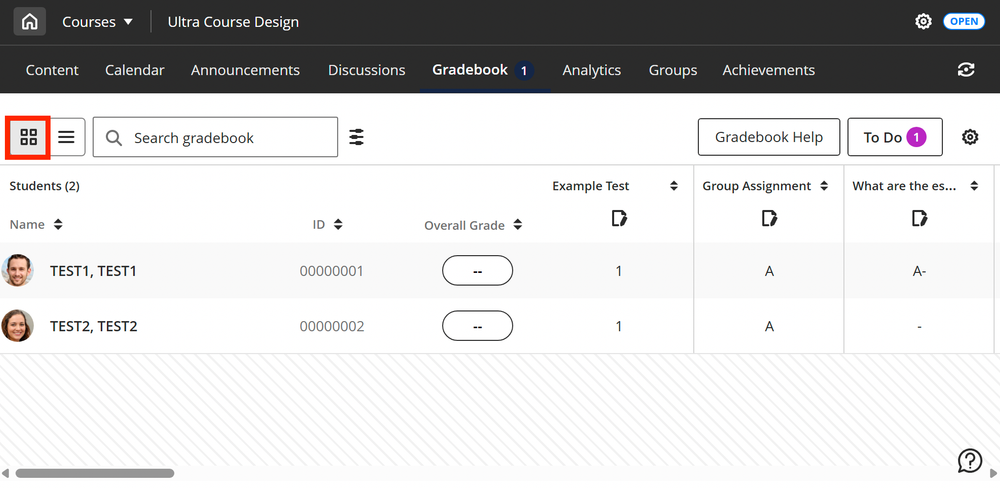
You can then click on the Item Name of any assessment to open for that student:
Accessing PebblePad
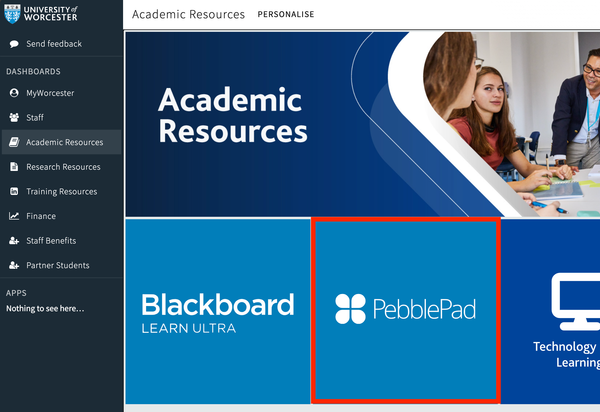
From the Academic Resources page, click the PebblePad tile:
PebblePad will open in a new tab.
If an assessment has been linked from Blackboard, you can access the Workspace via the ATLAS link, or if a resource has been added you can access workbooks directly from its own link: