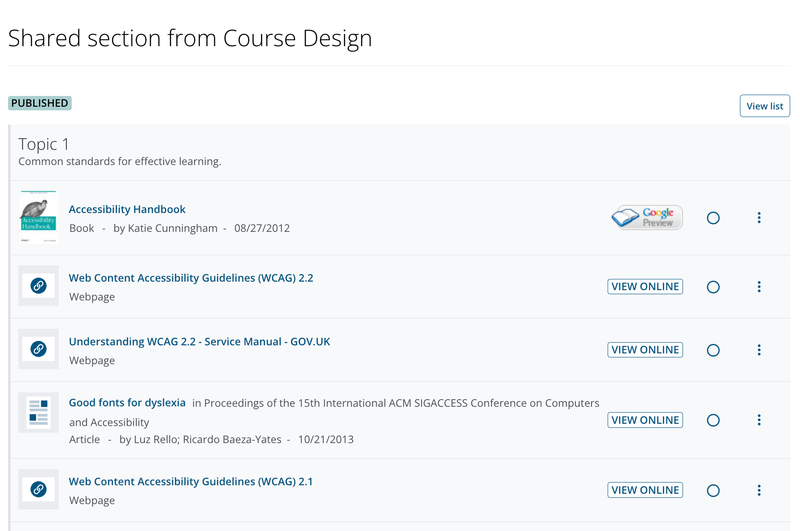
Talis Aspire Reading Lists
Learn Ultra integrates the Talis Aspire reading and resource list tool into each course area and can be accessed in a number of different ways. They are available in each course via the Books and Tools menu or can be added directly into the Content page. Each list can contain links to books, journals, video and other web content for students to use.
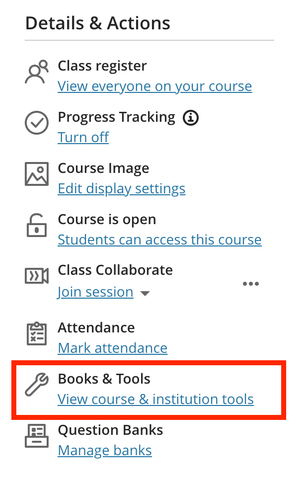
Access from the Details and Actions Menu
You can access the full reading and resource list from the side navigation menu on the left of the page, under the Details & Actions label. Click on the View course & institution tools link in the Books & Tools section:
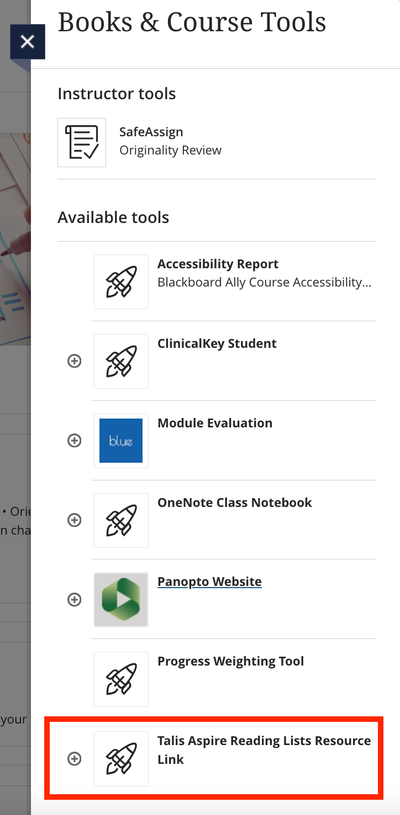
In the menu that opens in the right of the page, click the Talis Aspire Reading Lists Resource Link option to view the full list:
Add a Full List
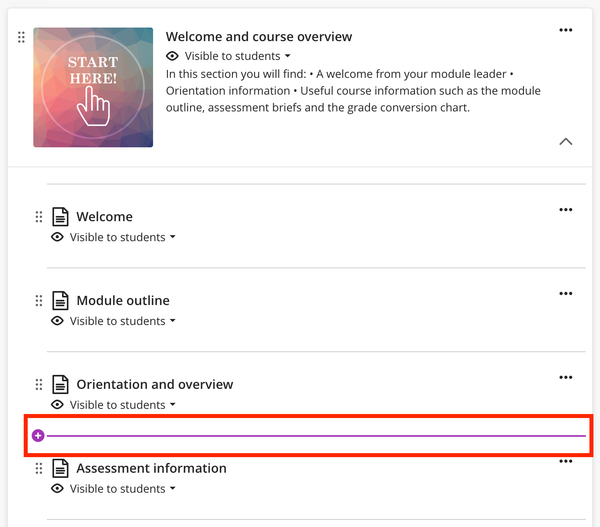
You can also add the full list anywhere on the Content page. To do this, hover your mouse over one of the grey horizontal dividers in the course at the location you wish to add the list until it turns purple, and the plus icon appears. Click the plus button:
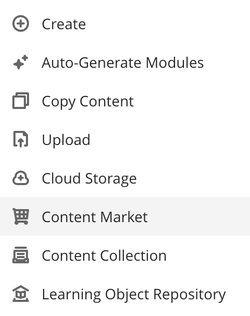
Choose Content market:
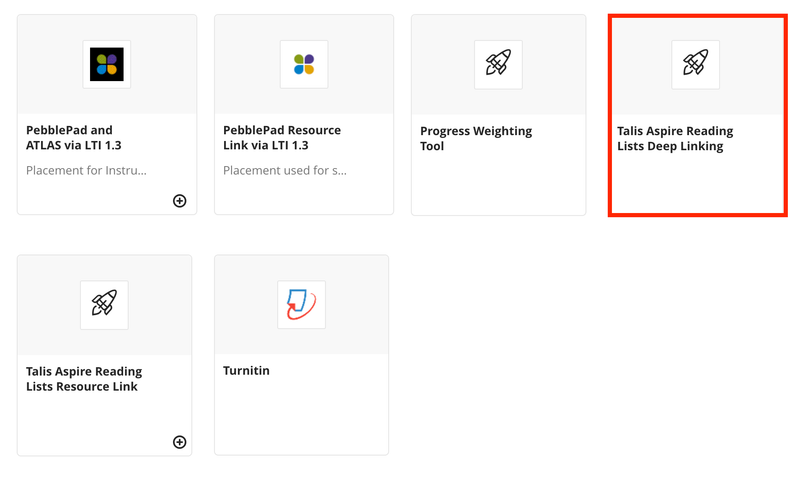
In the page that opens, select the Talis Aspire Reading Lists Deep Linking option:
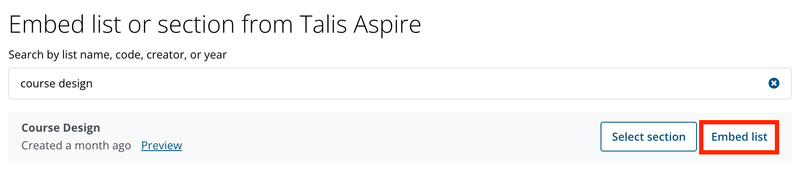
Search for and select the list you wish to use and click the Embed List button:
The full list will now be added to the Content page in the location you specified.
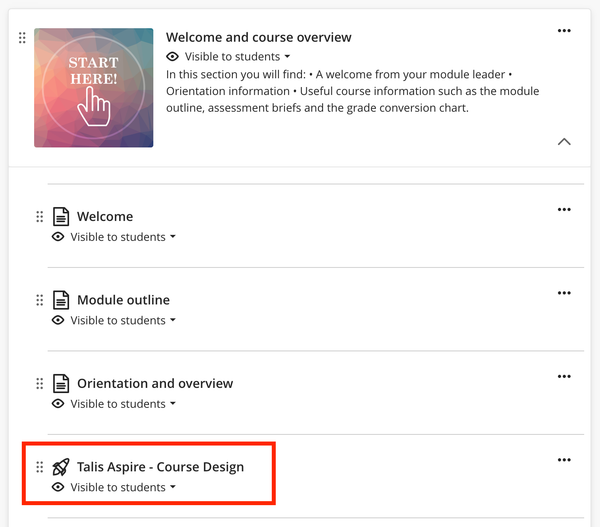
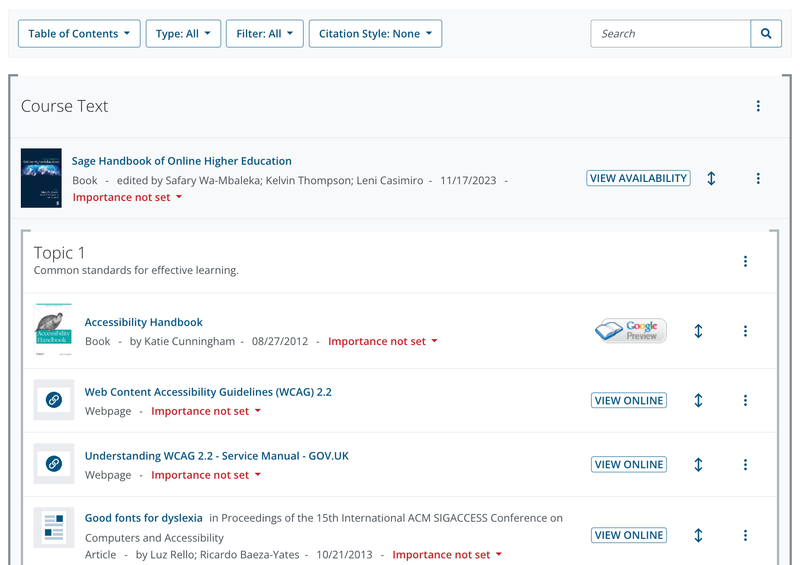
Users can click this page link to access the full list, including any sections you have created:
Add a Section
You can also add a section of the full list in a similar way if you have set this up in Talis Aspire. To do this, hover your mouse over one of the grey horizontal dividers in the course at the location you wish to add the list until it turns purple, and click the plus icon appears:
Choose Content market:
In the page that opens, select the Talis Aspire Reading Lists Deep Linking option:
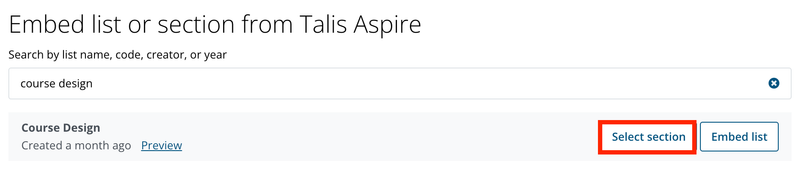
Search for and select the list you wish to use and click the Select Section button:
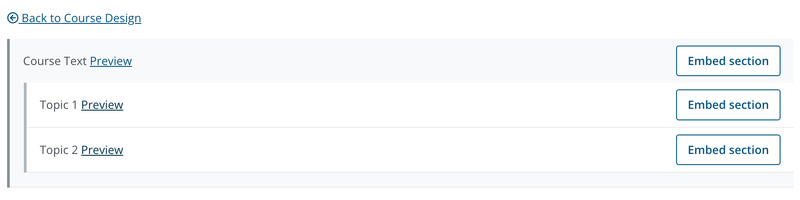
Choose the section you want to add from the list presented by clicking the relevant Embed section button:
The section will now be added to the page.

When clicked, the list section will load: