Using the Calendar
The Learn Ultra Calendar allows you to view all events and meetings that have been set up as well as view upcoming assessment due dates, and set your office hours.
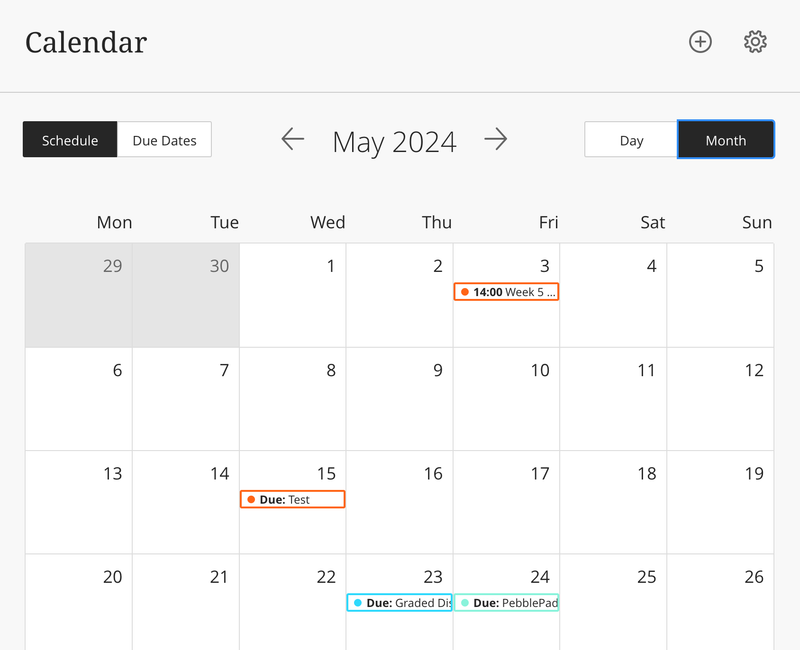
Use the Schedule or Due Dates button to filter between calendar events or a list of upcoming Due Dates:

Use the Day and Month buttons to filter between a list view of the day's events, or a grid view for the entire month.

Navigating the Calendar
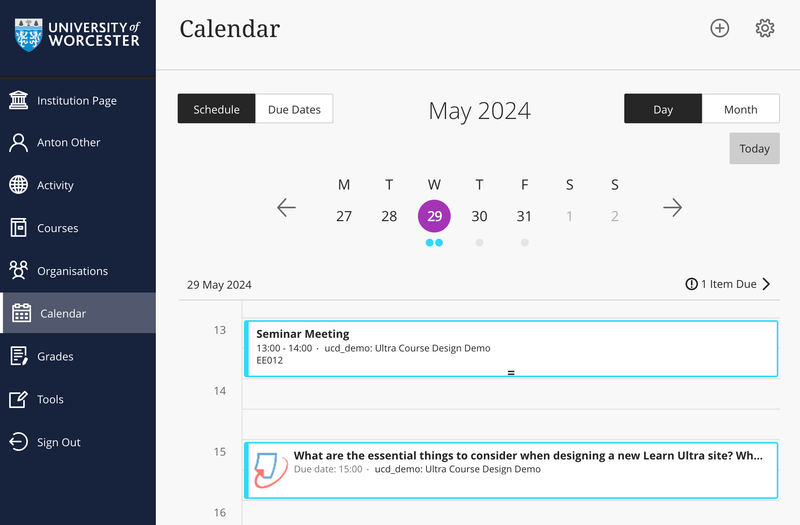
The Learn Ultra Calendar tool can be accessed in two ways. The global calendar displays all entries and due dates for all courses in one place. The calendar available in each separate course displays entries only for that course.
Global Calendar
You can access the global calendar from the main dashboard page using the Calendar menu:
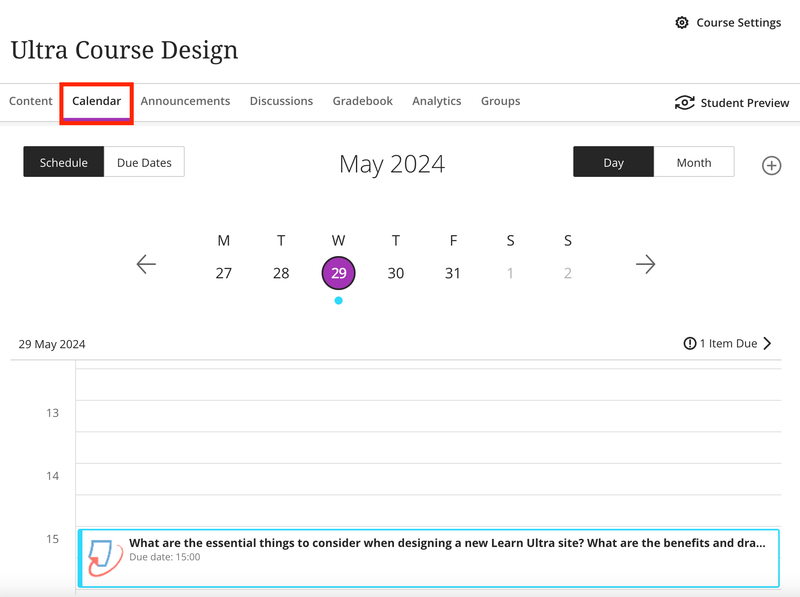
Course Calendar
The Course Calendar allows you to access all events that belong to that specific course. From here, you can view course assessments, set up course meetings and set office hours.
Adding Events
You can add new events to the global calendar which will be added to your personal calendar only. This means that only you will be able to see them (students will not see these events).
If you want to add events to a calendar for students to see in their activity stream or in the course itself, add new calendar events from the Learn Ultra course.
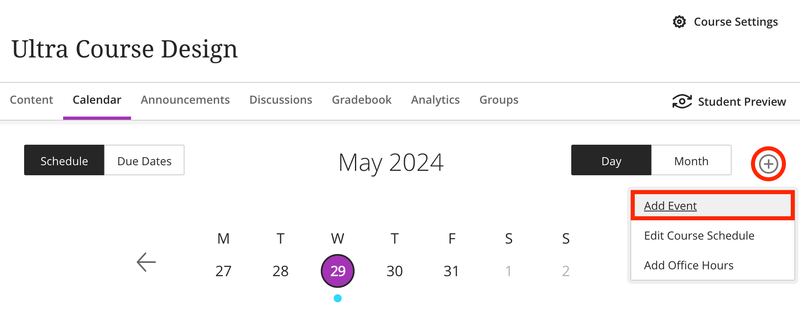
To add a new event, access the Learn Ultra course and navigate to the Calendar tab. Click on the plus button and choose Add Event:
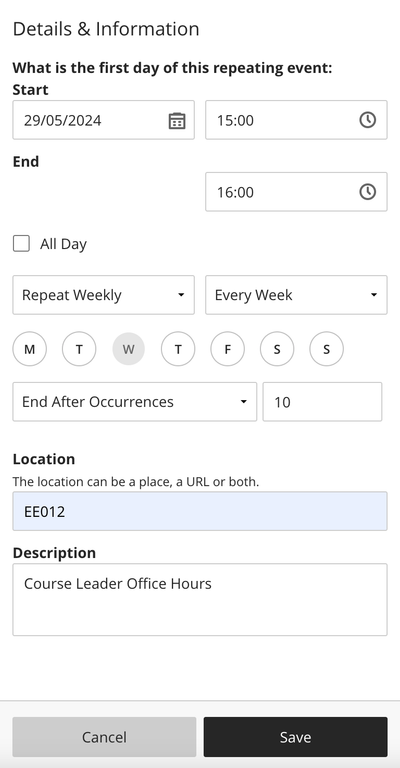
Add a title, set the date and time and choose whether this will be an all day or repeat event. Add a location, and include a description:
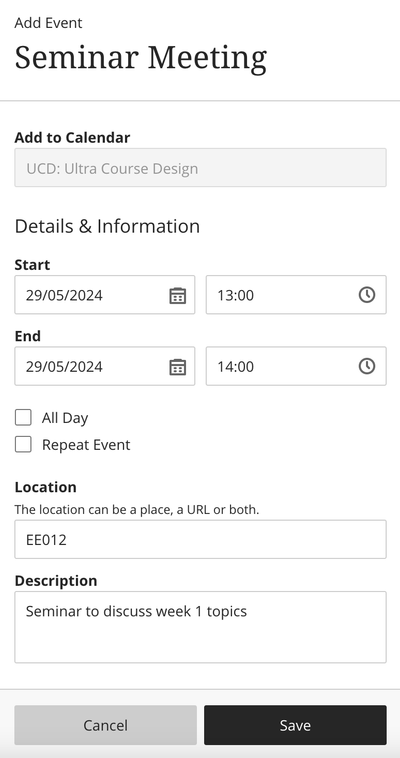
Click the Save button to save the event.
Setting Office Hours
Office hours are a type of meeting you can set up that will appear on Learn Ultra course calendars which enable you to manage blocks of events. This means that you don't need to manually set up each meeting, but can set up a number of meetings at once.
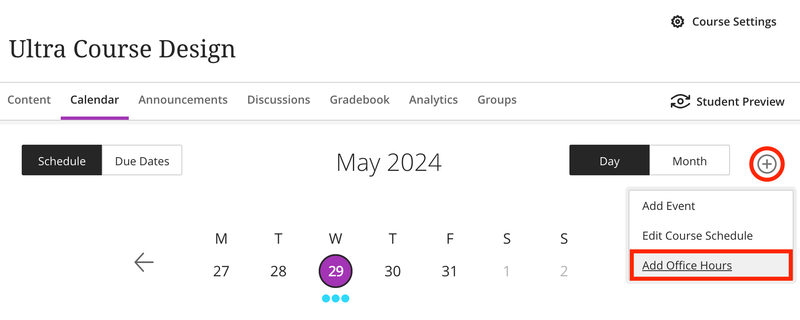
To add your office hours, access the Learn Ultra course and navigate to the Calendar tab. Click on the plus icon and choose Add Office Hours:
You can edit the title at the top of the page, select when these series of meetings should start, but you also have additional options to choose from. Choose whether you want these meetings to be held every day, every week or every month. You can choose which day each meeting will occur on so that they are always on the same day. You can also select how many weeks you want to schedule these meetings for or choose a date when they will no longer be repeated. Click the Save button to complete your changes: