
Copying Content
By default, each year new Blackboard module areas are automatically created and go "live" - ready for you to add new content and tools. Students are not enrolled until you have had the chance to populate and update the new module (students are usually added shortly before each new semester).
No materials will be copied over from old module areas by the system, so if you want to copy over any content that is still relevant to the module you are teaching, you can use the Copy Items feature. You can copy an entire module, parts of a module or individual pages, tools or activities.
Copying a Blackboard Module
Copying an entire module is not recommended as you will then need to manually remove all outdated content. This will include all old announcements and assessments. Only use this option if you wish to copy everything on the Content page including Panopto videos that are not in a learning module or folder. For most use cases you should choose to copy only the specific items that are needed using the Bulk Copy method.
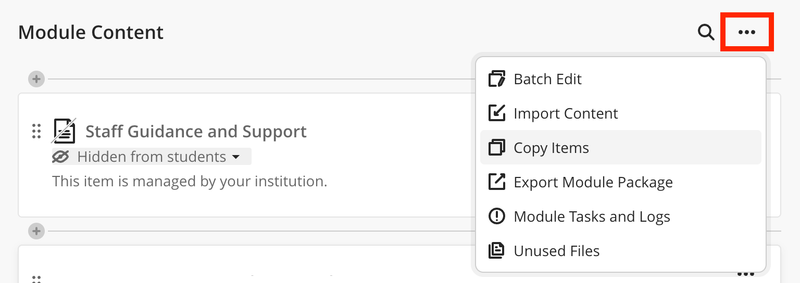
To copy everything from another module, click on the Options button in the top right of the page next to the search bar and choose Copy Items :
Use the tickbox to select the module you want to copy from in the list that appears or use the search to filter by module name or ID. Once you have made your selection, click the Start Copy button:
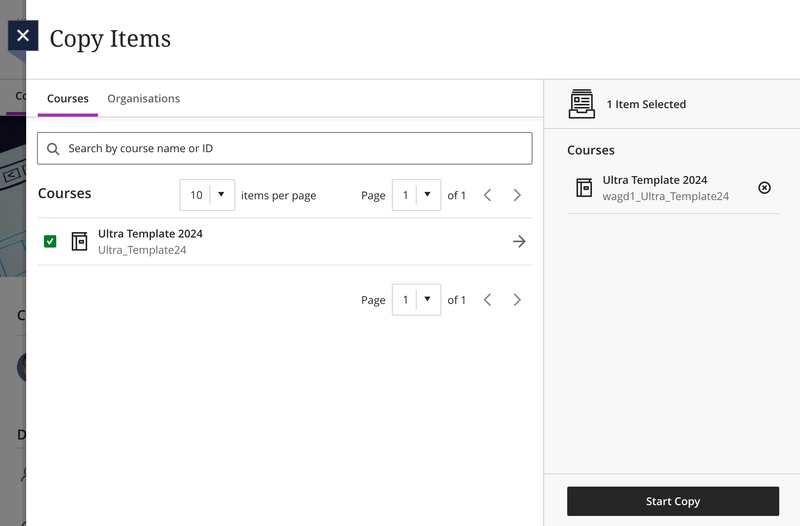
The content will be copied, and you can now amend the content for the new year as necessary, and reset assessment dates as needed.
Copying Content in Bulk
If you don't need to copy an entire module, but just a section such as all content, or tools this is similar to the procedure above, but you will just need to select the sections you need. To do this:
Click on the Options button next to the search icon and choose Copy Items :
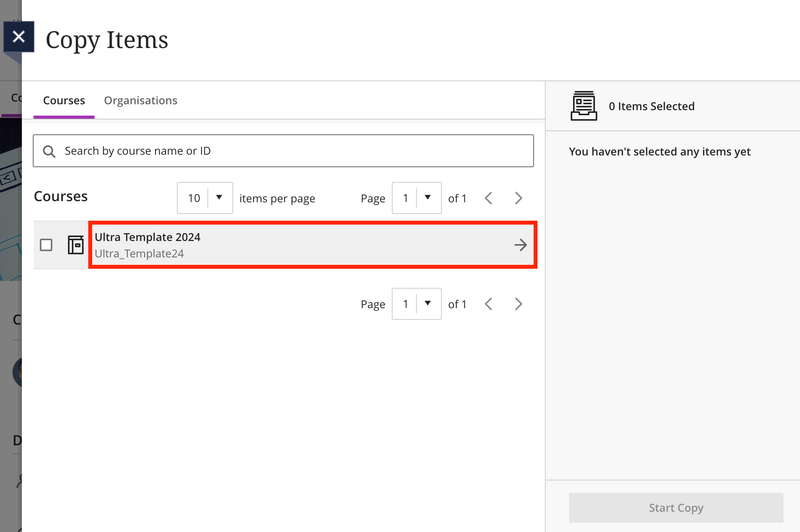
Select the module you want to copy from:
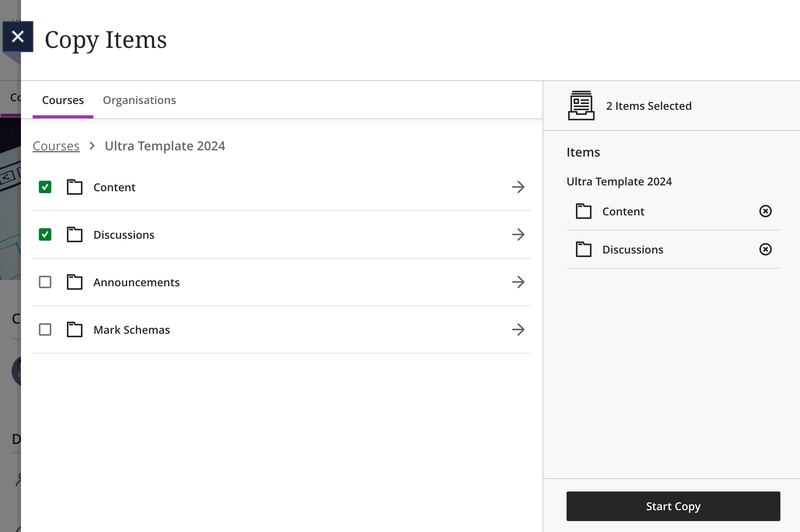
Select the parts of the module you wish to copy from using the tickboxes and then click the Start Copy button:
Copying Individual Items
To copy an individual file or series of files, click on the Options button next to the search bar and choose Copy Items :
Select the module you want to copy from:
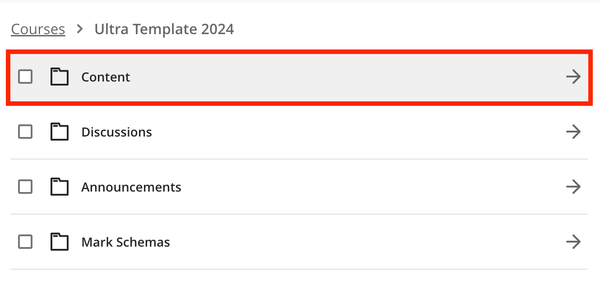
Select the section to copy from. In this case we are copying module content:
Select the items you wish to copy and click the Start Copy button:
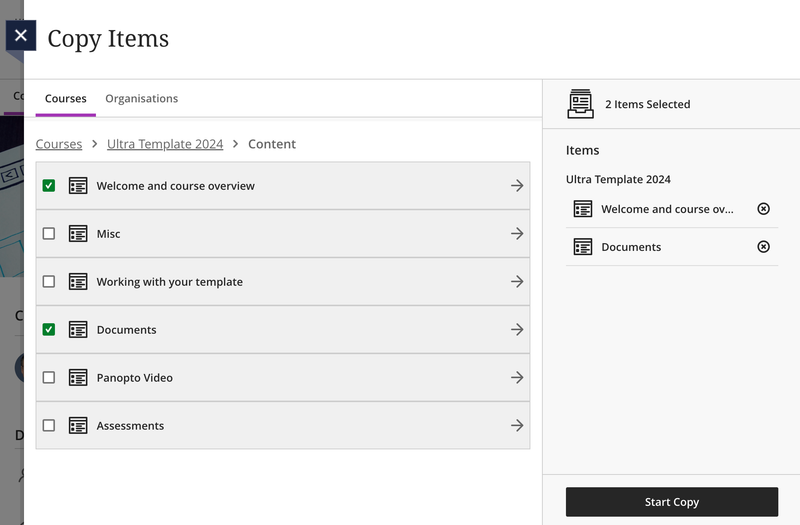
The content will then be copied over to the new Blackboard module area.