Grading Tests
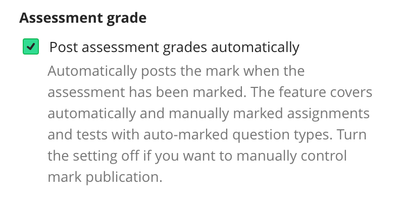
Tests can be set to be automatically graded so that results are released to students once they have completed it. However, you can also release grades manually if you have a question type that cannot be self-marked such as an essay question, where you will need to read through a question response in order to mark it yourself. The setting for choosing whether assessment grades are released automatically can be found in the settings for the test, towards the bottom of the panel in a section titled Assessment grade:
Self Graded tests
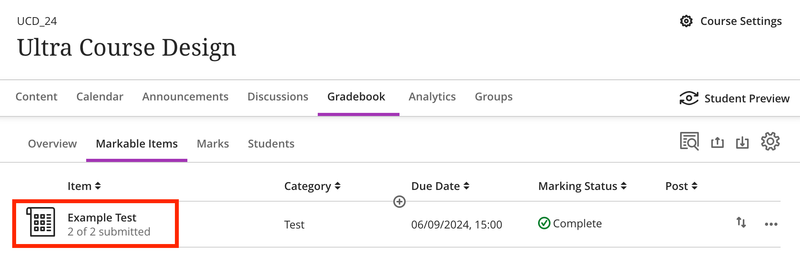
To view a student's completed test, access the Gradebook tab and click on the name of the test you wish to view:
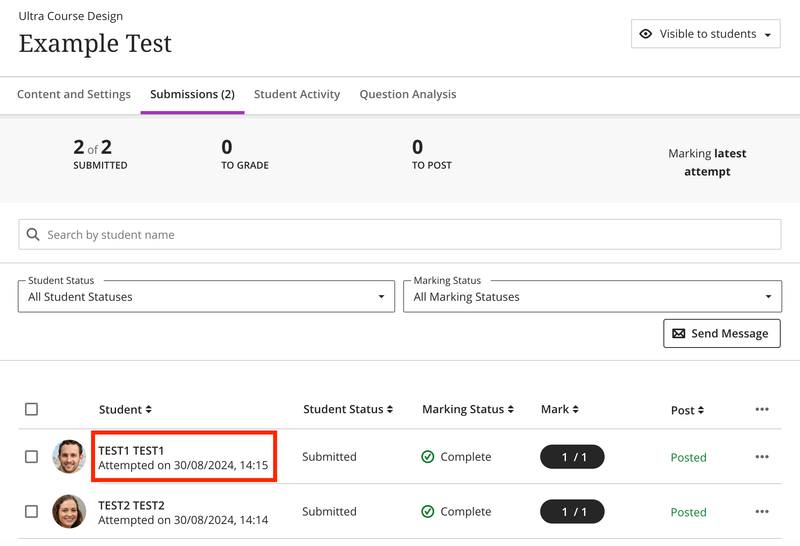
Click on the name of the student you want to see the responses from:
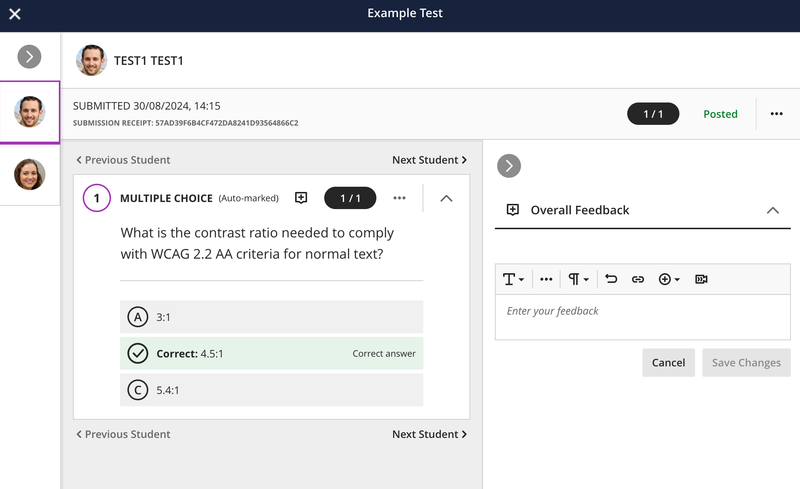
The test will open, and you will see which answers the student gave, and you can also add additional feedback if you wish in the text box:
Manually Grading tests
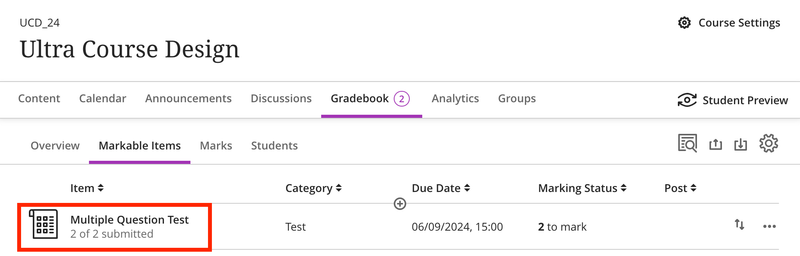
To grade a test that contains questions that you wish to mark yourself before manually releasing grades and feedback, access the Gradebook tab and click on the name of the test you wish to view:
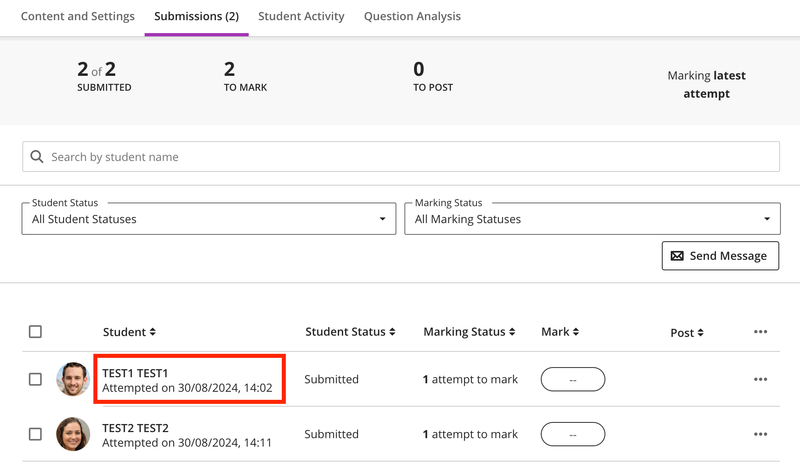
Click on the name of the student you want to see the responses from:
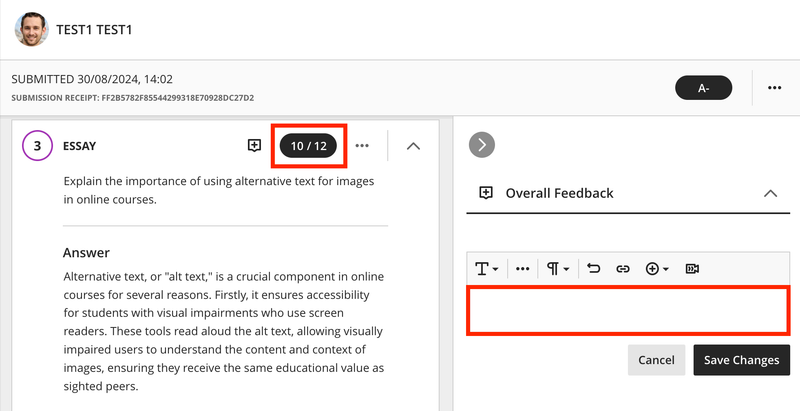
Scroll down to the questions you want to mark and add the points available in the grade pill and add feedback into the text box. Click the Save Changes button to update the gradebook.
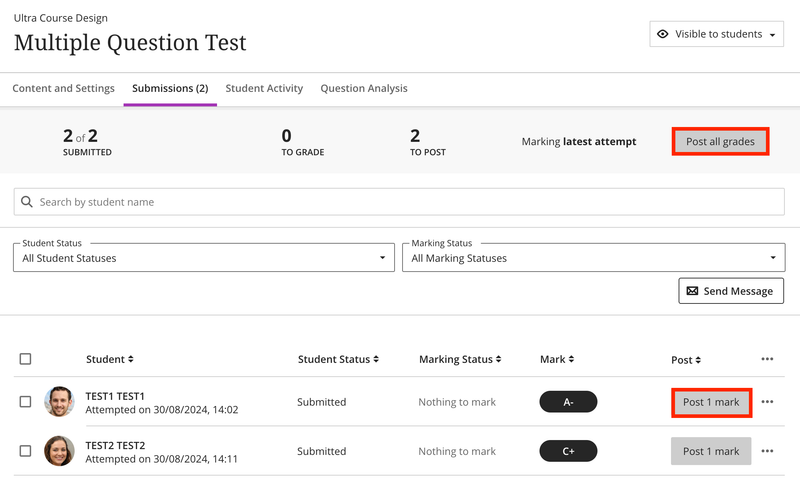
Once marking for students is complete, you can choose to post the grades and feedback to students individually by selecting the Post 1 mark button at the end of the row, or post grades to the entire class all at once by clicking on the Post all grades button at the top of the page.