
Module Template
Each Blackboard module contains a number of essential items arranged in a standard structure. These are kisted below:
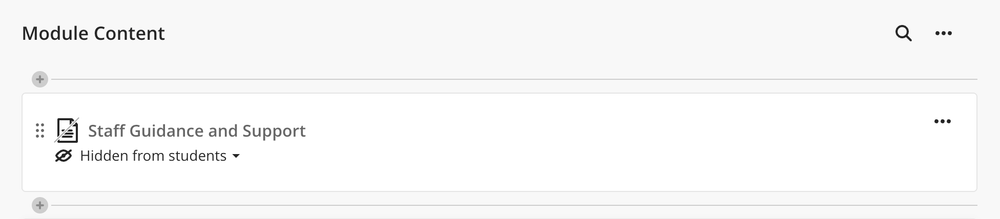
Staff Guidance and Support
This is a Blackboard document that contains information on best practice and help and support. It is hidden from students by default, so only staff can access it.
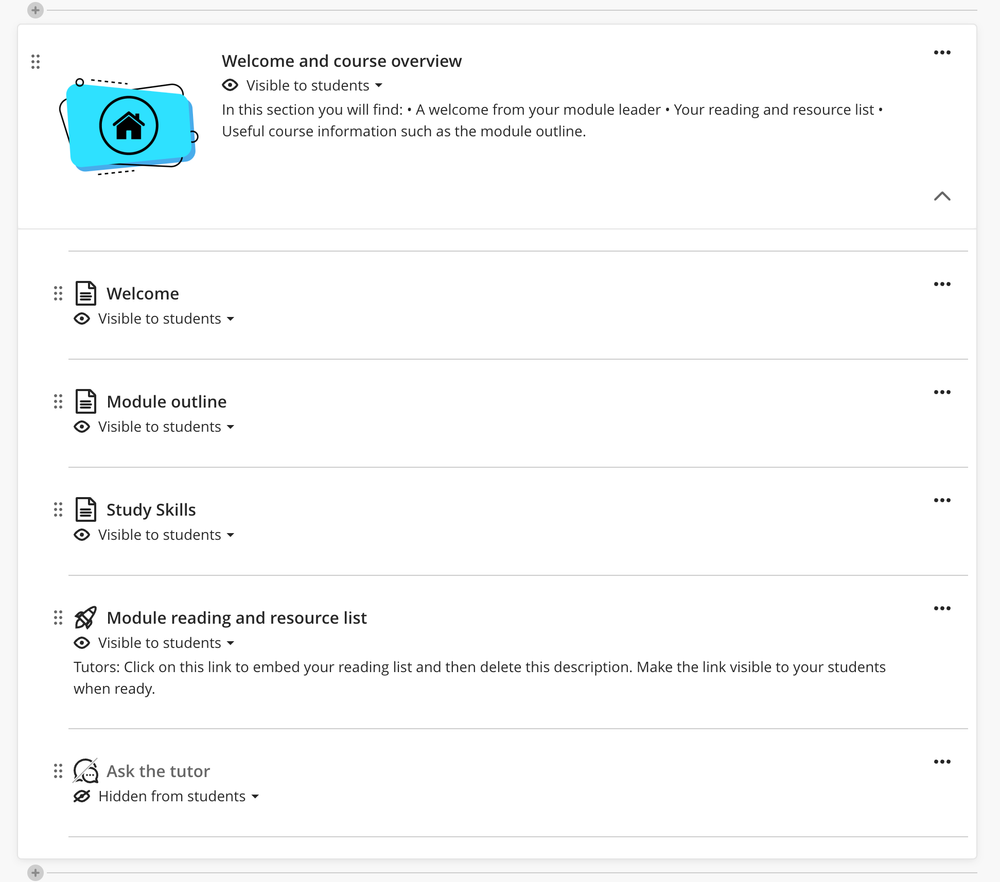
Welcome and course overview
This learning module contains the following items that students can access. It is placed at the top of the page to orient students once they have successfully registered.
- A Welcome page
- The Module Outline
- A link to the Study Skills site
- The Reading and Resource List
- An Ask the Tutor discussion board (this is hidden from students by default)
You should edit the Welcome page to add your welcome message and contact details as soon as the module is set up in Blackboard.
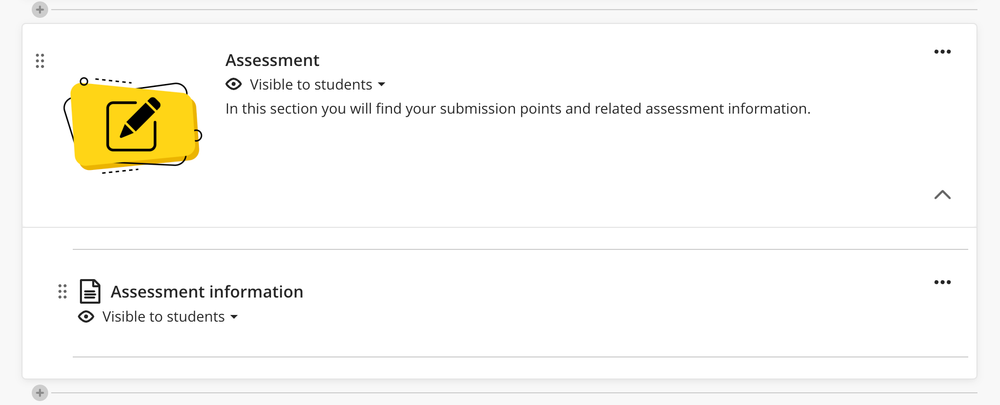
Assessment
The third item is a learning module titled Assessment and contains guidance for students on the assessments for this module area. You can also place your assessment submission points in this folder so that students can easily locate them.
Panopto Video
At the bottom of the page you will see a link to Panopto. This is hidden to students by default, and this item is a direct link to the Panopto folder for this moduile area. When you open Paniotoi from here, you wiull be absle to view and manage all videos that have been addded so far. Any videos created by using this link will automatically be added to the module, and can be added foir students to see.

Editing Pages
Each Learning Module contains recommended guidance on the kinds of content you should add to your module, such as what to put into the Welcome document.
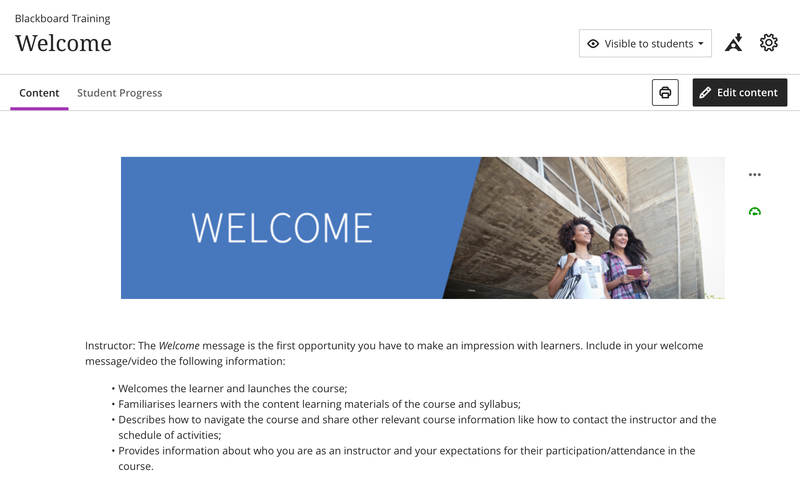
Use the guidance provided to build your Welcome and module overview pages so that they are up to date before students access the module.
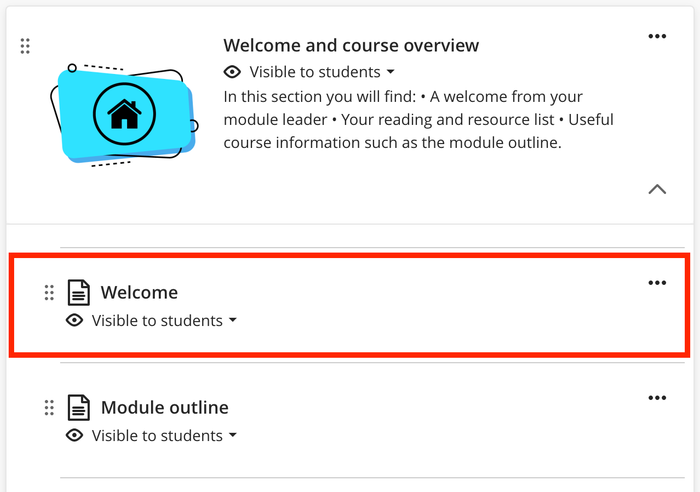
To edit any of these Blackboard document pages, click the page title:
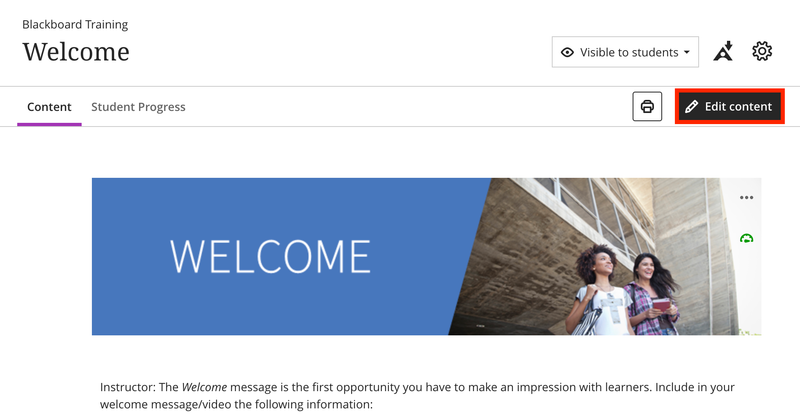
Then click the Edit content button.
When you are happy with your changes, click the Save button.
The content will now be updated. Do the same for the rest of the pages within the learning module template