
Drag and Drop
Blackboard allows additional flexibility by allowing you to drag files directly into the system and drop them into the module content page. Once added to a content page, any item or tool can be dragged to another location making it easy to rearrange the order of the module materials.
Drag and Drop Files into Blackboard
Select and drag the file you want to use over the location you wish to place the file. The drop zone where the file will be added will turn purple. Drop the file and it will be processed ready to view.
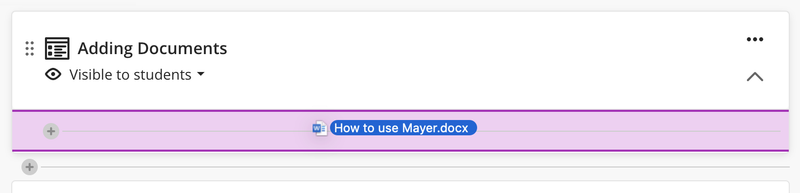
Do not drag and drop video files into a Blackboard module as large video files will be blocked! Instead, use the Panopto video service to add video content to Blackboard.
Move Content within Blackboard
You can use the drag handle icon to move content around the module content page:

Hold down your mouse on the icon and drag it to its new location.

The drop zone where the content will be placed will turn purple:
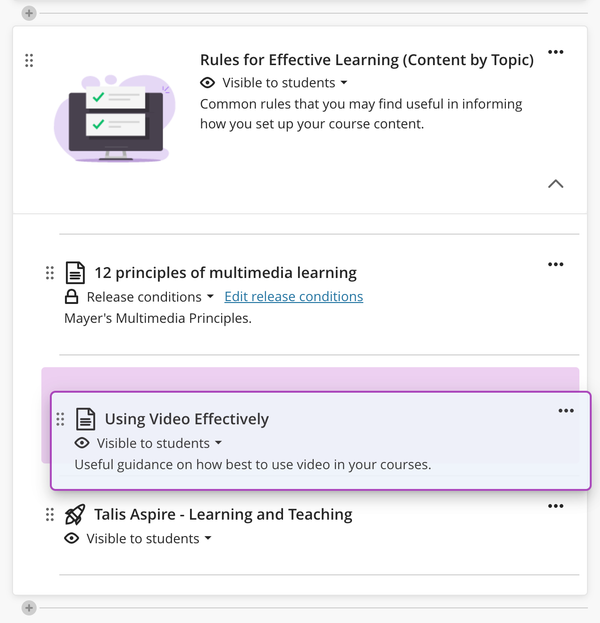
Release the mouse to place the content in the new location.