Blackboard Ally
Ally is a site-wide tool that provides staff with an easy way to check that all module content is accessible to students. This enables you to better comply with accessibility laws. (opens in new tab)
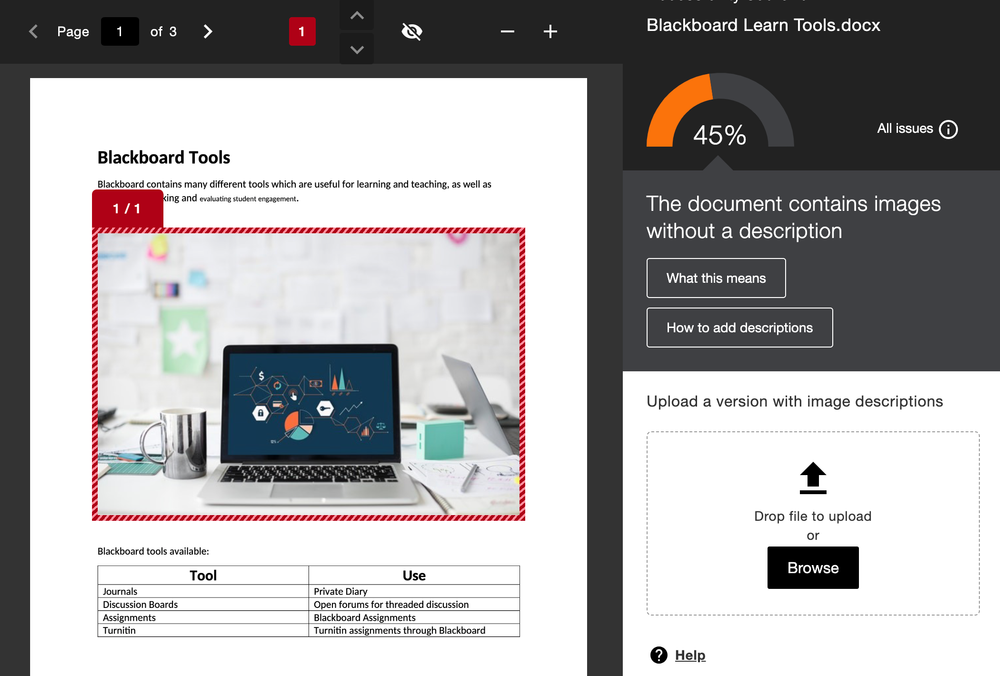
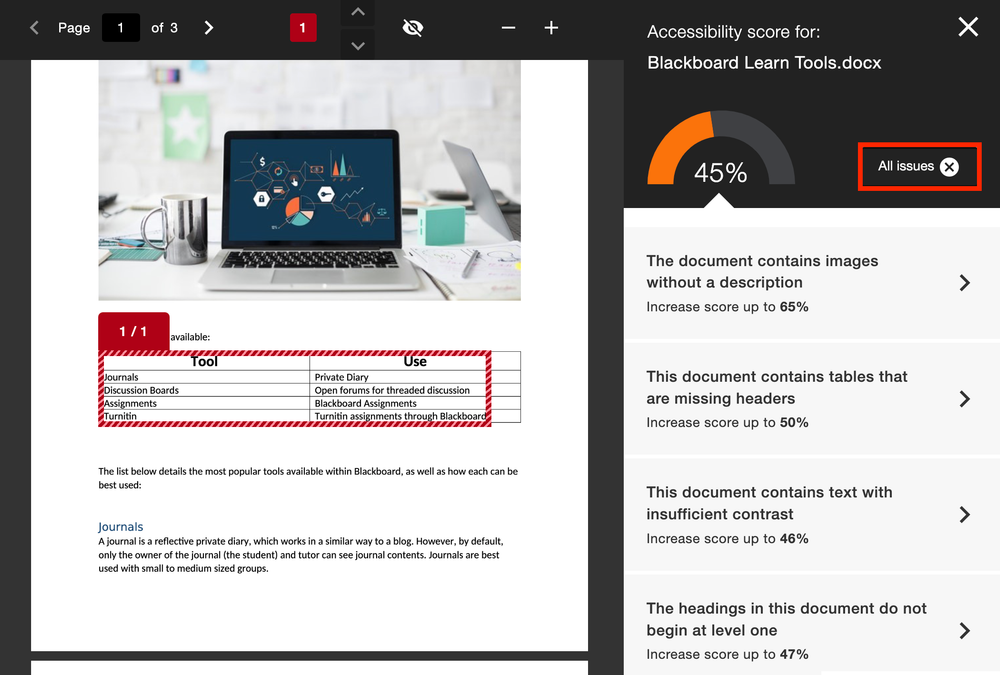
This tool automatically processes any Word, PowerPoint and PDF documents as well as content added to any Blackboard page, and provides an accessibility score that only staff can see. Ally will check your content for issues with:
- Images that are missing an alternative text description
- Insufficient colour contrast (where colours are too light or dark to clearly see)
- Incorrect use of headings
- Tables that are missing headers
- Scanned PDF files (which cannot be read by screen readers)
Ally does not check .zip archives or Apple Pages and Keynote files. You will still also need to manually check your content for font choice and size, site layout and add captions to videos that you upload for use in your modules.
Accessibility Indicators
These are presented as gauge icons which are placed next to the content. You can click on these icons to view a detailed breakdown of the accessibility score of that item as a percentage. This percentage is then broken down further to highlight all detected accessibility problems, with guidance on how to fix each issue.

The Red, low score icon indicates that this piece of content has poor accessibility. Common reasons include the lack of alternative text for images, missing headings or incorrect page structure. Users who rely on screen reading technology will find this very difficult to access.

The Orange, medium score indicates that the content is partially accessible. Click on the icon to see the detailed breakdown of the score for that individual file, and view information on how to make this content more accessible.

The Green, score means that the content has good accessibility. However, you may still use the guidance from Ally to improve this score further.
Remember to make your own checks for issues that the system does not pick up - such as:
- Simple page structure
- Simple language to aid quicker understanding
- Breaking up large blocks of text to make reading easier
- Utilising images / graphics to support your text (with alt text descriptions)
Fixing Content
Click on any gauge icon you can see next to any documents that you have uploaded to get a report for that item:

This will open the document and show you what the problem is, where it is in the document, and how to fix it:
Access the Module Report
Ally provides an easy way to find out how accessible your module is as a whole via the module report. This is a high level interactive report that generates statistics to inform you how accessible the site is, and enables you to drill down into individual issues so that you can fix and update content from a list of problems.
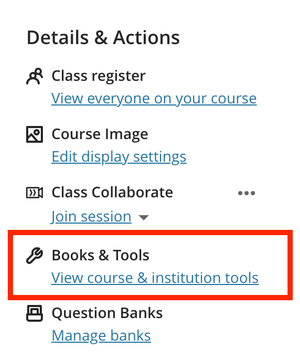
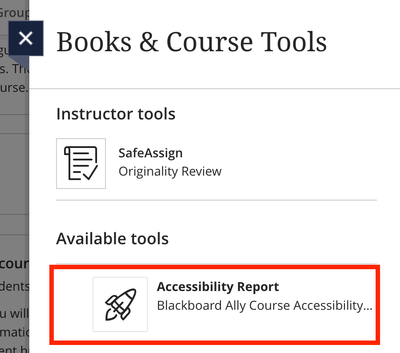
To access the module report, click on the View module and institution tools link in the Books & Tools menu:
Choose Accessibility Report
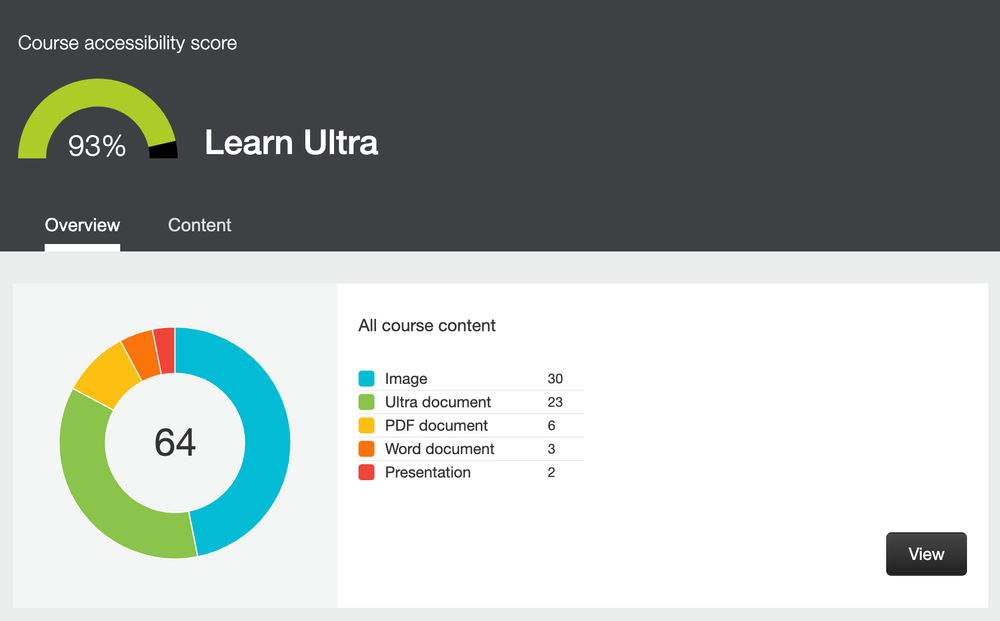
You can now view the module overview:
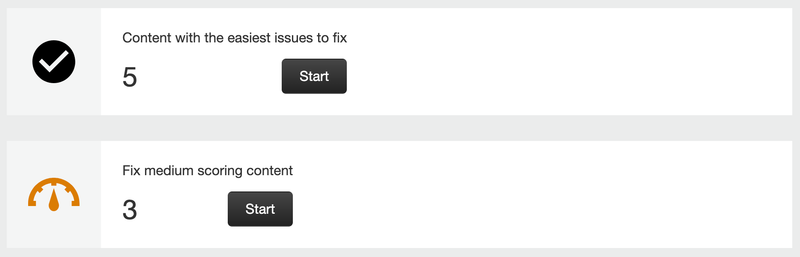
You can also see another panel which displays the number of content items that are easiest to fix, and another panel beneath this displaying the lowest scoring elements which are the most severe problems to fix. Click on the Start buttons to go through the guided process of solving these issues.
After clicking on the Start button you will see a list of items to fix:
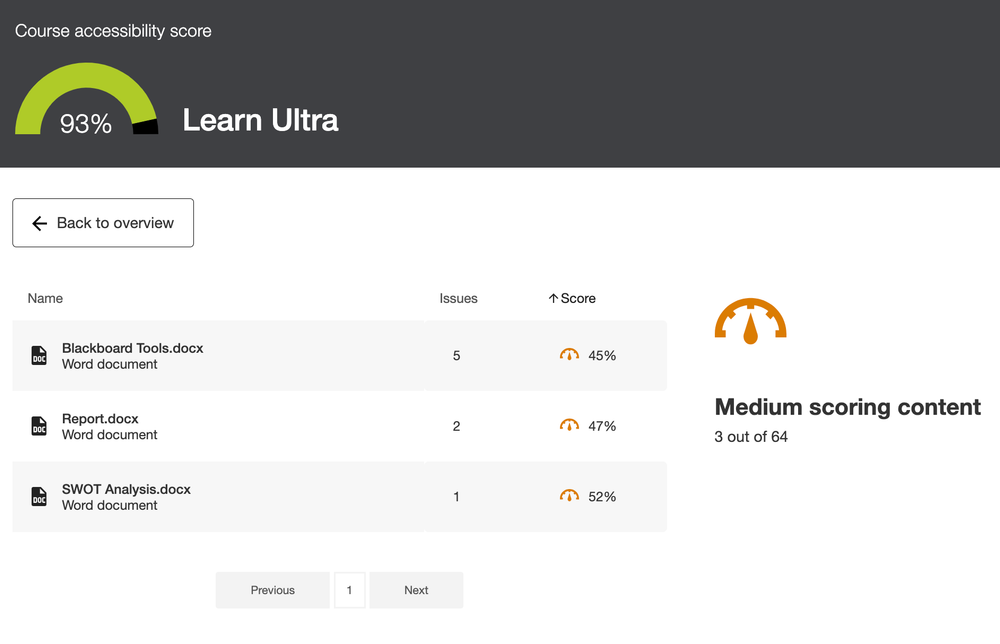
Click on each one to see how to provide the fix for each of the issues highlighted.
Alternative Formats
Ally offers users the ability to create different versions of your content, so you don't have to manually set these up in advance. This offers a great deal of choice and flexibility in how your learners are able to access your content.
Documents
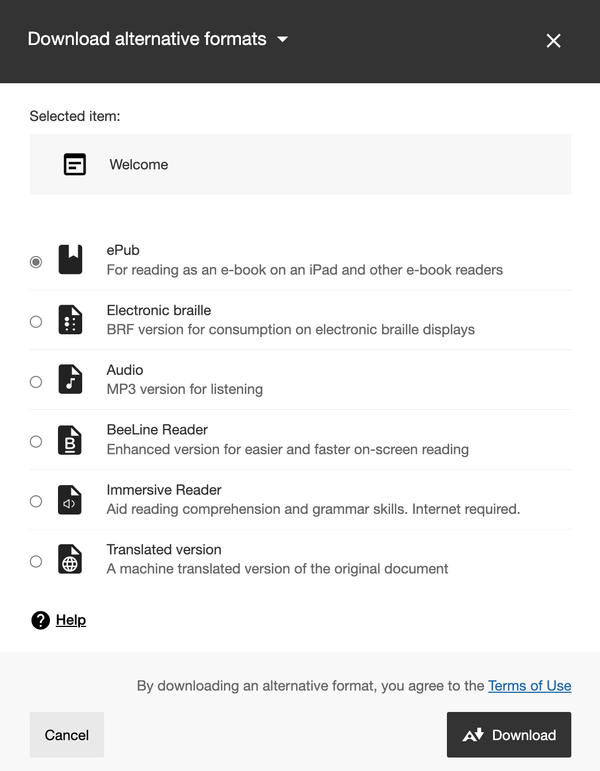
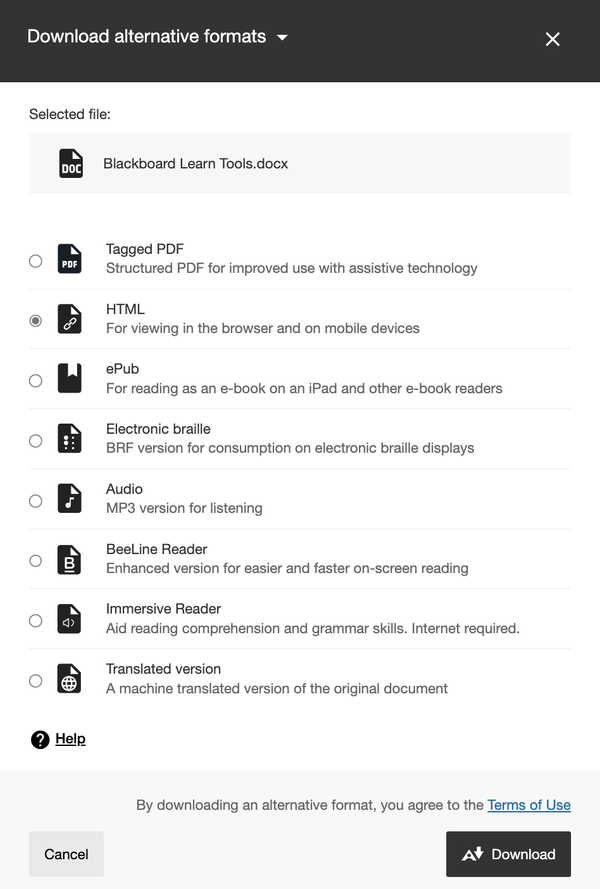
Each time you upload a document to the system, it is processed to provide an accessibility score and alternative formats which students are able to download on request. Documents can be downloaded as an audio file for offline listening, in ePub format for reading as an eBook, as a BeeLine Reader web page with different text and background colours, or as Braille. You can also select the Immersive Reader or Translated version options. The system can also attempt to convert scanned PDF documents to a tagged PDF version for better compatibility with assistive technology.
To access an alternative format, any user can click on the Download Alternative Formats icon next to the content:

Next, choose from one of the available formats. Once selected, click the Download button to get the file in the format you have chosen.
Page Content
Ally also allows users to download alternative versions of Blackbord Document pages in a similar way. To download an alternative format version of a Blackboard page, open the page and click on the Alternative Formats icon at the top right of the page:

This provides similar alternative format options as an uploaded document: