
PebblePad Assessment
If you are using PebblePad for assessment and already have a Workspace and assignment set up in that system, you can link to a Workbook directly from Blackboard. This allows students to fill in the workbook in Blackboard without accessing PebblePad.
Set up a Workbook Link
To do this, hover your mouse over one of the grey plus buttons on the left of the page in the module at the location you wish to add the PebblePad workbook until it turns purple, and click the plus button:

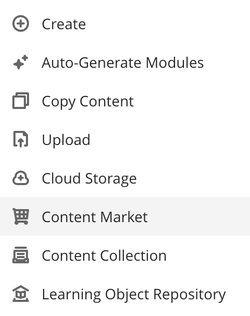
Choose the Content Market option in the menu that appears:
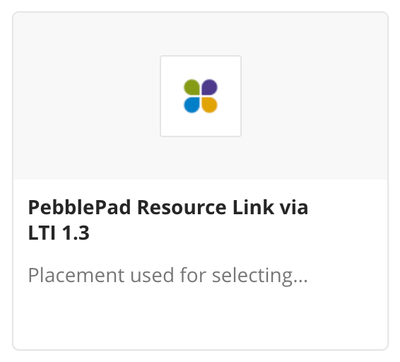
Next, select the PebblePad Resource Link via LTI 1.3 tile:
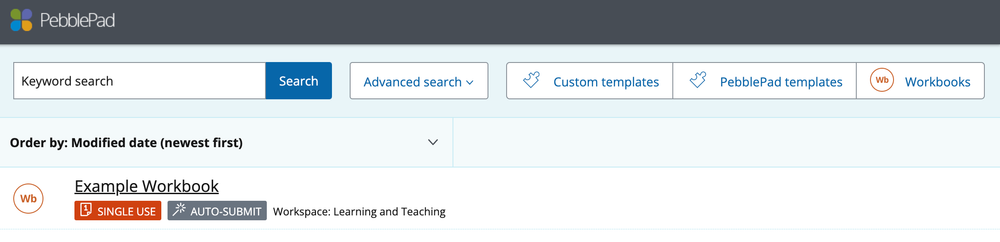
PebblePad will open in a new tab, and you can select the workbook you wish to link by clicking on its title:
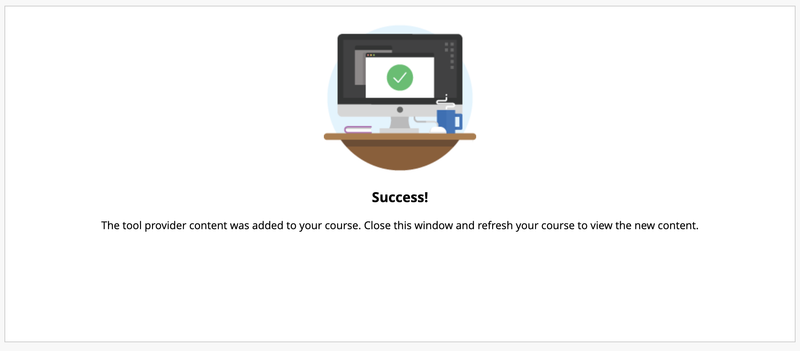
You will then see a message confirming that the workbook has been added to Blackboard successfully:
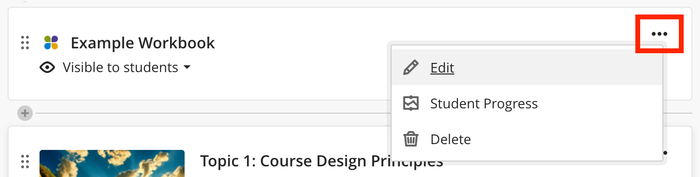
You can now close the tab and return to the Blackboard Content page. You can click on the Options button and choose Edit to amend the Blackboard details for this item.
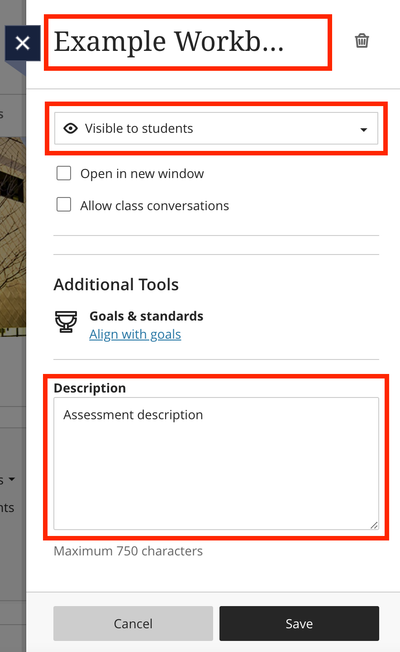
You can update the Title, the Visibility and Description that will appear in Blackboard. Click Save to update your settings.
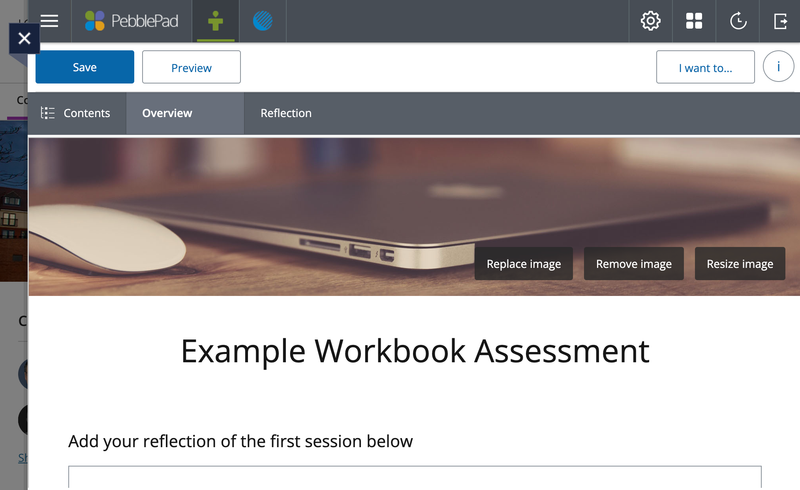
When users click on the new workbook link, it will open and can be edited directly in Blackboard.
Assessments that are managed this way through Blackboard are not automatically submitted, so you may need to provide guidance to students on how to do this such as those below.
Submit a Workbook
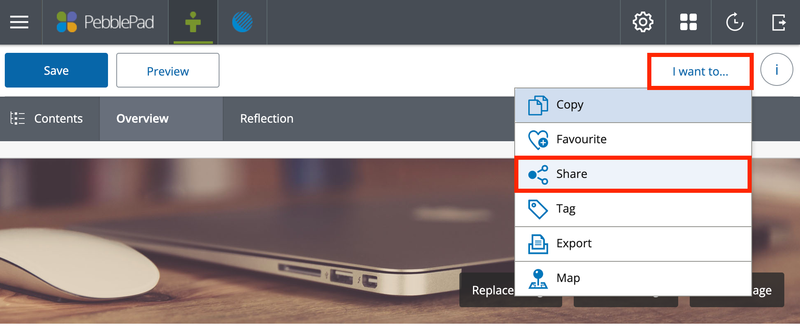
Students can submit their workbook in Blackboard by clicking on the I want to... button and choosing Share:
Choose With ATLAS:
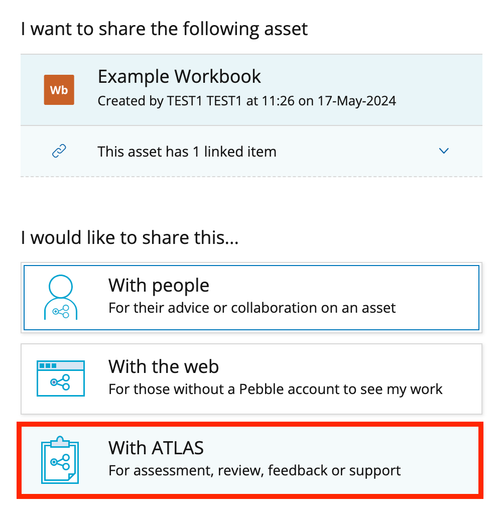
Select the workspace for the assessment:
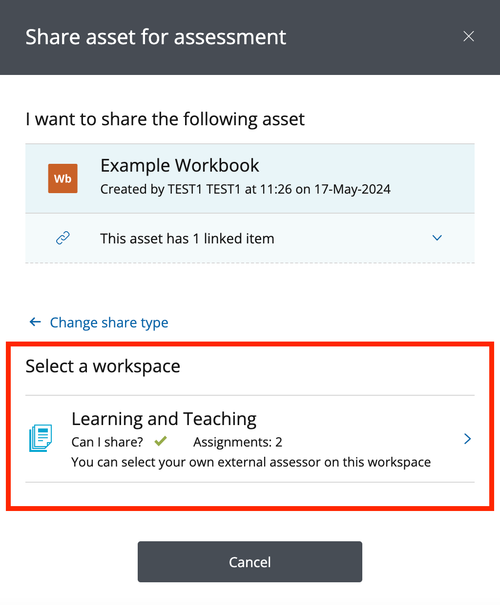
Select the assignment to submit:
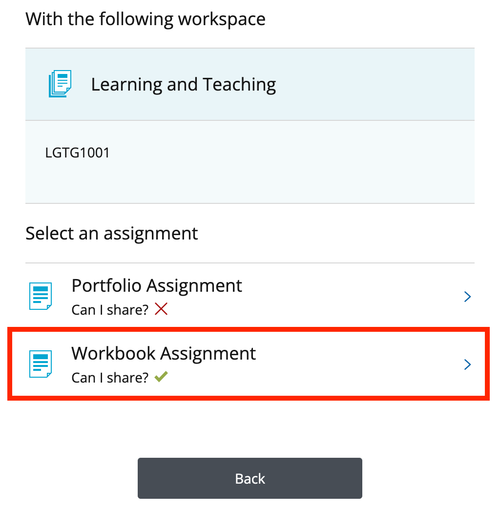
Agree to the terms of usage and click the Share asset button:
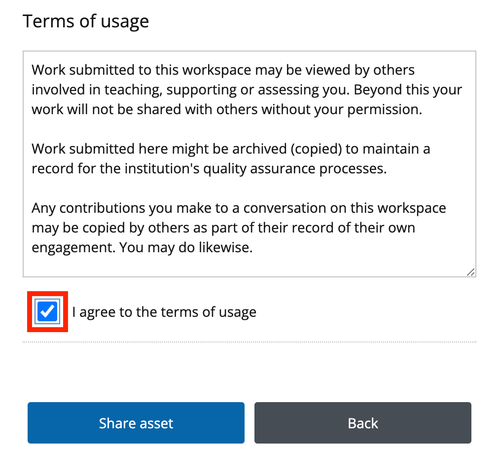
The workbook will now be shared for assessment and is available for marking and adding feedback.