Grading with Turnitin
Turnitin assignments are marked online using Feedback Studio. There is no need to download submitted papers, and you can add your own text comments, pre-loaded common comments and annotations directly onto the page.
Marking with Feedback Studio
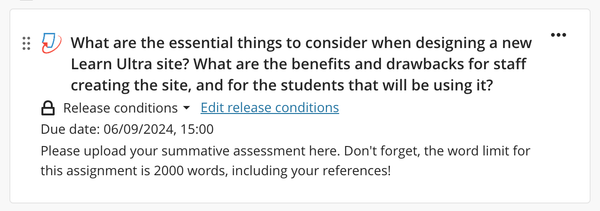
To open the Turnitin Feedback Studio for marking papers, click on the assignment on the Learn Ultra Content page:
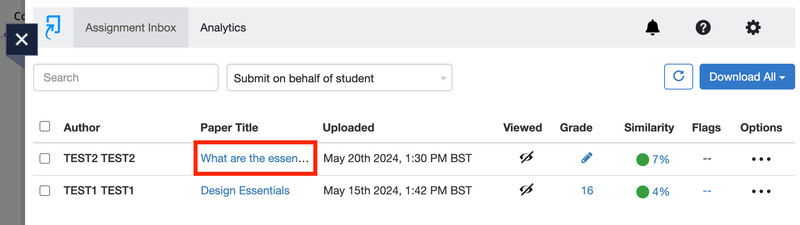
The Assignment Inbox will open, and each submission will be listed. Click on the Paper Title of the submission you wish to mark:
The paper will open in Feedback Studio:
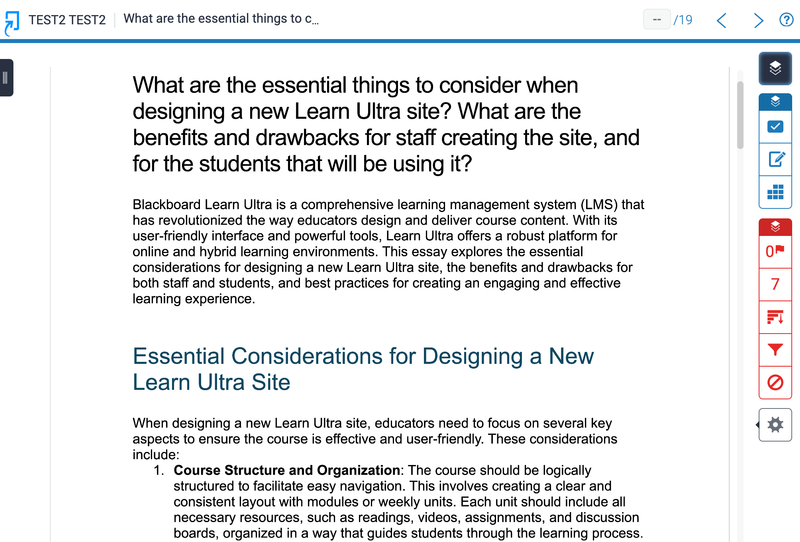
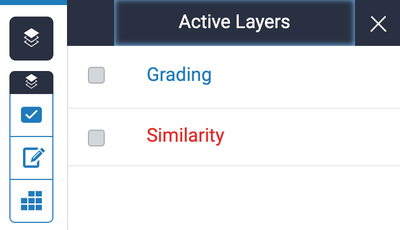
Turnitin allows you to add grades and feedback to a paper online using text feedback, audio feedback or Turnitin's system of QuickMarks to add common feedback elements. You can also view the originality report of each submission to find matches to previously submitted work, or online sources. To access these functions, you can click on the relevant toolbar buttons. You can toggle the active layers by clicking on the Layers button at the top of the panel:

Use the toggle options to view the grading tools and similarity report for the current paper.
Grading Tools
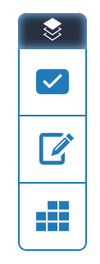
The blue Feedback buttons provide access to QuickMarks, Feedback Summary and the marking Rubric if one has been attached.
When you select one of these buttons, the panel related to that functionality will slide out and allow you to add your feedback for the assignment.
QuickMarks

Click the blue button with a tick icon to open the QuickMarks panel.
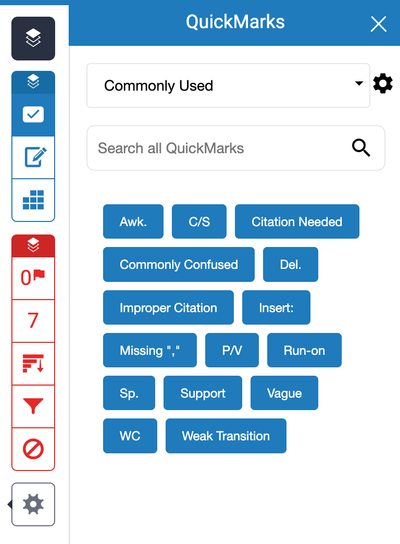
QuickMarks are commonly used libraries of comments that can be dragged and dropped onto the paper.
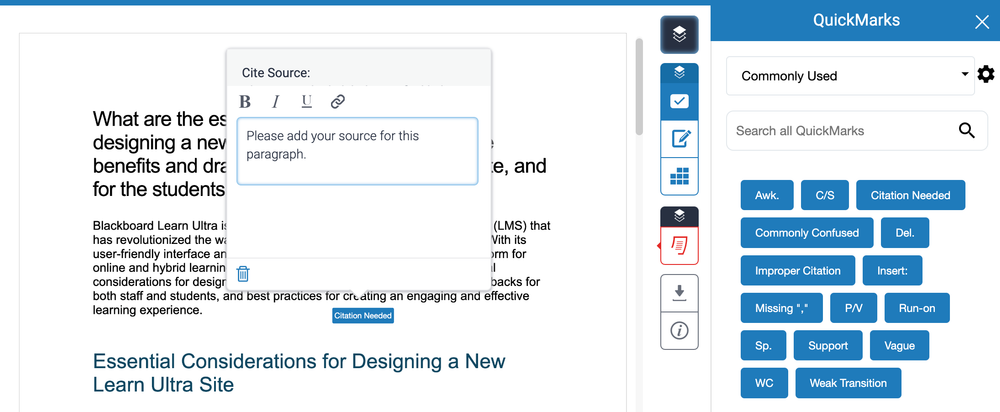
Add your QuickMarks relevant to the submission by dragging and dropping them onto the page. You can delete a QuickMark by clicking on the bin icon at the bottom of the popup panel.
Overall Feedback

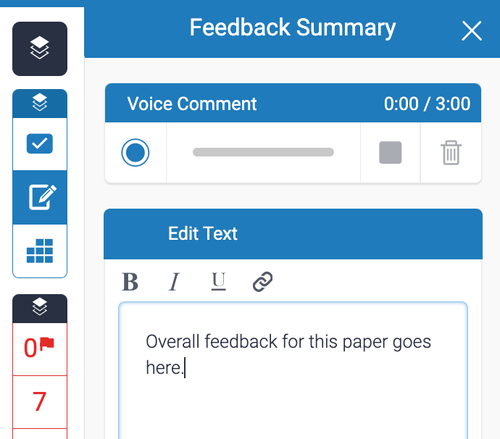
Type your overall feedback in the text box or record a short voice comment of up to three minutes to attach as feedback.
Using the Rubric

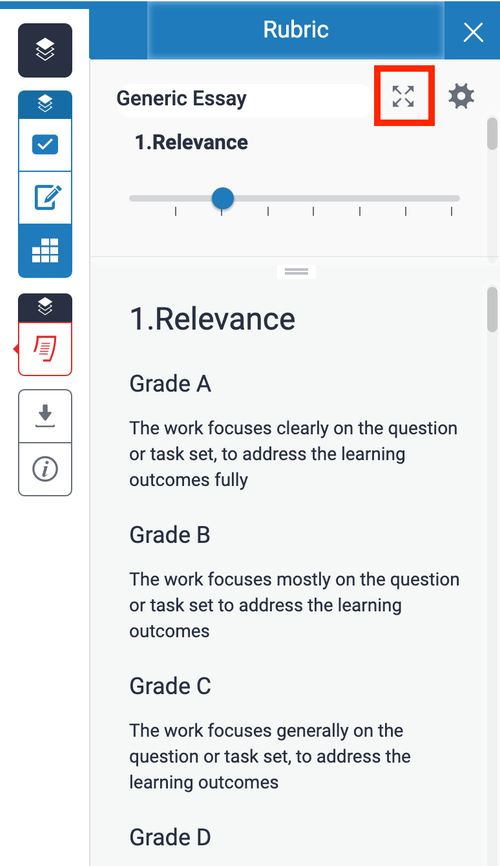
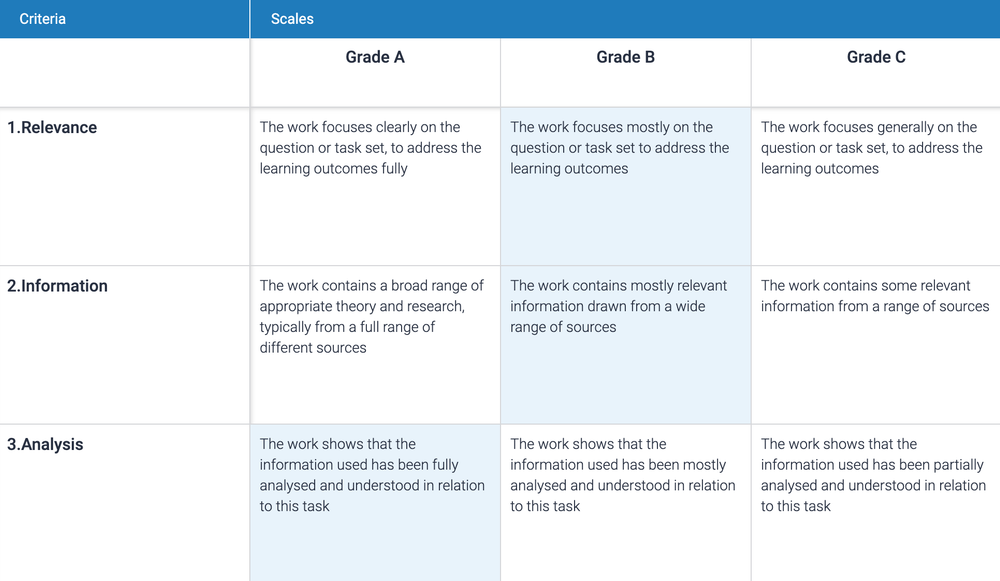
If you have attached a rubric for marking, you can view this in the Rubric panel. You can use the sliders to set your grades, and you can see the text feedback that will be added by scrolling down the panel. You can also open the full rubric in a grading grid. This can be opened in a new window by clicking on the icon with four outgoing arrows next to the cog icon in the top right of the panel:
This enables you to view all marking criteria and set the feedback by clicking on the relevant cell. Feedback is saved automatically.
Adding a Grade
Type in a numerical value between 0-19 to add a grade for the paper. Although you cannot add a letter grade here, as long as you have set the correct grading schema when you set up the assignment, this will appear as the correct letter grade in Learn Ultra, which the students will be able to see when the grades are released. Click anywhere on the page to save the grade.

Adding Annotation
You can add annotations directly onto any Turnitin paper simply by clicking on the document and selecting one of the icons that appear:

- Click on the tick icon to add a QuickMark
- Click on the speech bubble icon to add a new comment
- Click on the T icon to add free text feedback onto the page
QuickMark
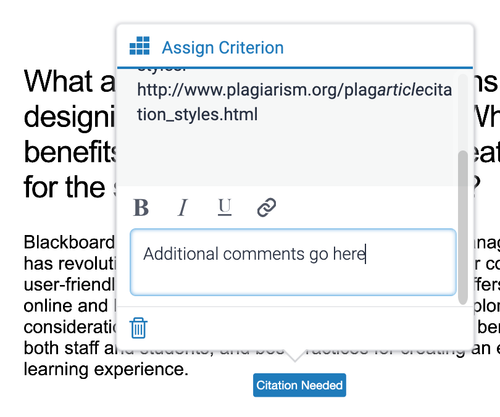
Clicking the tickbox icon places a QuickMark on the page. After adding a QuickMark to a paper, use the text editor to type in additional individual feedback.
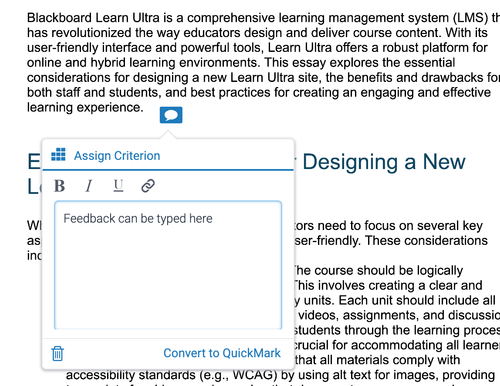
Comment
Clicking on the speech bubble icon allows you to add your own text feedback, similar in appearance to a QuickMark. Type your feedback into the text editor to record your own comments. Click the bin icon to delete the comment. If this is a comment you will use often, you can click on the Convert to QuickMark link to add this to your QuickMark library of comments.
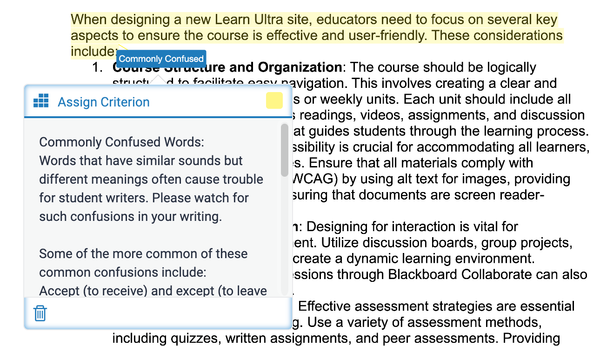
Highlighting Text with Comments
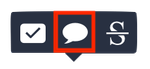
By highlighting text on a submitted paper, you can click on the tick
icon that pops up to apply a QuickMark, click on the speech bubble
icon add a comment or click on the S icon apply
a strikethrough to the text in the highlighted area.
Inline Text
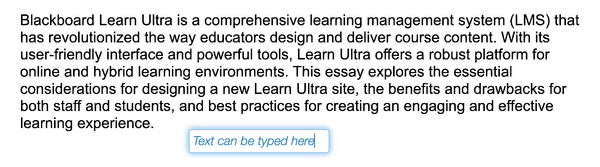
To just add some text directly on to the page without using QuickMarks, click on the T button. This will add an editable text field which you can fill in and drag around the paper to place next to the information you are referencing.
Originality
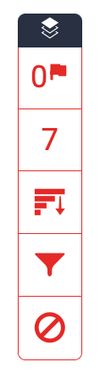
The red Similarity Tools button enables you to view an originality score for the paper and filter and exclude matches.
You will be able to see how much of the paper matches with other previously submitted work, where it has come from and you can even update the originality settings to run a new report without the student needing to resubmit.
Flags for Review

The Flag button highlights hidden or altered text in a submission. This is not necessarily an indicator of a problem, but you may want to investigate further.
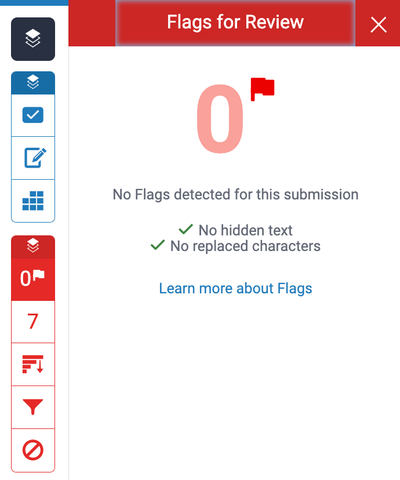
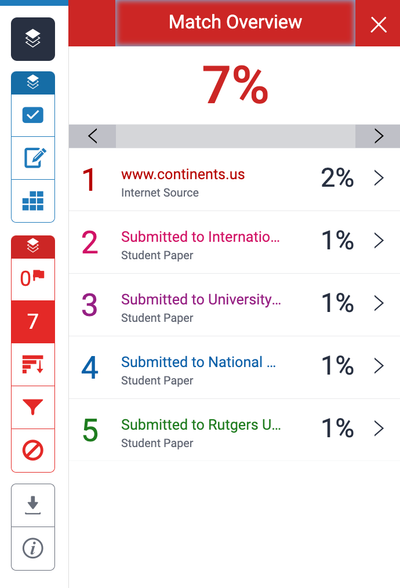
Match Overview

The Match Overview gives the overall match as a percentage of the entire paper. Click on any of the match overview entries to see where in the paper the match has occurred, as well as where the match has come from (another student paper, internet source or article). Click on the chevron to further drill down into the Match Breakdown.
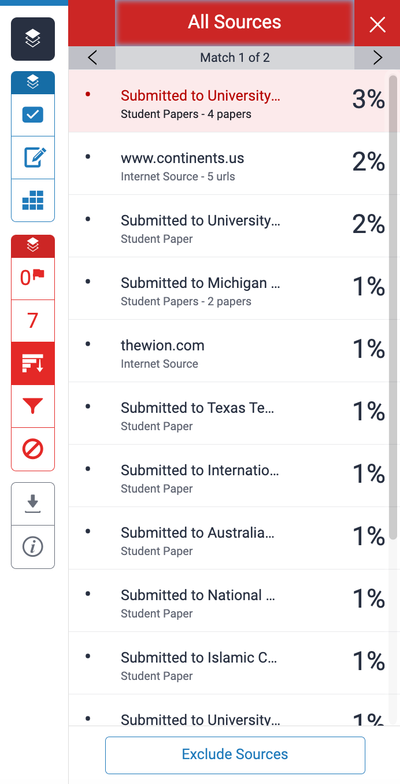
All Sources

You can exclude matches that you know should be ignored (for example, if a student has submitted the same paper into another assessment in error, or has submitted the document formatively in part, or as a whole).
To do this, click on the All Sources button and then click the Exclude Sources button. Tick each source you wish to exclude from the originality report. Finally, click the Exclude button to recalculate the originality score for the current submission. The new originality score will then also be available to the student to view.
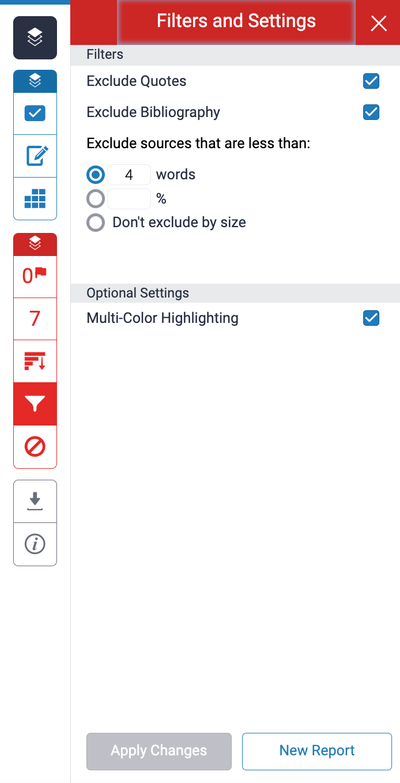
Filters and Settings

It is possible to adjust the assignment settings after submission by clicking on the Filter icon: This allows you to exclude the bibliography, to change thresholds for matching sources, and adjust the highlighting colours. You can then tailor the originality report to show you only the matches you need to see for an individual submission, without having to amend the settings for the entire class.
To do this, choose your options and click the Apply Changes button. The New Report option enables you to refresh the originality report for the submitted work, without having to ask the student to resubmit the paper again themselves. You may wish to use the New Report option if you suspect that matching content may have been added to the Turnitin system after the paper was originally submitted. Clicking the New Report button will refresh the originality report, and will check against everything in the Turnitin database at the current time.
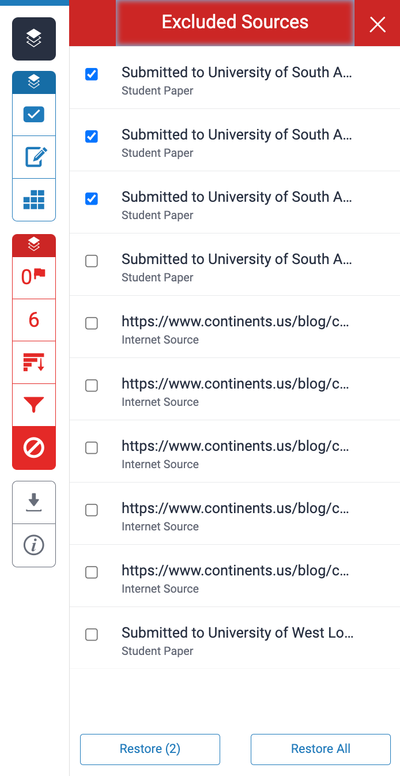
Restore Excluded Sources

Tick any sources you want to re-add and click the Restore button. If you wish to restore the report to its original condition, click the Restore All button.
Downloading a paper
You can download the submitted paper if necessary, for example if you need to mark the work offline, or archive the original or annotated file with comments and grades attached.
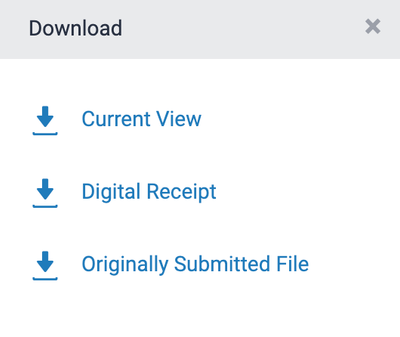
To do this, click the grey Download button beneath the red similarity tools button panel.

You can download the Originally Submitted File, which will maintain all original formatting and transitions if it is a presentation, or you can download the Current View. This will retain all feedback and grades and will download in PDF format. You can also download the original submission Digital Receipt which records the time and date of submission.