Journals
Learn Ultra journals are personal spaces that can be used by students to privately communicate with their tutors and offer a platform for self-reflection by regularly writing about their experiences, thoughts and feelings. Journals can also be set up as graded assessments.
Setting up a Journal
Hover your mouse over the location that you wish to add your new journal until the plus icon in a circle turns purple and a purple line appears. Click the plus button:

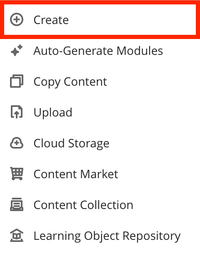
In the menu that appears, choose Create:
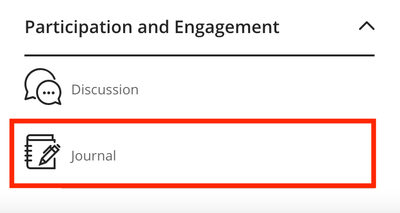
From the Participation and Engagement section at the bottom of the panel, select Journal:
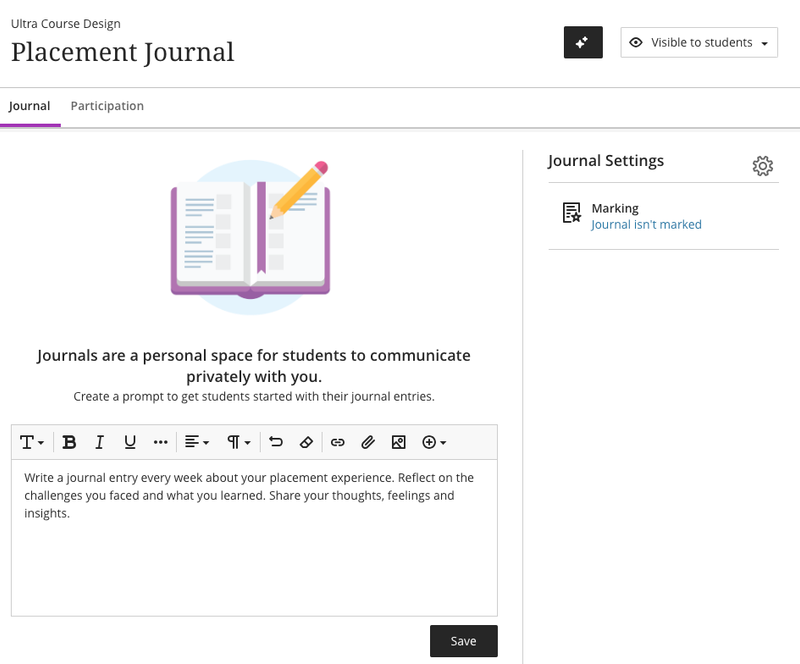
Add a Title at the top left of the page and set the visibility of the journal in the top right. Add a prompt for students to respond to in the text box and click the Save button to set up a simple non-assessed journal:
Gradable Journals
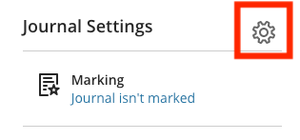
To make a journal a gradable assessment, click on the settings cog icon in the top right of the page to open the Settings panel:
Inside the settings panel, select your assessment settings. Tick the Grade journal option and add a due date and time. Set the grading schema to UW Grading Schema 0-19 Points and set a maximum points grade of 19. Click the Save button to complete the setup:
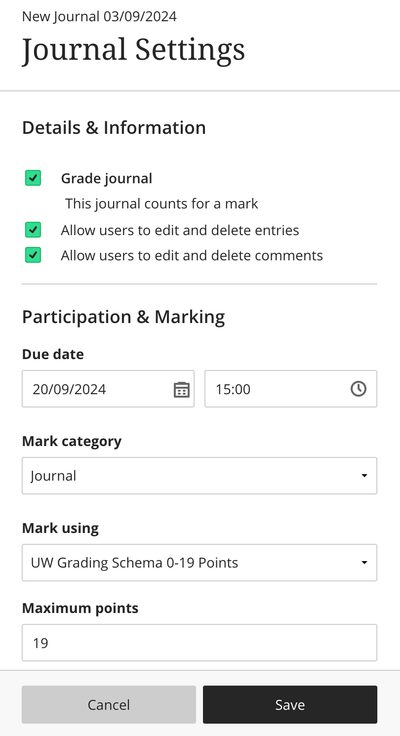
Make sure that you set up the journal as gradable when you complete the initial setup! Once a student posts a journal entry to a non-marked journal, it can't be changed to a gradable submission.
Grading Journals
Once entries have been made to a journal, you will see a blue speech bubble indicator icon next to the journal title. If this is a graded journal, you can now begin the grading process.
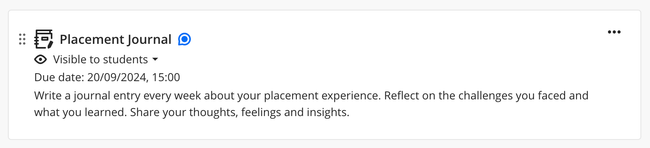
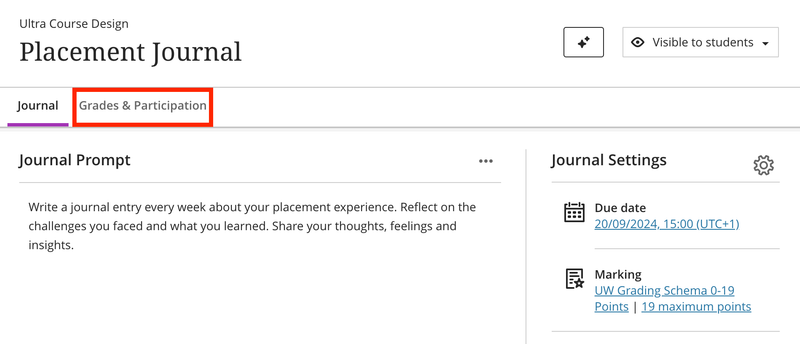
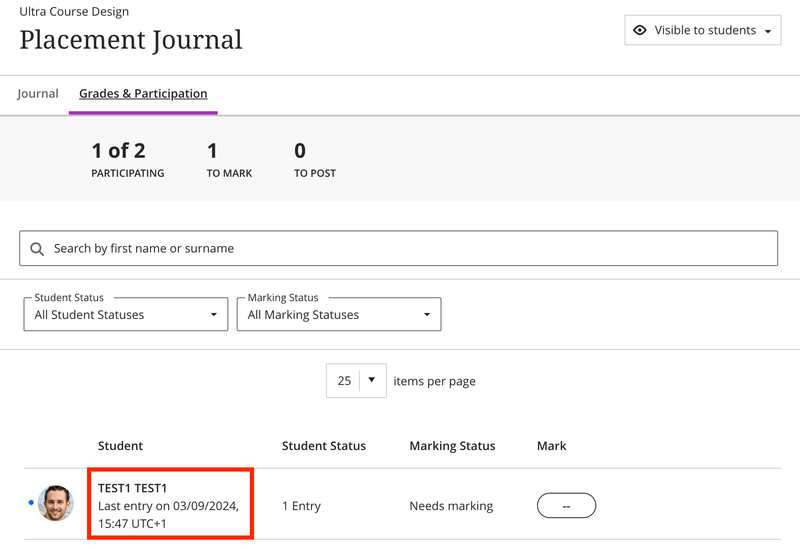
Click on the journal title and click on the Grades & Participation tab:
Click on the name of the student in the list to open their journal:
You can now see the journal, and at the top of the page you can add a numerical grade between 0-19 in the grade pill.
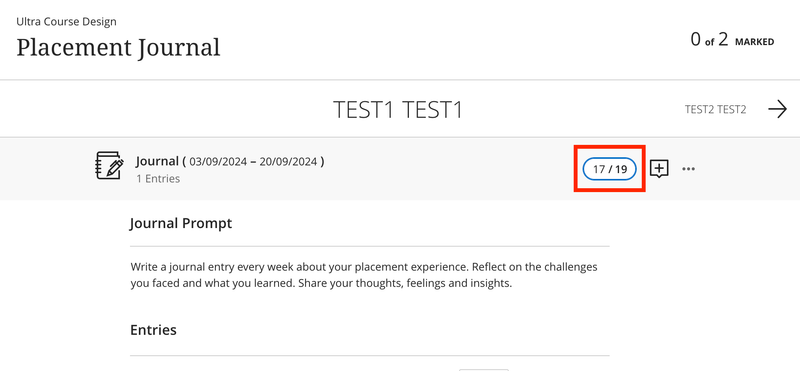
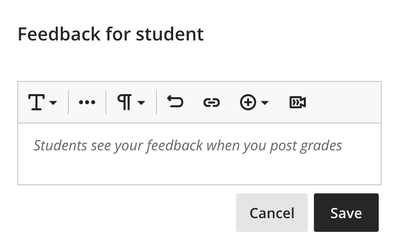
add your feedback by clicking on the plus icon to the right of the grade pill. Use the text editor to add text feedback, add weblinks and attachments or record short video feedback. Click the Save button to add the feedback to the assessment.