Editing
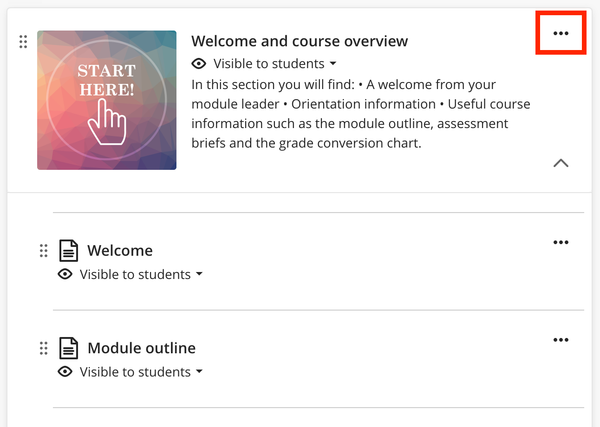
There are different ways to update content and tools in Blackboard. Editing can be performed by accessing the Options menu button (a button with three horizontal dots):

Edit mode can be activated within Blackboard Document pages by clicking on the Edit content button:
Assignment instructions can be edited using the pencil icon:

View the examples below for further information on how to use these controls in your Blackboard module.
Learning Modules
You can change the titles and descriptions of Learning Modules and Content pages by clicking on the Options button and choosing Edit:
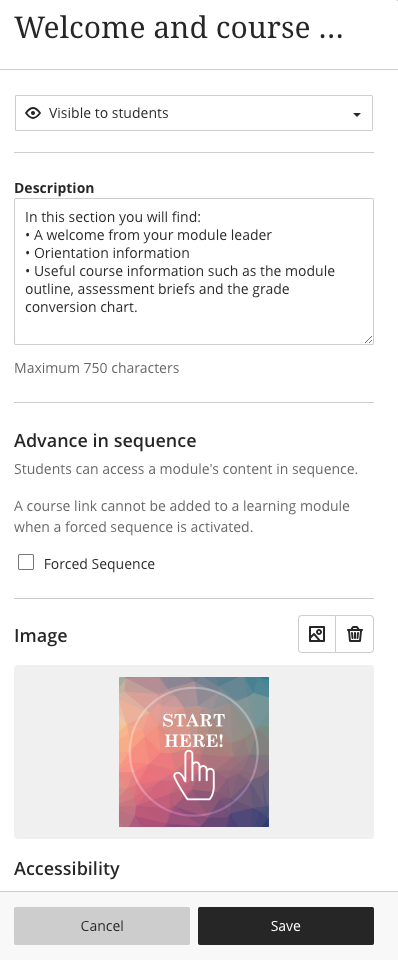
You can now use these options to update the title, text description, force students to view the contents in sequence or change the image for the current Learning Module. Make your edits and click Save to confirm the changes:
Documents
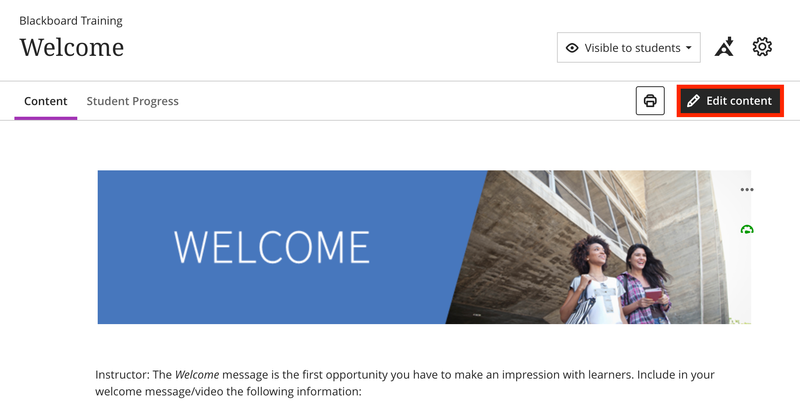
Blackboard Documents can be edited by accessing the page and clicking on the Edit content button at the top right of the page:
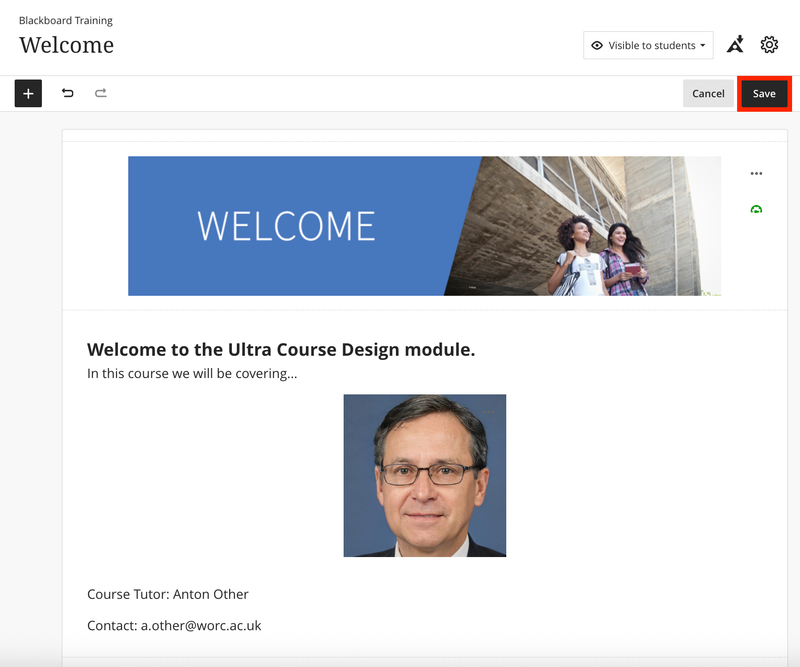
The document will now open in Edit mode, and you can replace text or images as needed using the text editor. Click the Save button to confirm your changes:
Images
Images directly uploaded into a page rather than added with the text editor can be edited by opening the page they are on and clicking on the Edit Content button:
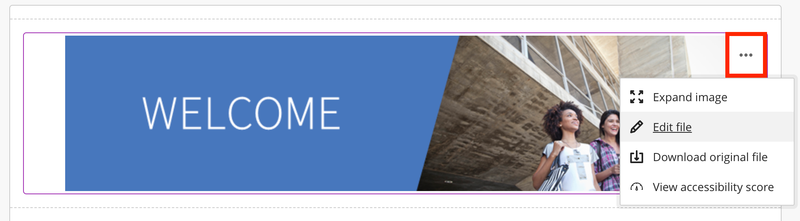
You can then delete the image using the purple button with the bin icon, or edit the description by clicking on the options button (the button with three white horizontal dots) and choose Edit file :
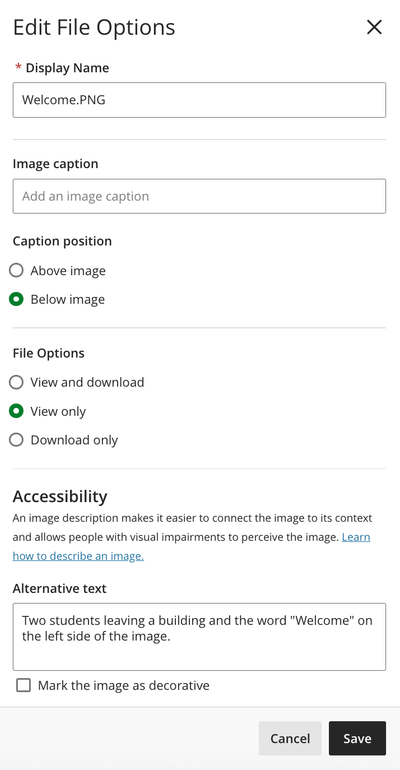
You can now update the Display Name, the Alternative Text and how the image can be accessed. Click Save to confirm your changes:
Updating Blackboard Assignments
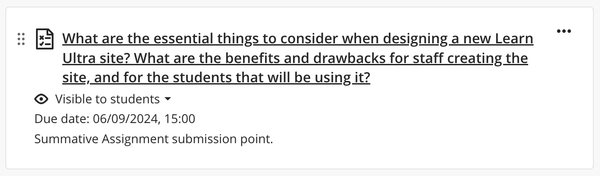
To edit a Blackboard assignment, click on the assignment title :
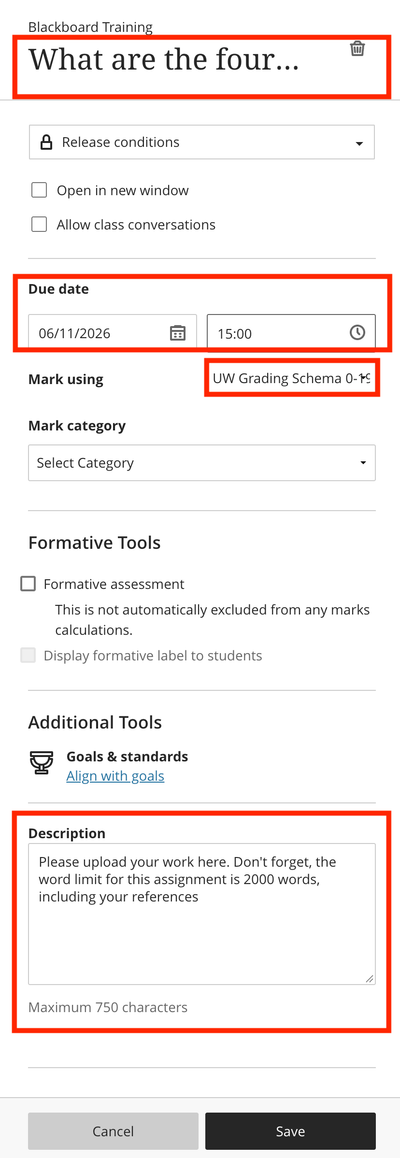
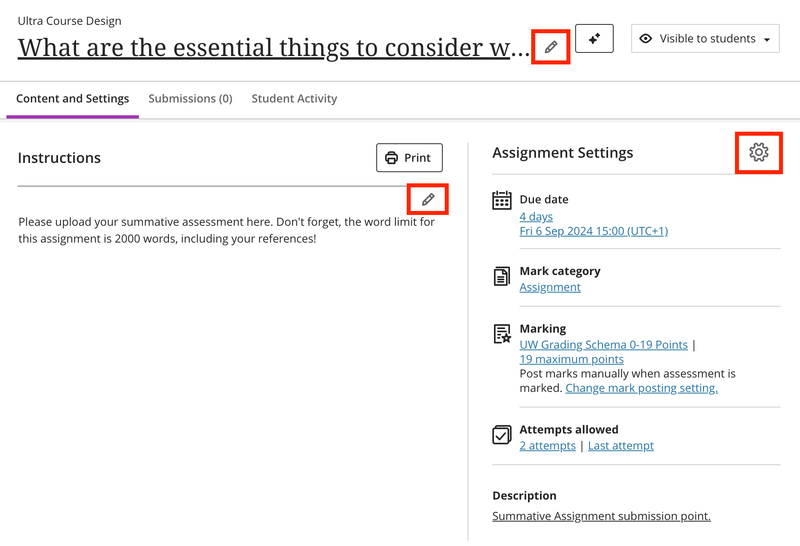
You can now edit the title and instructions using the pencil icons, and change the overall settings using the cog icon in the top right of the page:
Updating Turnitin Assignments
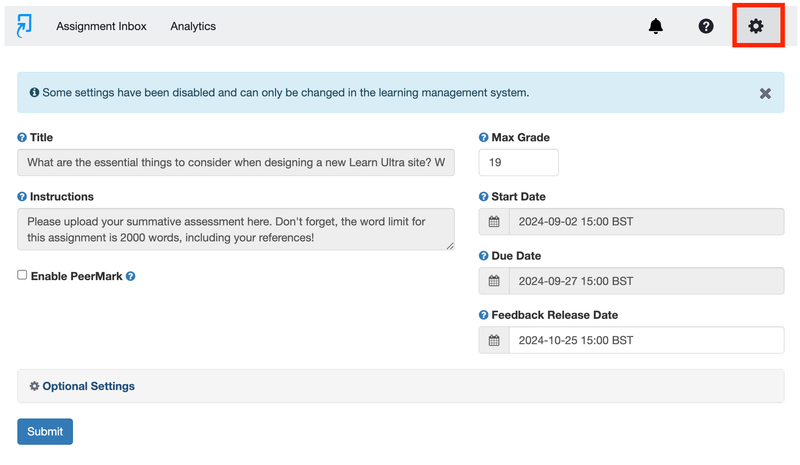
Although some settings in a Turnitin assignment can be amended by opening the assignment and clicking on the Settings cog icon to update the max grade, feedback release date and optional settings, others are managed by Blackboard. You will see this notification at the top of the page where it states Some settings have been disabled and can only be changed in the learning management system:
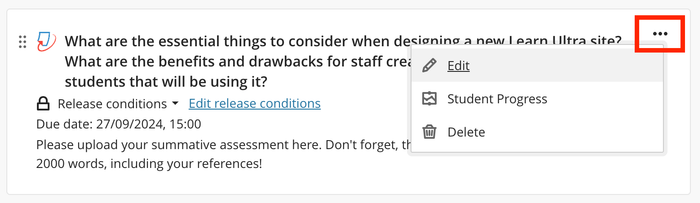
To access these settings so they can be changed, click on the Options button in Blackboard (the button with three horizontal dots to the right of the assignment title), and choose Edit:
You can now update the title, due dates and description. Click the Save button to confirm your changes: