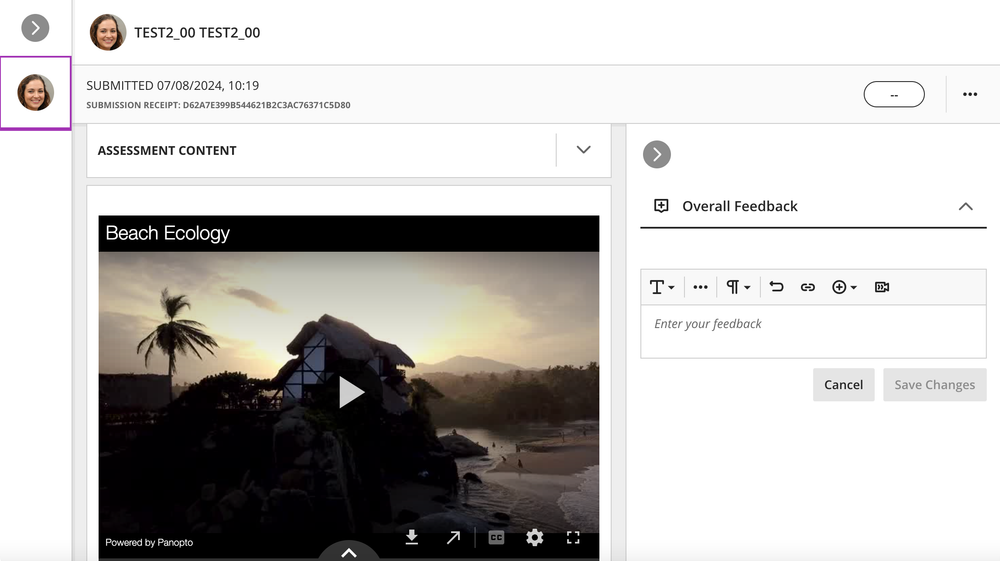
Video Assignments
Standard Blackboard assignments enable students to submit assessments in multiple formats. Not only can they submit text and attach files, but they can also add Panopto videos as content for an assignment. You do not have to perform any additional steps when setting up a Blackboard assignment to enable this functionality. However, you may wish to provide additional instructions for students on how they can record and submit their videos to Blackboard.
Recording and submitting video assignments are not supported on mobile devices! Students must use a desktop or laptop to ensure software compatibility.
Adding Instructions
To provide guidance to your students on how to record and submit their video submissions, you can add this information to the assignment Instructions.
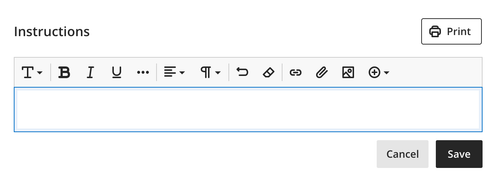
Standard practice is to record video with PowerPoint, and export this as a video file which can then be uploaded to Panopto. Alternatively it is also possible to use the Panopto Capture software, which runs in the browser without needing to download any software.
Add your own instructions or copy the standard guidance provided below:
PowerPoint Recording and Submission Instructions
- Create your video using PowerPoint and export the video
- Access the assignment in Blackboard
- Upload the video
- Check that the submission was uploaded successfully
Panopto Capture Instructions
- Access the assignment
- Create your video using Panopto Capture, and submit this to Blackboard
- Check that the submission was uploaded successfully
Paste the instructions into the text editor and click the Save button to complete the setup.
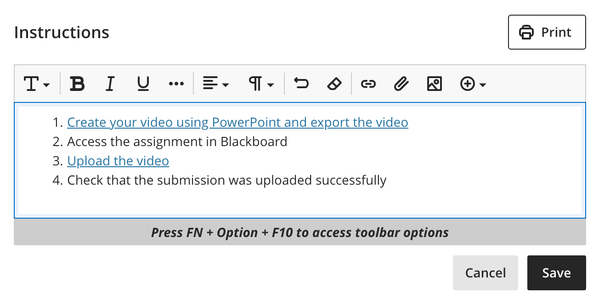
These instructions will now be available for students to use with this video assignment.
Student Submission Workflow
When students are ready to submit their video, they will click on the Add content button in the content editor toolbar and select the Content Market option:
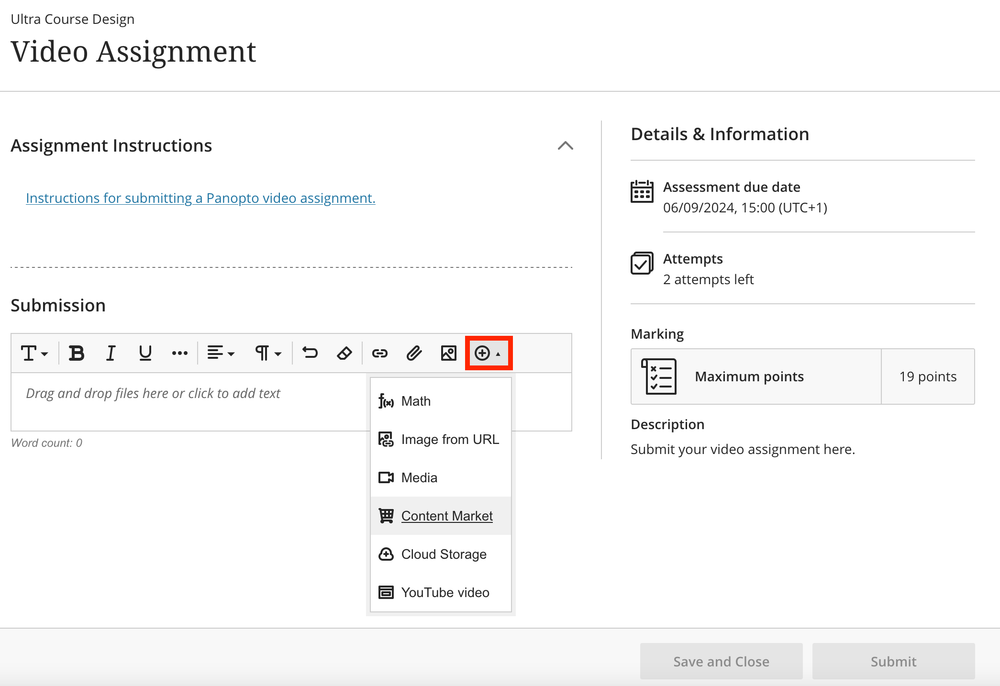
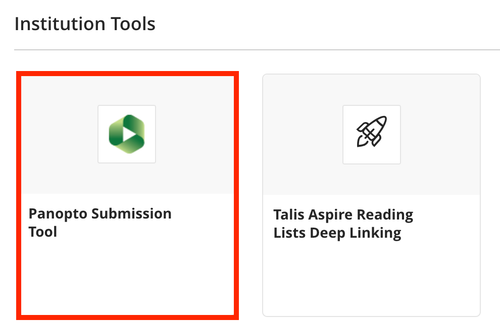
They will then choose the Panopto Submission Tool.
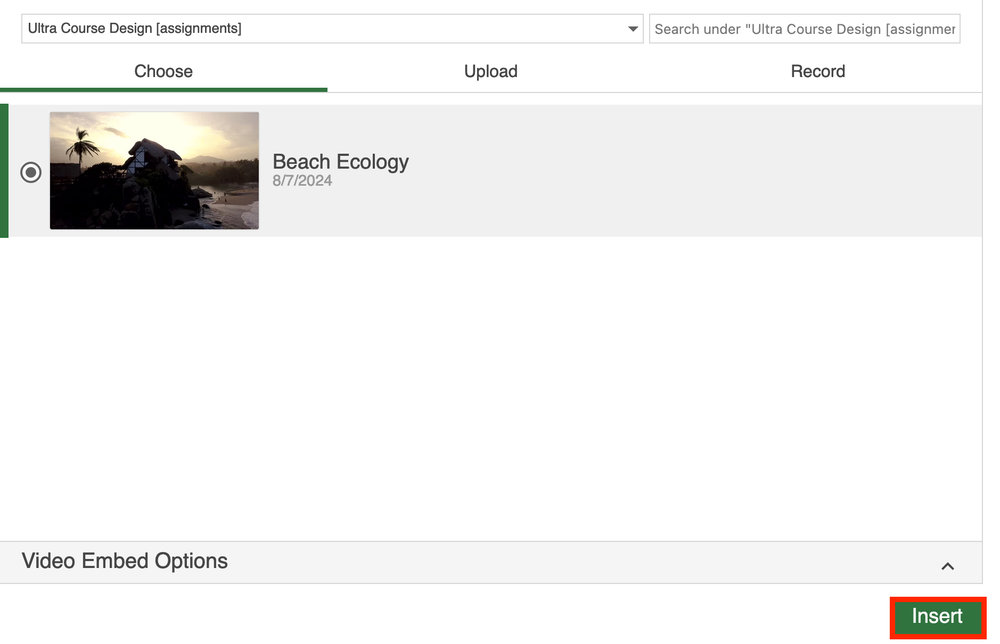
Students will then select the video they want to submit if it has already been uploaded, or they can upload it directly here by clicking on the Upload tab. They can then click the Insert button to add the video:
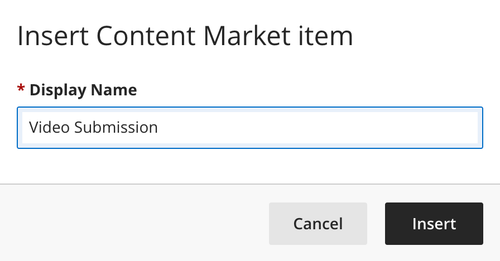
They can then add a Display Name for the video and click the Insert button:
They will then click the Submit button
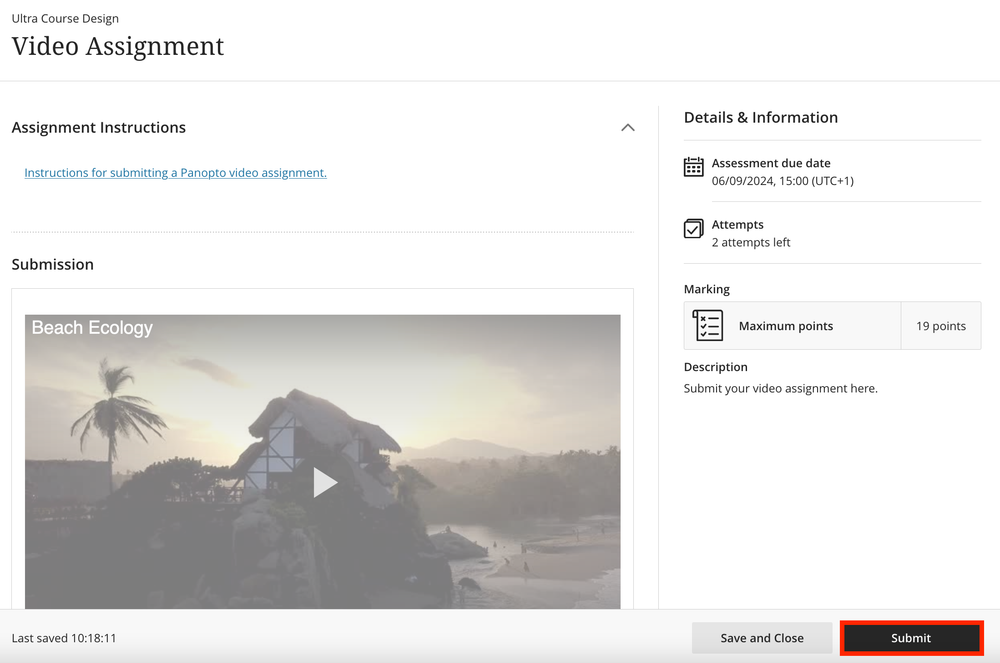
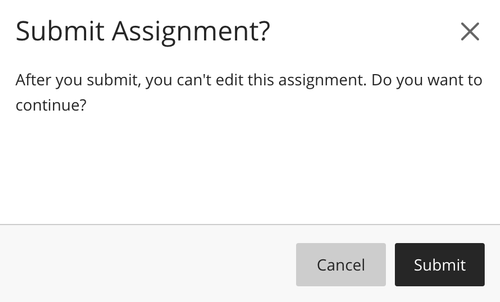
They will then confirm the submission by clicking the Submit button:
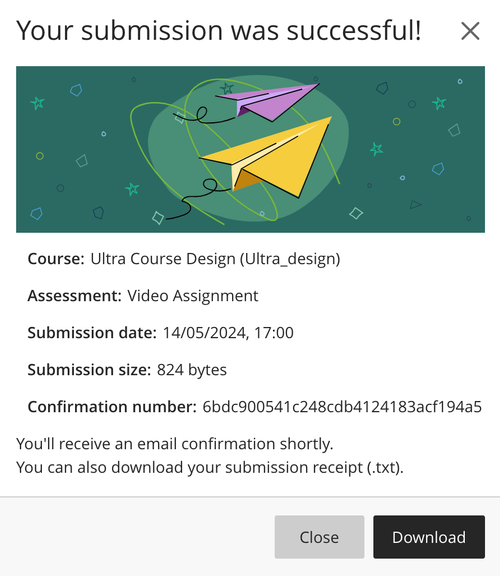
Finally, they will see confirmation that the assignment has been submitted and will have the opportunity to download a receipt.
Viewing Submitted Work
Once students have submitted, you will then be able to open the submission to view the embedded video for grading and feedback.