Offline Grading
There are two ways to access offline submissions for marking. You can access these by navigating to the Gradebook, and clicking on the name of the assessment in the Item column:
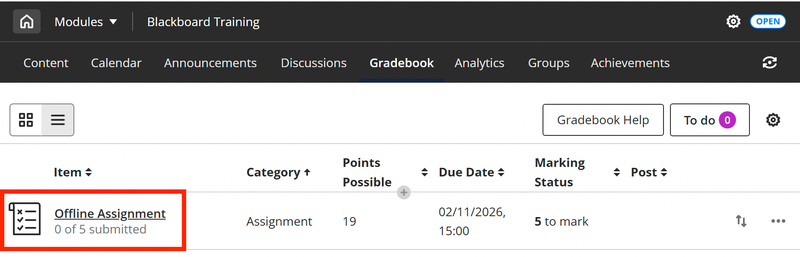
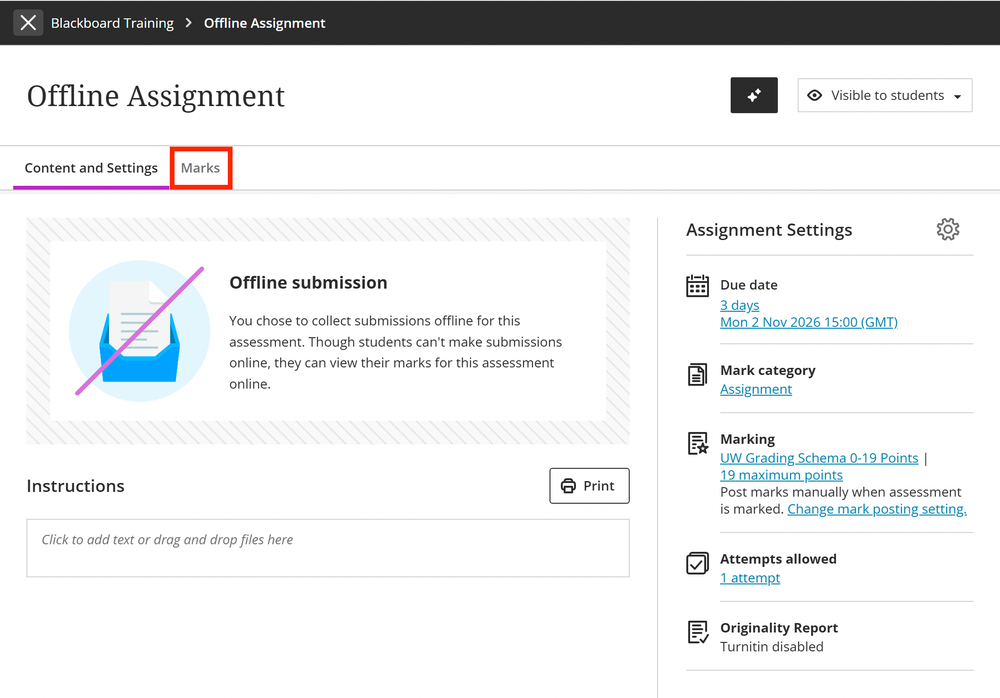
Or you can click on the link to the assignment itself

Then click on the Marks tab
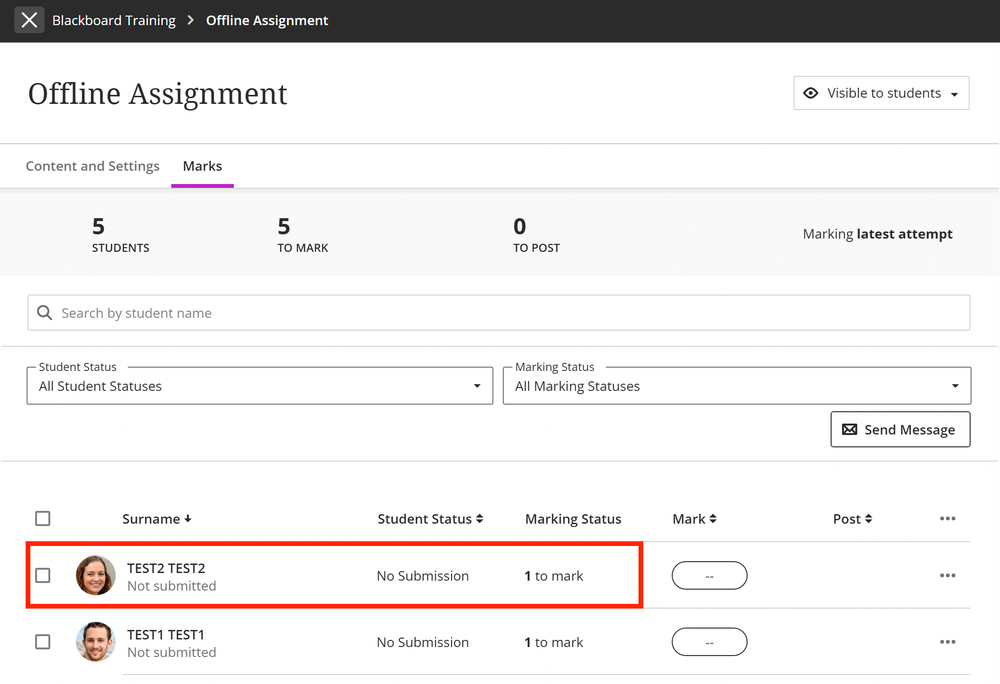
Once you can see the list of students, click on a student name to begin the marking process:
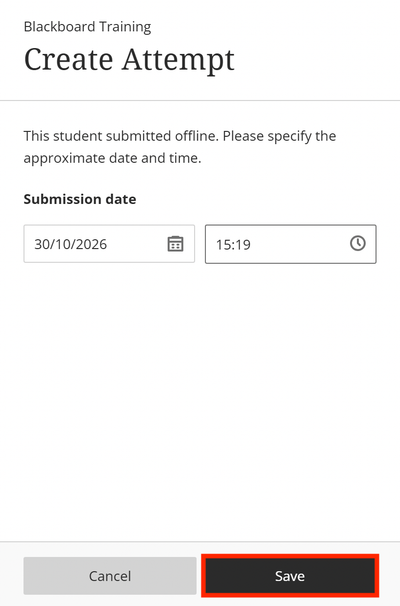
You will be prompted to enter the date and time that the attempt took place. Enter this information and click the Save button:
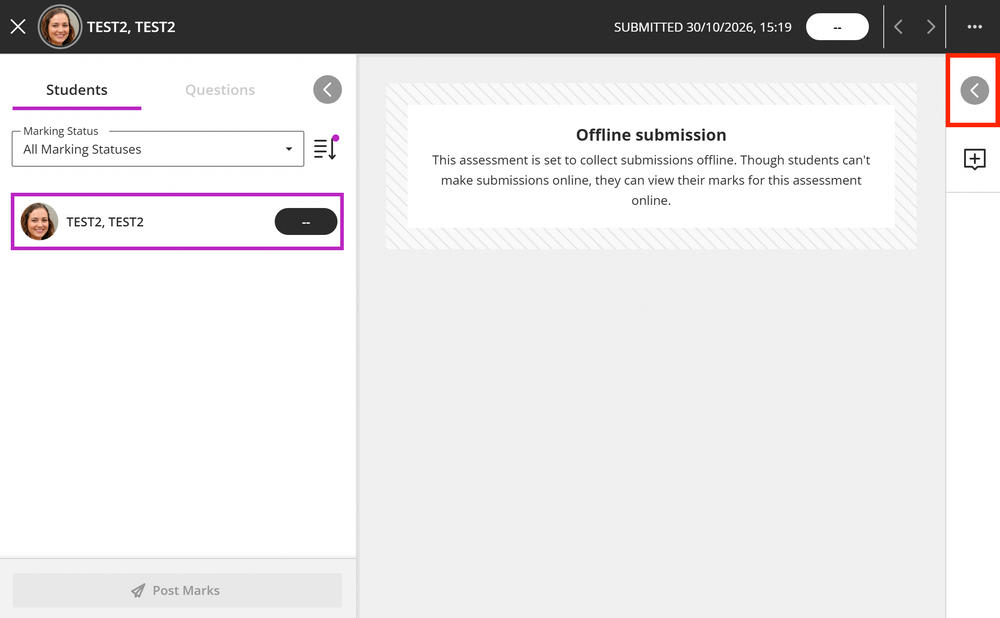
The submission will open, and you will be able to begin grading the assessment. Click on the Open feedback panel button at the right of the page so that you can begin adding feedback.
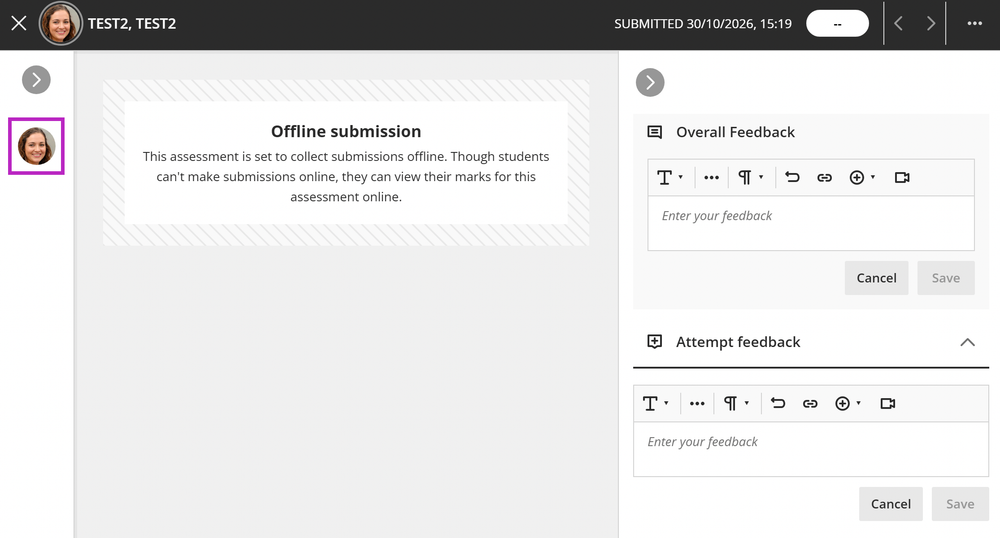
You should now see the feedback panel:
Add a Grade
Click on the grade pill at the top right of the page and enter a numeric score between 0-19 to use the UW grading schema:
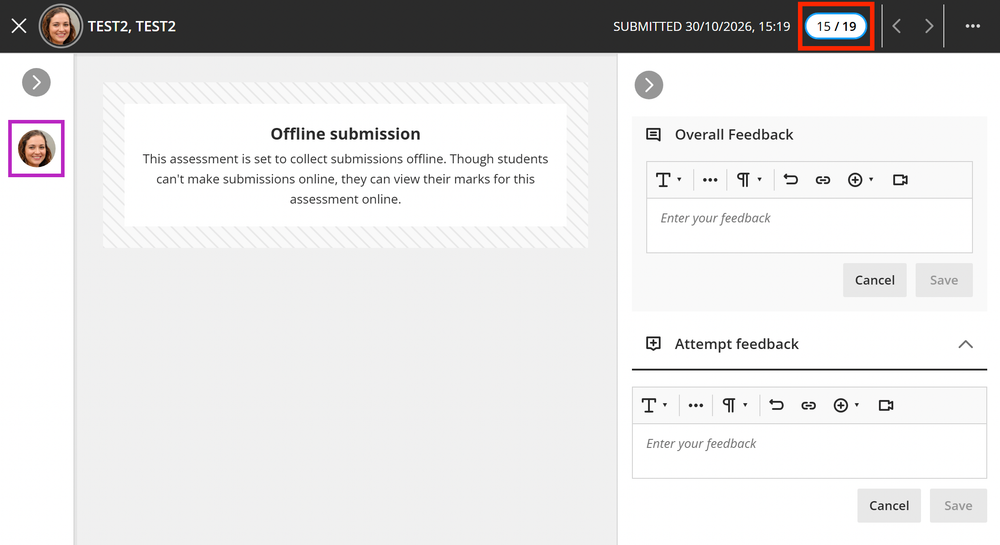
The numerical grade will be translated into a letter grade which will be used in the Gradebook.
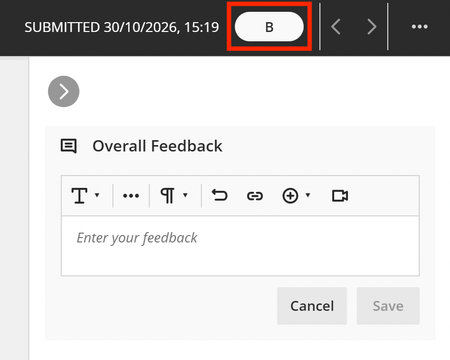
Add Feedback
Use the standard feedback text editor to add text, links, files or a video recording containing feedback in the same way as a standard Blackboard assignment:
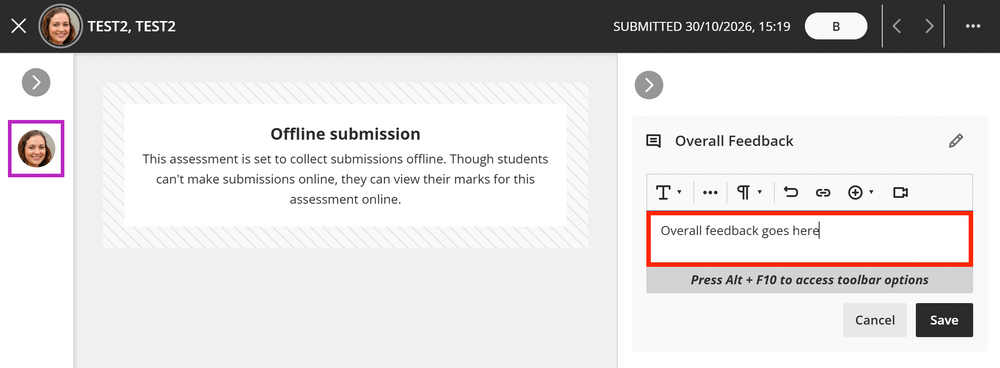
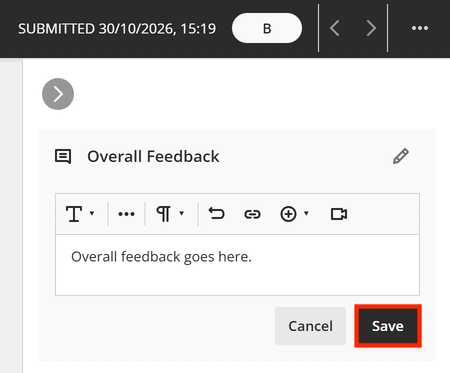
When you are ready you can complete the grading and feedback process for this paper by clicking the Save button:
Releasing Grades and Feedback
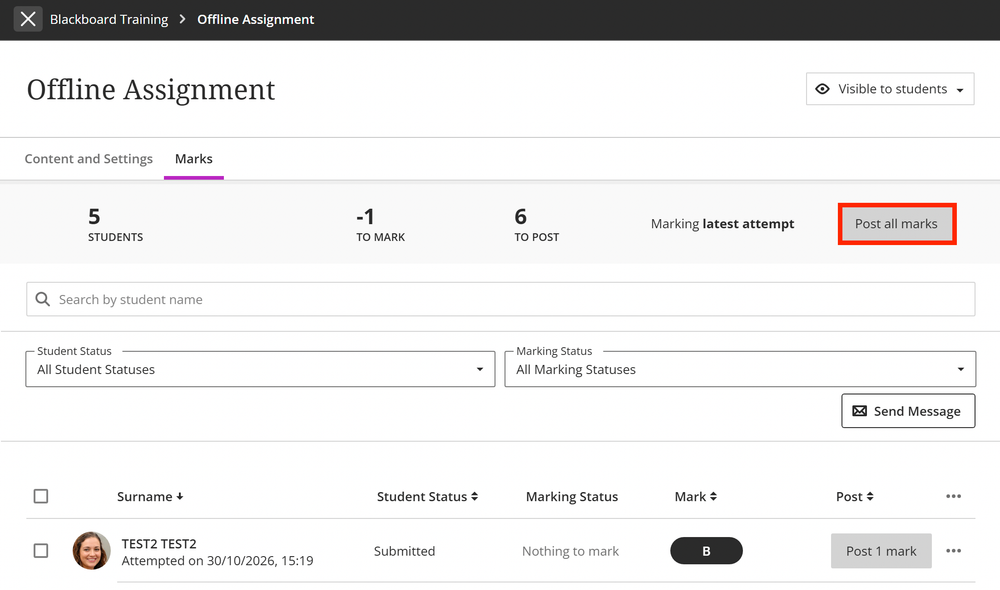
Once all assignments have been marked, you can release grades and feedback to students by clicking on the Post all marks button: