Blackboard Assignments
You can use the built in assignment submission tool to allow students to write assignments or upload documents that you can mark online.
Assignments can be set up for all students enrolled in a Blackboard module, groups of students, or where a single assessment requires large or multiple files to be submitted.
If you wish to generate a Turnitin originality score and report, but still add grades and feedback in Blackboard, you can activate this integration within the assignment settings. If you wish to use Turnitin Feedback Studio with Quickmarks to provide grading and feedback, you should use a dedicated Turnitin submission point instead.
Creating a Blackboard Assignment
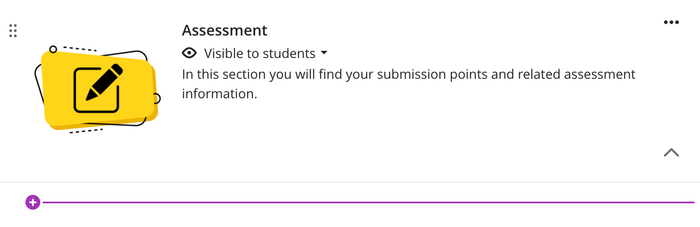
Locate the place where you wish to add the Assignment on the module content page (for example, within the Assessment learning module), and hover your mouse over one of the grey plus buttons on the left of the page, and when it turns purple, click the button:
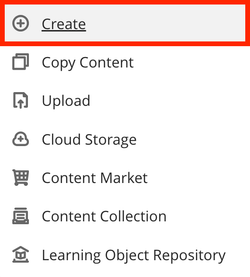
In the menu that appears, choose Create:
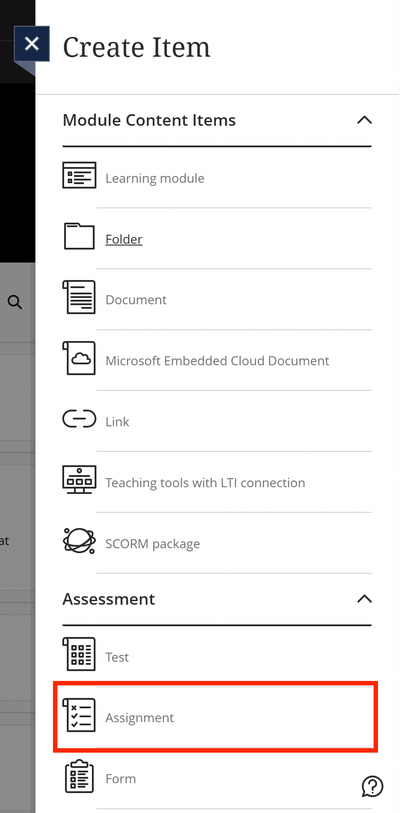
In the Create Item panel that opens, choose the Assignment option:
At the top left of the page, update the text field to add the title for the assignment that will appear in the content page. If you want to make this available to students immediately, be sure to choose the Visible to students option in the top right of the page:

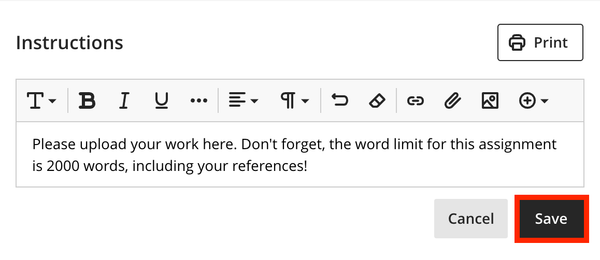
Type your instructions for the assignment into the text editor and click the Save button:
Assignment Settings
For each assignment you will need to amend the default settings. The following are the recommended settings for a standard Blackboard assignment.
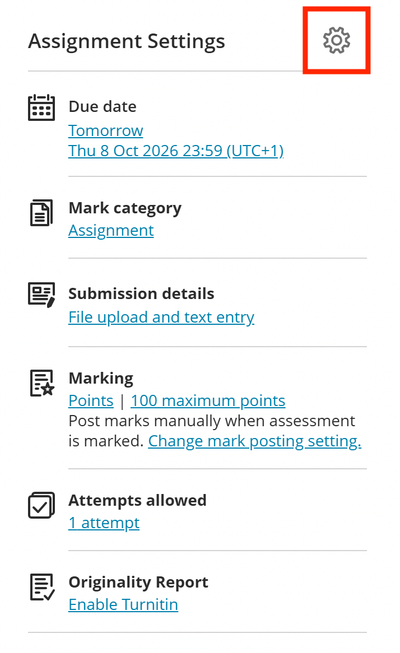
Click on the Assignment Settings cog icon at the top right of the assignment you are creating:
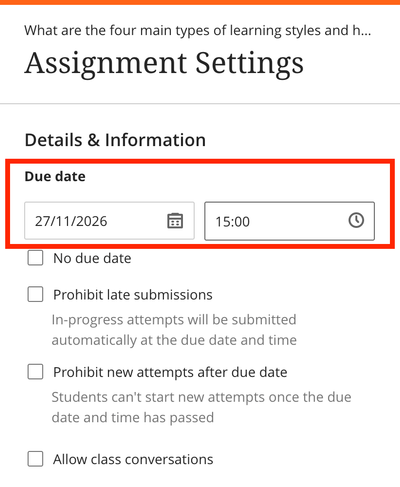
Set the due date and time for the assignment using the date and time pickers:
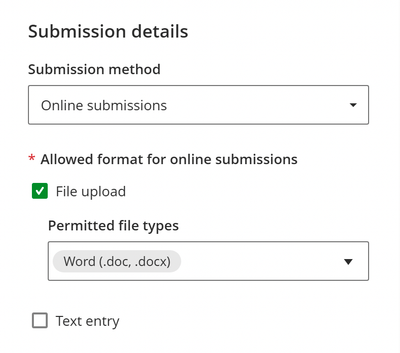
In the Submission details section, make sure the Online submissions option is selected. Beneath the Allowed format for online submissions text label select the File upload tickbox if students will be uploading their submission. In the Permitted file types dropdown box, select the file type(s) you want students to be able to submit. For example, you can mandate that the file should be a Word document, PowerPoint presentation, or a mixture of acceptable file types. This restriction makes it impossible for students to submit incorrect file types that cannot be processed by Blackboard, such as Apple Pages documents.
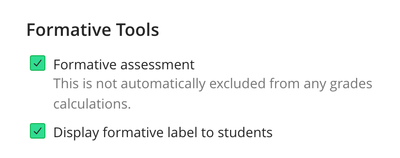
If it is a formative assignment, this can be set using the tick box options:
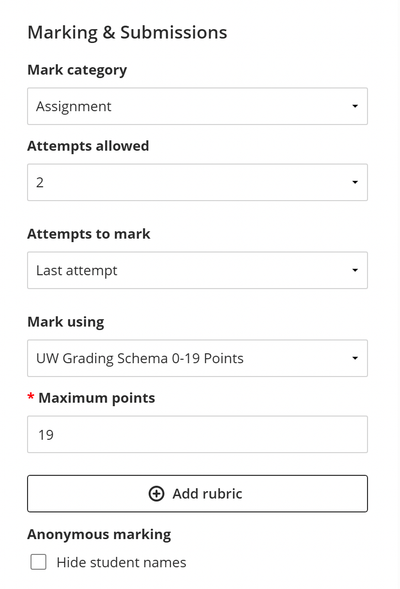
Marking and Submissions settings should be:
- Attempts allowed: 2
- Mark using: UW Grading Schema 0-19 points
- Maximum points: 19
- Anonymous marking: Hide student names - checked (if required)
- If you are using a rubric for this assignment, this can be added by clicking on the Add rubric button
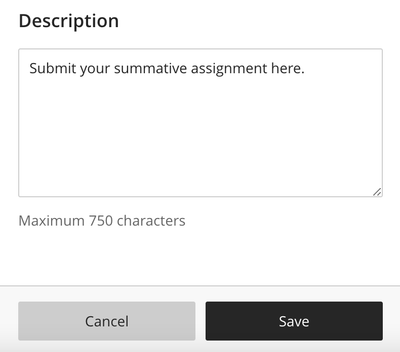
Finally, you should add some additional information for context about the assignment in the Description field at the bottom of the panel. This will appear with the assignment title on the Module Content page. Once all settings are updated as necessary, click the Save button:
The assignment is now set up and ready to use.
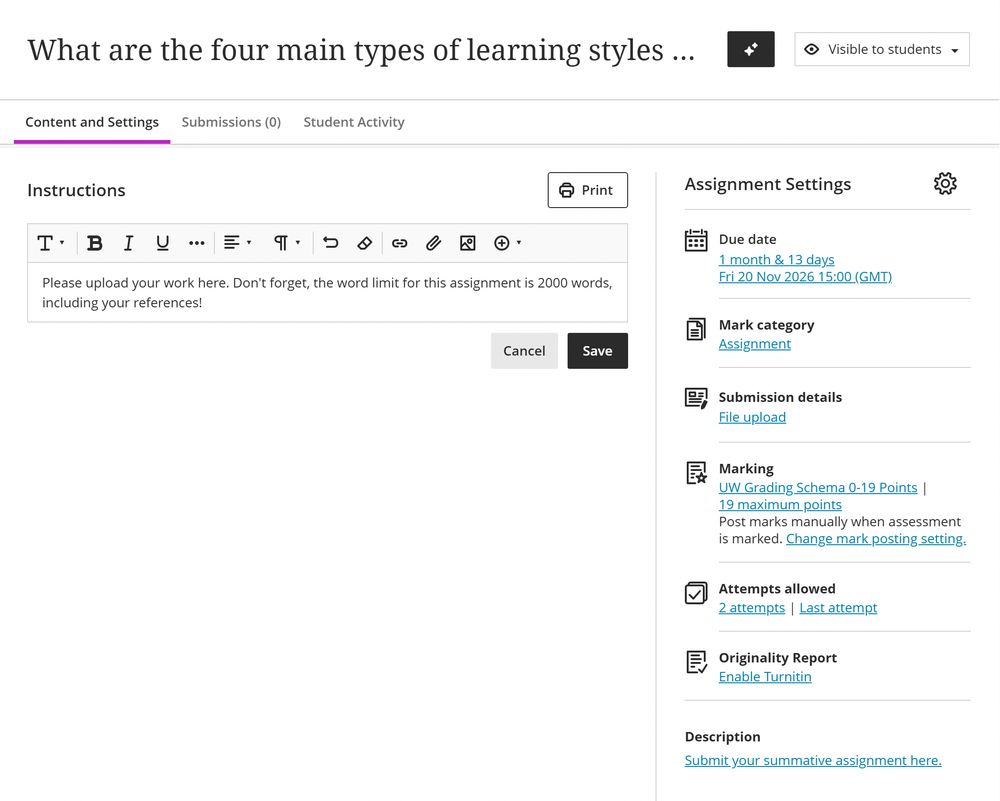
Close the window to view the module Content page with the assignment added:
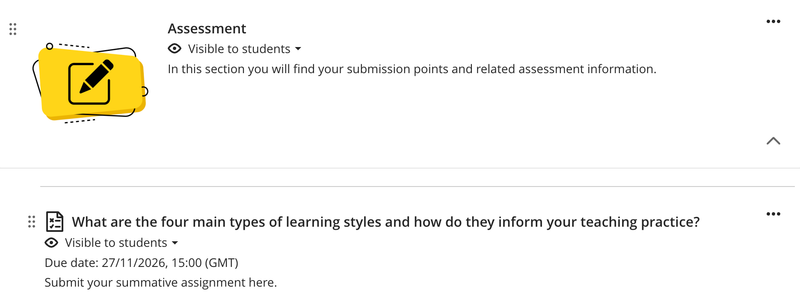
Remember, you can use Student Preview mode to check the assessment as a student to make sure it works as intended!
Turnitin Originality Reports
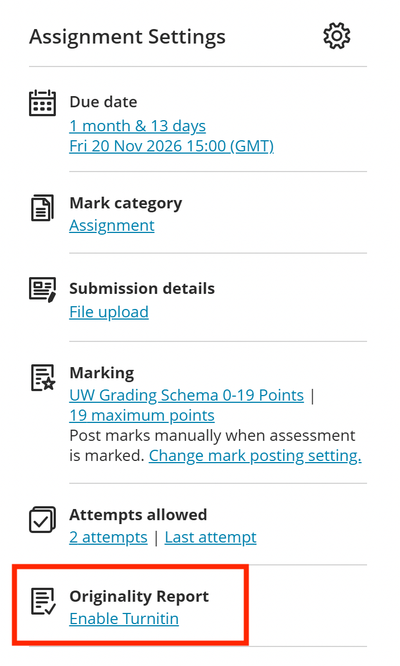
You can enable support for Turnitin originality reports in Blackboard during the initial assignment setup in the Additional Tools section, or after this is complete by selecting this option in the Assignment Settings:
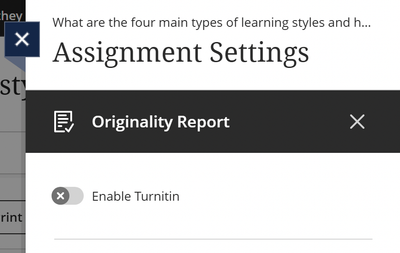
In the panel that opens on the right of the screen, click on the Enable Turnitin toggle switch:
The integration will load, and you can choose the settings you wish to use. For summative assessment, be sure to store the student submissions in the Standard paper repository. Formative assignments should use the setting Do not store the submitted papers.
In the Compare submissions against section, select all options:
- Student database
- Website content
- Periodicals, journals and publications
In the Similarity report section, choose if you want to exclude the bibliography or text in quotations, but make sure that you select the options for:
- Exclude small matches (fewer than 8 words)
- Allow students to view report after submitting
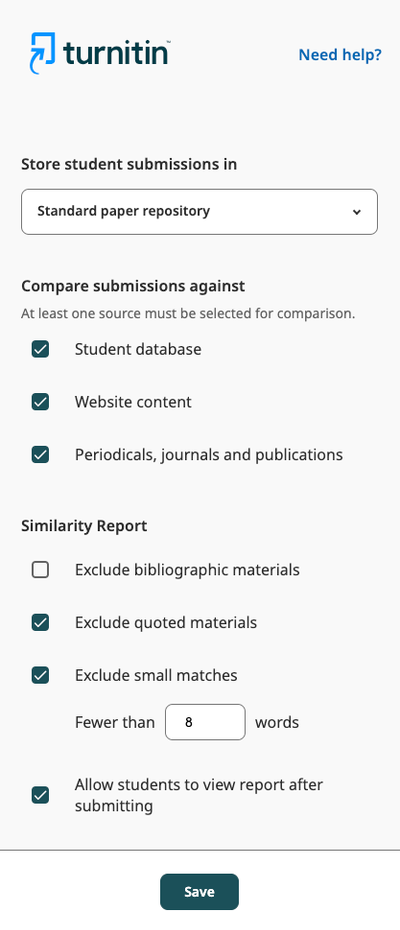
Click the Save button to confirm your Turnitin settings.
In the Assignment Settings panel, you will see that Turnitin has now been enabled. Click the Save button to complete the Turnitin integration setup.
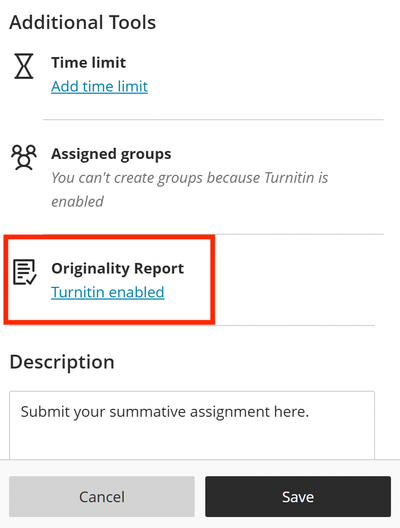
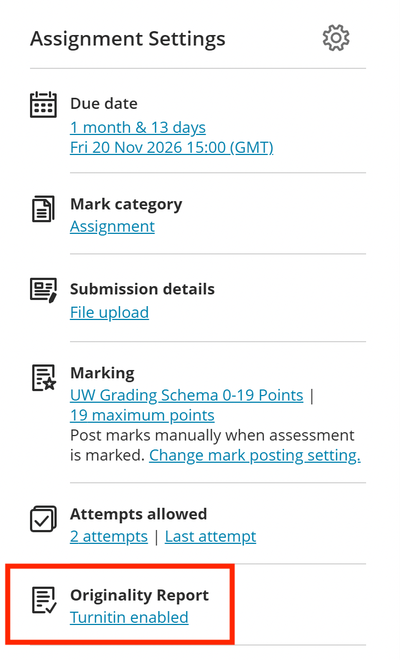
The Assignment Settings will now show that the Turnitin originality report is now enabled for this Blackboard assignment.
Group Assignments
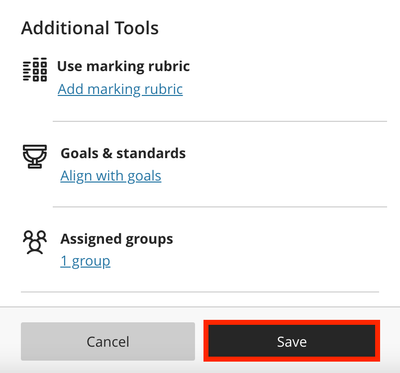
To turn the standard assignment into a group assignment, select the Assigned groups in the Additional Tools section of the assignment settings menu:
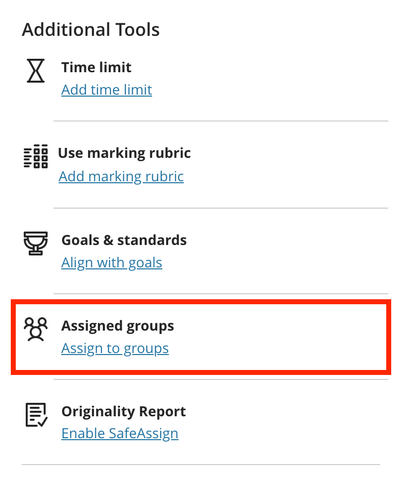
Groups cannot be used with Turnitin originality reports!
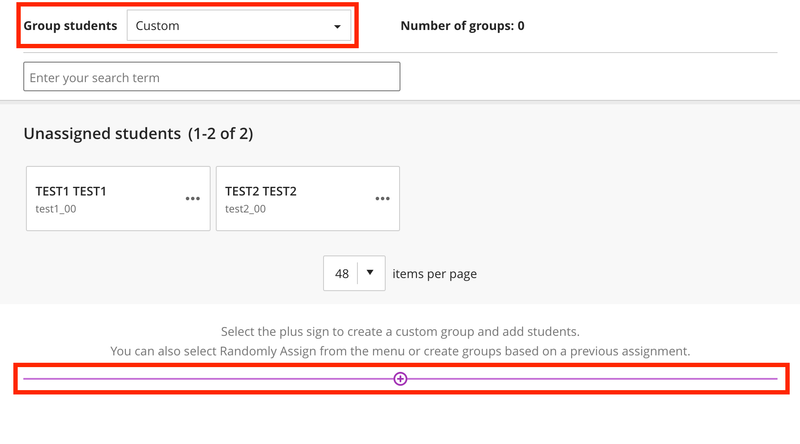
If you already have groups set up, you can use these by selecting them from the Group students dropdown menu. If not, you can create your groups now. To do this click on the purple add content button which is displayed as a plus icon:
Next, add a name for the group as well as a group description:
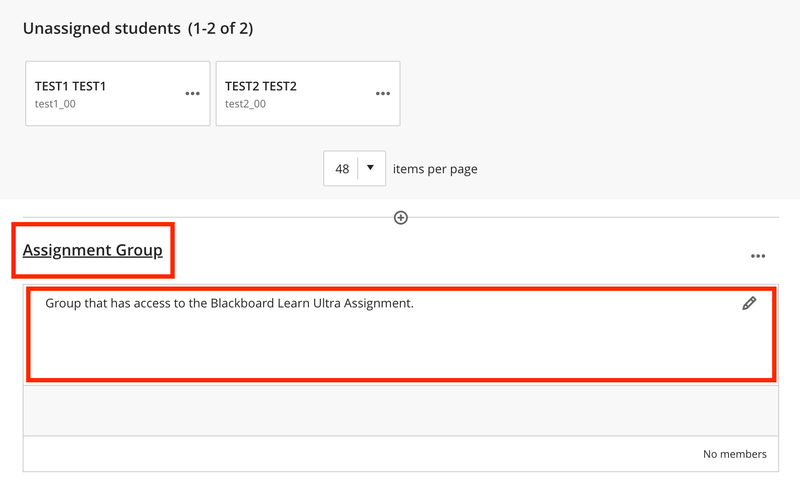
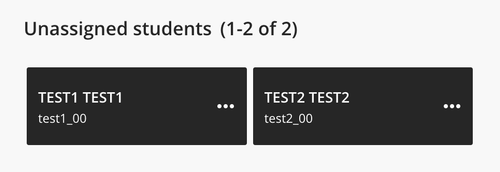
Select the names of the students you want in the group by clicking on their names. Once selected these will turn black:
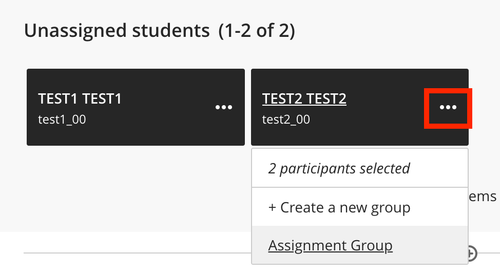
Once all students are selected, click on the three dots icon next to any of the student names. The dropdown menu that appears will confirm how many students are selected. Click on the group you wish to assign them to:
You should see that the students have now been added to the group. Click the Save button to confirm the group setup:
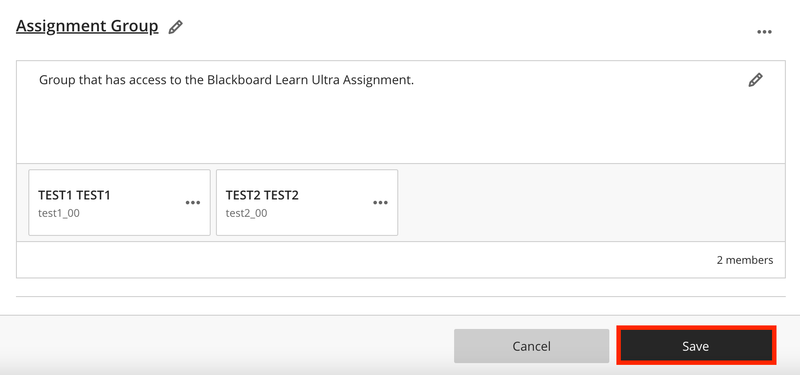
Click the Save button to save your changes:
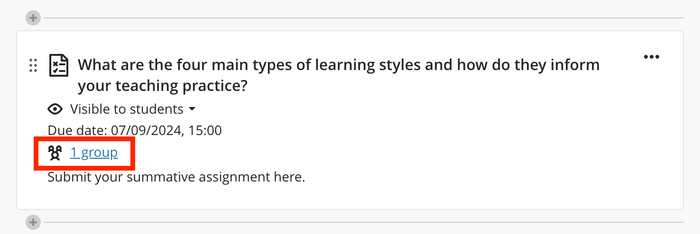
On the main content page, you will now see that the assignment is now a group assignment:
Allowing Additional Attempts
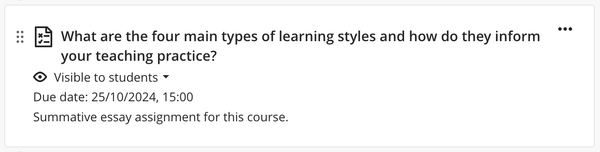
Although the standard recommended number of attempts is no more than two, it may be necessary to provide an additional attempt for students that have already made two submissions, but require a final attempt to be uploaded. To do this, access the assignment submission link:
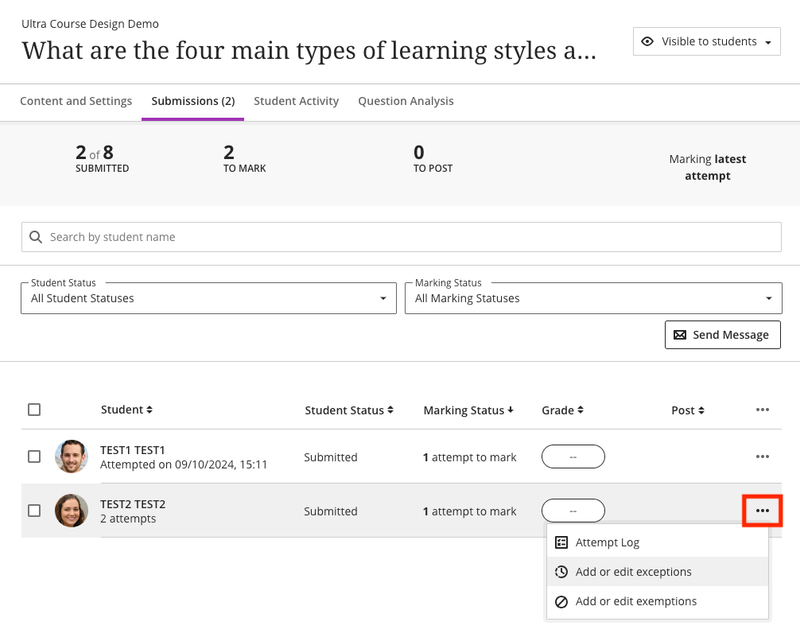
Click on the Submissions filter tab:

Click on the More options button to the right of the screen with the three horizontal dots, for the student in question and select Add or edit exceptions:
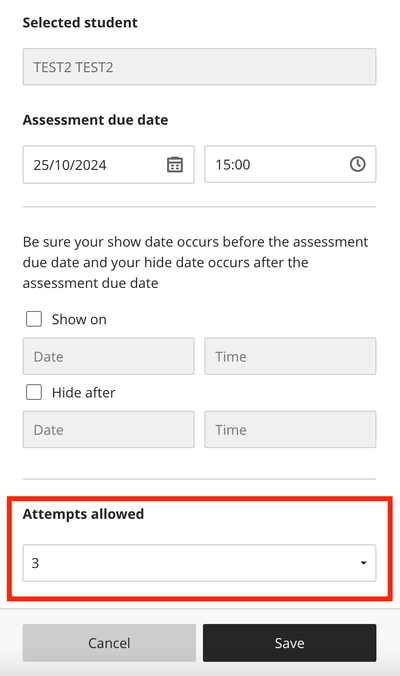
Update the number of Attempts allowed from the dropdown and click the Save button to update the number of attempts for this student.
You will now see a clock icon next to the student's name denoting that they have been granted an exception - in this case, an additional attempt: