Grading Ultra Assignments
Learn Ultra assignments allow you to add a numerical grade, overall feedback as well as annotations on each page of the paper. If you are using rubrics, these can also be used to add feedback and apply grades.
Locating Work to Grade
There are a number of ways to find the assignments that you need to grade. These can be found on the main dashboard, as well as from within courses from the submission point or from the course Gradebook.
From the Dashboard
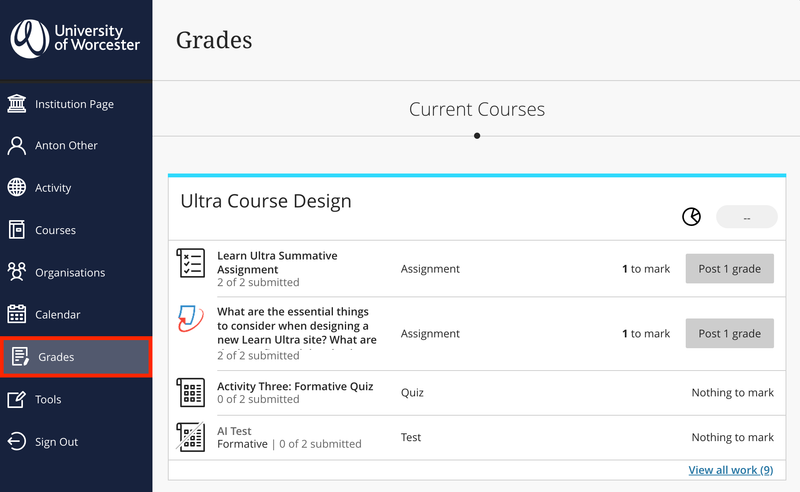
Submissions will be listed in your Activity menu when available, but they can also be found by clicking on the Grades menu in the main dashboard:
This will display all courses you have access to, as well as which assessments have been marked, and which have yet to be graded. Click on the assignment that you want to mark.
You will then be taken directly to the assignment in the course, ready to begin marking (Turnitin assignments open directly for marking in Feedback Studio).
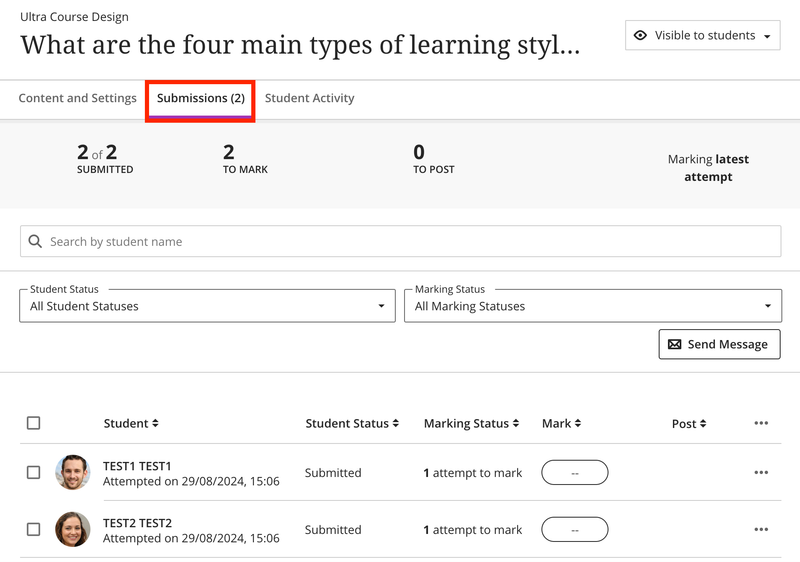
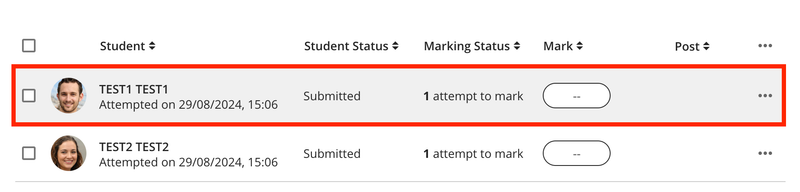
Click on the row containing the assignment to mark:
From the Gradebook
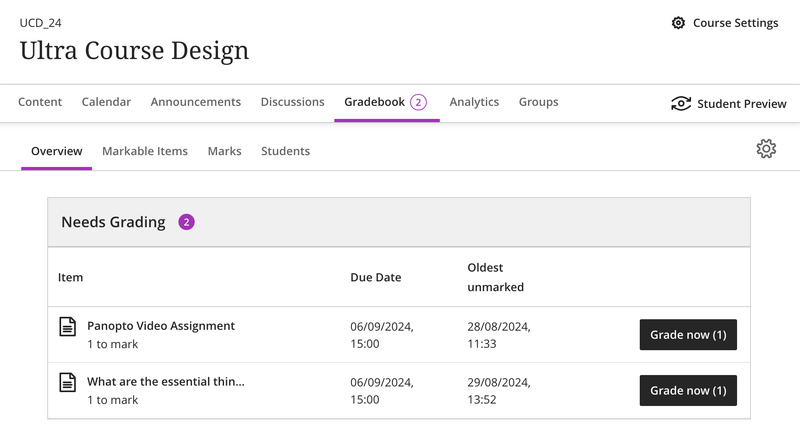
You can also access submissions from within the course by clicking on the Gradebook tab at the top of the page. In this overview page, you will see all of the assessments that need grading. Click on the Grade now buttons to begin marking.
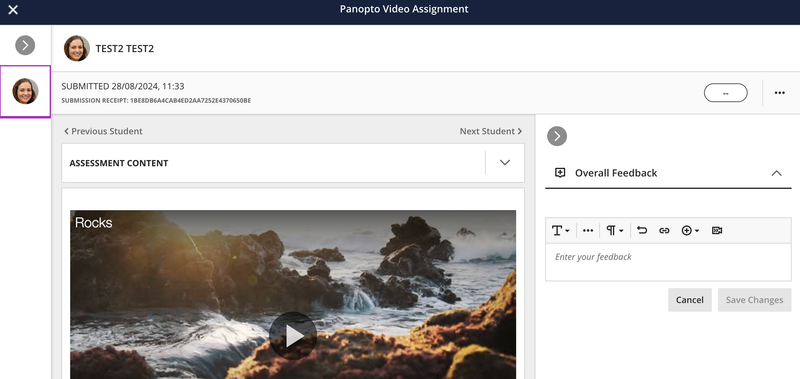
The assessment will open, ready for marking:
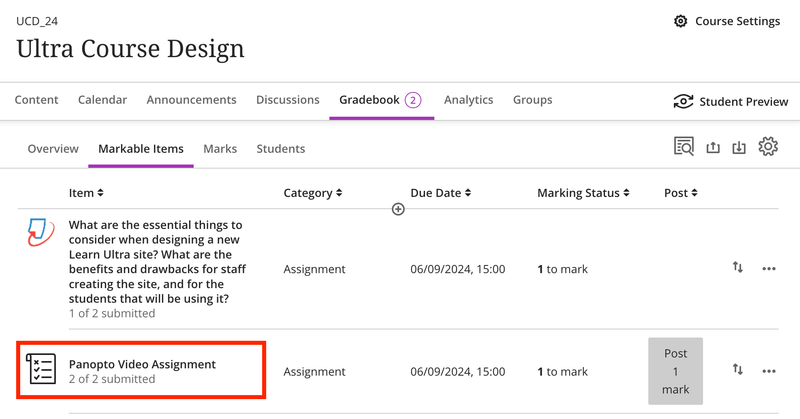
You can also choose to filter by Markable Items to view these details in a list form. Click on the Item name of the assessment to begin marking:
Accessing from the Submission Point
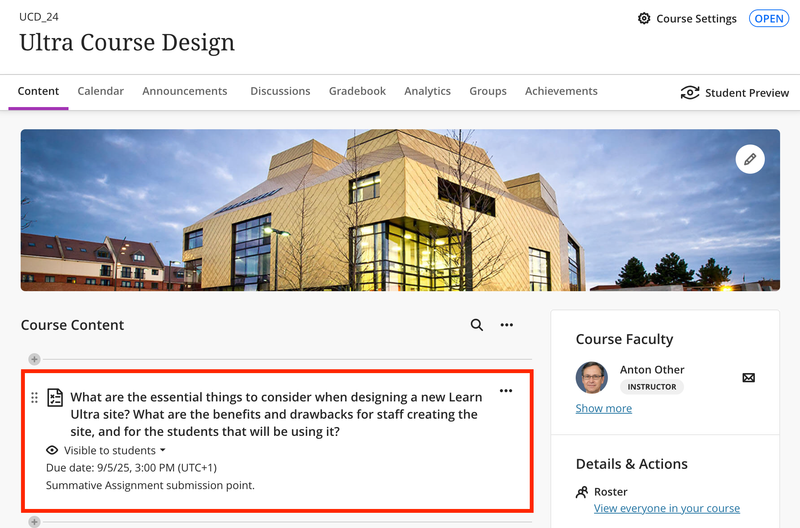
You can go directly to an assignment within a course to begin the grading process by clicking on the link to the submission point:
Then select the Submissions tab:
Adding Grades
As each Learn Ultra assignment should be set up using the standard UW Grading Schema 0-19 Points, you can add a numerical value from 0-19 to assessments which will appear as a letter grade once saved. See the table below to see the letter grade to grade points conversion:
| Letter Grade | Grade Points |
|---|---|
A + |
19 |
A |
18 |
A - |
17 |
B + |
16 |
B |
15 |
B - |
14 |
C + |
13 |
C |
12 |
C - |
11 |
D + |
10 |
D |
9 |
D - |
8 |
E |
7 |
F |
5 |
G |
2 |
H |
0 |
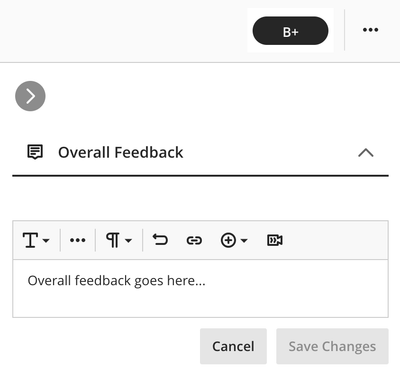
You can add the numerical value for the letter grade you want to add in the pill icon in the top right of the screen.
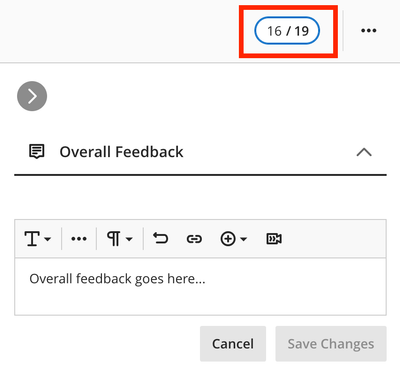
Click anywhere on the page to save the grade. The numerical grade you have just added will then be converted to a letter grade that students will also see when the grades are released to them.
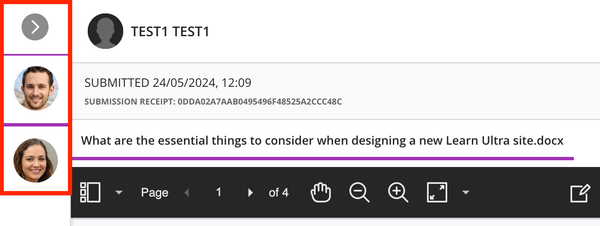
Navigate to the next paper by clicking on the student profile icons in the left of the page:
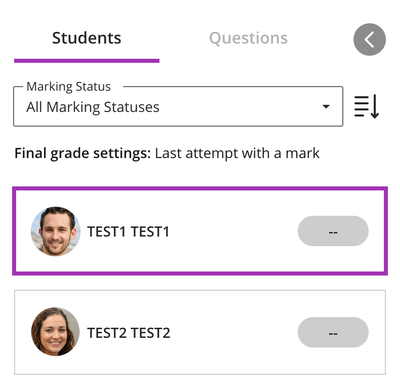
You can also expand this panel to reveal student names by clicking on the grey circle with a white chevron at the top of the panel:
Adding Overall Feedback
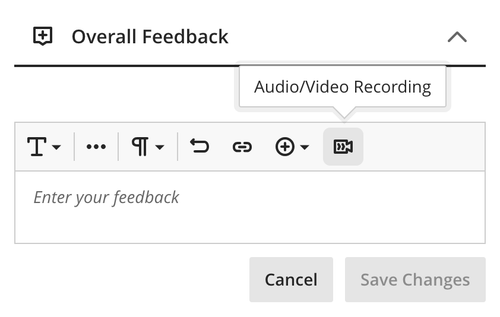
When the paper opens for grading, you can record overall feedback for the paper in the panel on the right of the page:
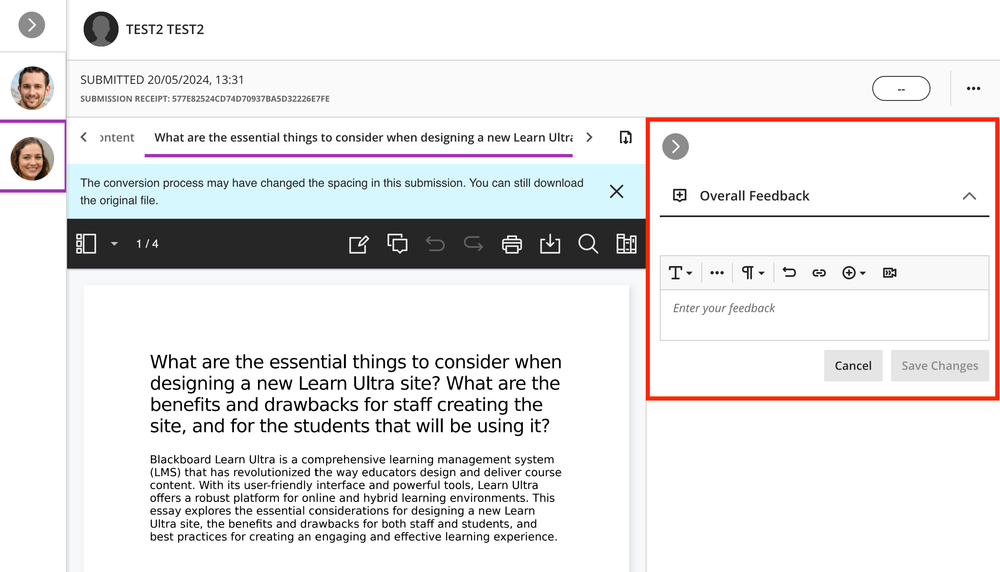
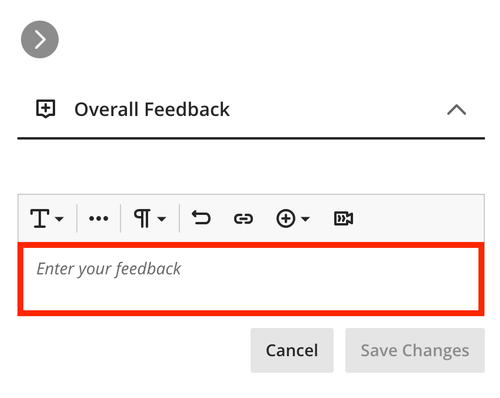
Type your text into the Feedback field and click the Save Changes button to confirm.
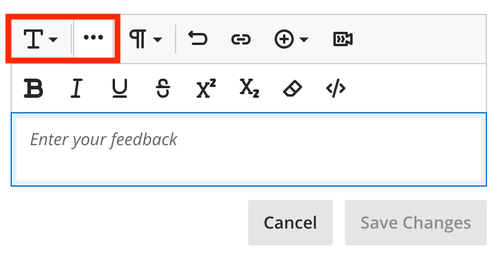
You can use the text formatting toolbar buttons in the top left of the editor to change the font, font size and other text styling options.
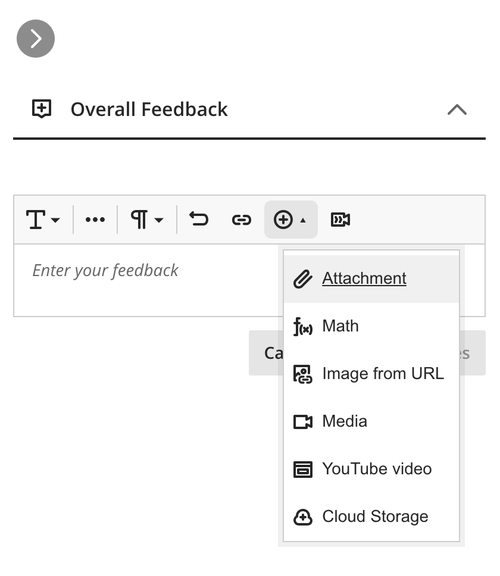
Use the Insert Content button in the editor (the button with the plus icon) to add an attachment such as a Word or PDF document:
You can also use the Audio/Video Recording button at the right of the toolbar, with a camera icon to record some short video feedback for this assignment using your webcam:
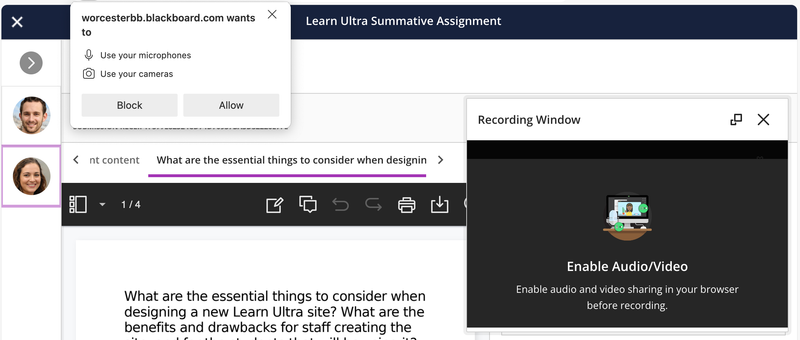
Be sure to allow your browser to use your microphone and camera to allow this functionality:
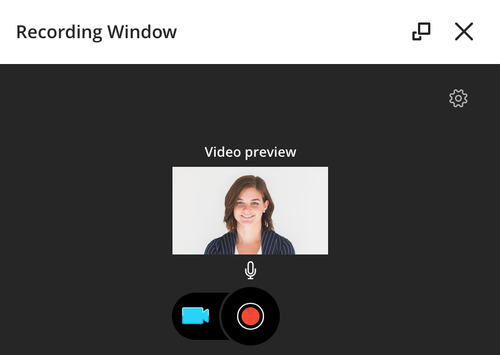
Click the red record button to begin recording your video feedback.
Grading Tools
You can also use the onscreen annotation tools to add feedback directly to the paper itself.
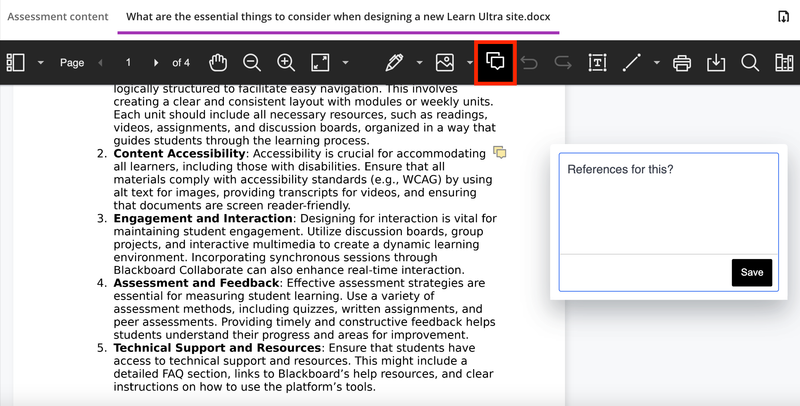
Click the Comment button, with the speech bubble icon to add your comments in a text box, which will sit on the right of the page once you click the Save button:
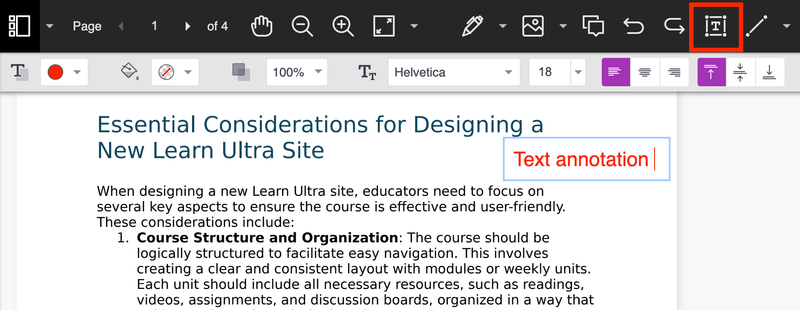
Click on the Text toolbar button, which has the letter T in a white square to be able to type text on the page. You can use the contextual toolbar to change the font, text size and text colour.
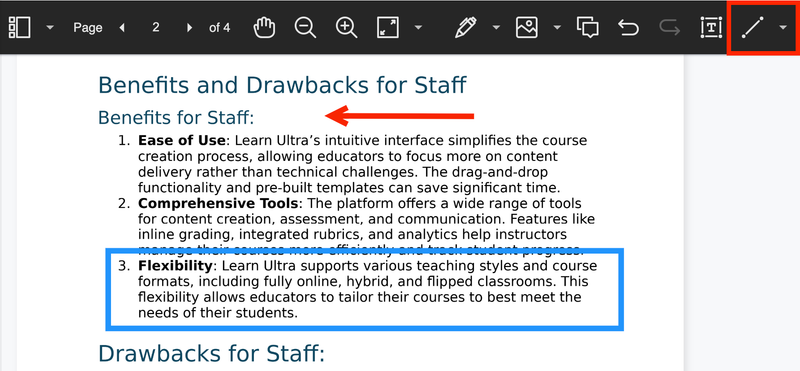
You can add a shape or line annotation by clicking on the Shape button, which looks like a white diagonal line. You can use this to add a line, arrow, rectangle or ellipse on the page. Combine this with the text tool to draw attention to parts of the page.
Grading with a Rubric
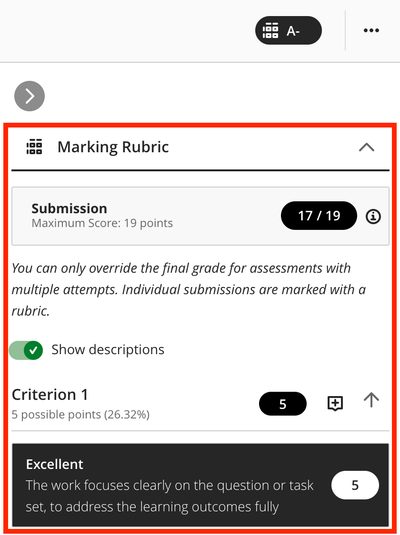
If you are using a rubric to grade assignments, this will appear in the top right of the feedback panel. Scroll down to view the full rubric and select the sections you wish to use for feedback. Points for the assignment will be applied automatically.
Posting Grades
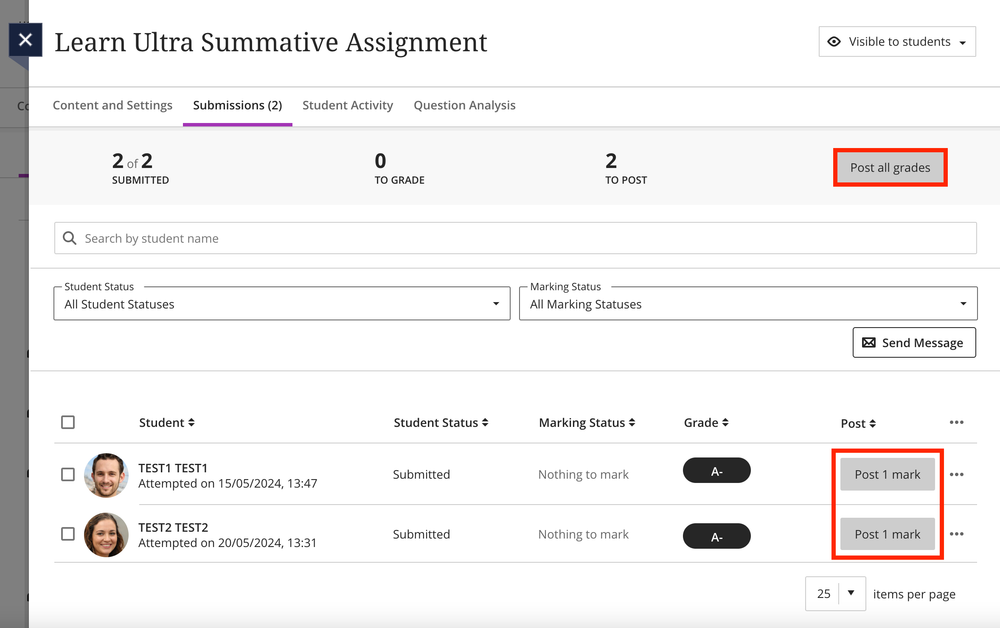
When all grading and feedback is complete, you can Post these to students so that they can access them. You can do this by clicking the Post all grades button to post all grades to all students for this assignment, or you can post grades individually to students by clicking the Post 1 mark button to the right of the grade that has been assigned for that student: